Running a WordPress database search and replace with WP-CLI is the safer shell path when a domain, protocol, upload path, or stored hostname changes after a migration. WP-CLI can rewrite values across posts, options, metadata, and user records without opening phpMyAdmin or hand-editing SQL.
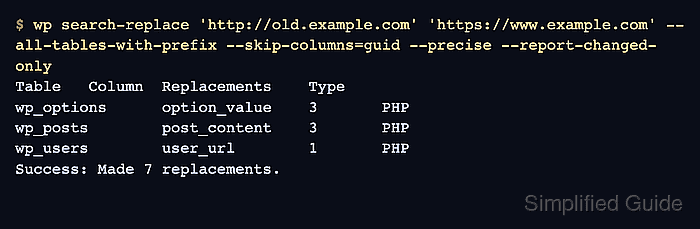
wp search-replace searches the tables registered to the active WordPress install by default, handles PHP serialized data, and leaves primary keys unchanged. In production, table scope and skipped columns matter because a broad replacement can touch plugin records, feed identifiers, and historical content that should stay unchanged.
Shell access in the active document root, a working wp command, and a rollback SQL dump outside the web root are the starting point before any write. On multisite, choose the target site before running a site-specific replacement, and plan a cache purge when a persistent object cache or page cache can keep old values visible after the database write.
Steps to search and replace a WordPress database with WP-CLI:
- Change into the active WordPress document root.
$ cd /var/www/example.com/public_html
Run the remaining wp commands from the directory that contains the active /wp-config.php/ file. In scripts or shared shells, use --path=/var/www/example.com/public_html instead of trusting the inherited directory.
Related: How to use WP-CLI safely on a production WordPress site - Confirm that WP-CLI is targeting the intended site.
$ wp option get home
http://old.example.com
On multisite, add --url=https://www.example.com to the remaining commands so the replacement runs against the intended site instead of the network default.
- Create a private backup directory outside the public document root.
$ mkdir -p ~/backups/wordpress
Do not store SQL dumps under public_html, /var/www/html, or another web-served path. A rollback file can contain posts, users, email addresses, plugin settings, and tokens.
- Export a rollback copy of the database before replacing anything.
$ wp db export ~/backups/wordpress/pre-search-replace-20260329124500.sql
Success: Exported to '/home/user/backups/wordpress/pre-search-replace-20260329124500.sql'.
wp db export reads database credentials from the active /wp-config.php/ file and calls the host MySQL or MariaDB dump client.
Related: How to back up a WordPress site
Related: How to restore a WordPress site - Run a dry-run replacement and review the affected tables before writing changes.
$ wp search-replace 'http://old.example.com' 'https://www.example.com' --all-tables-with-prefix --skip-columns=guid --precise --dry-run --report-changed-only
Table	Column	Replacements	Type
wp_options	option_value	3	PHP
wp_posts	post_content	3	PHP
wp_users	user_url	1	PHP
Success: 7 replacements to be made.
--all-tables-with-prefix includes plugin tables that share the WordPress table prefix. Use explicit table names instead when only one plugin table should be touched.
Stop if the dry run includes an unexpected table, column, or replacement count. The preview is the last safe checkpoint before the database changes.
- Apply the same replacement after the dry-run scope is correct.
$ wp search-replace 'http://old.example.com' 'https://www.example.com' --all-tables-with-prefix --skip-columns=guid --precise --report-changed-only
Table	Column	Replacements	Type
wp_options	option_value	3	PHP
wp_posts	post_content	3	PHP
wp_users	user_url	1	PHP
Success: Made 7 replacements.
Avoid raw SQL string replacement for this job. Serialized option, widget, block, and metadata values can break when string lengths are not recalculated.
- Flush the WordPress object cache after the database write.
$ wp cache flush
Success: The cache was flushed.
On multisite with a persistent object cache, this can flush cache entries for all sites. Purge any host page cache, plugin cache, CDN, or reverse proxy layer through its normal control surface as well.
- Re-run the dry-run command until the old value reports zero pending replacements.
$ wp search-replace 'http://old.example.com' 'https://www.example.com' --all-tables-with-prefix --skip-columns=guid --precise --dry-run --report-changed-only
Success: 0 replacements to be made.
Repeat the check for any second old value when home and siteurl differed, when a CDN hostname also changed, or when a plugin stores both root and subdirectory URL forms.
- Confirm the active WordPress value that should now expose the replacement.
$ wp option get home
https://www.example.com
For non-URL replacements, use the equivalent content, option, or plugin-specific check. After URL rewrites, open the front page, wp-admin, and a media-heavy page to catch hard-coded theme files, stale page-builder output, or cache layers that do not live in the database.

Mohd Shakir Zakaria is a cloud architect with deep roots in software development and open-source advocacy. Certified in AWS, Red Hat, VMware, ITIL, and Linux, he specializes in designing and managing robust cloud and on-premises infrastructures.


