HTTP compression reduces the number of bytes transferred for text responses such as plain-text documents, JSON payloads, and generated reports. That usually matters most on slower links or repetitive scripted downloads where the payload compresses well.
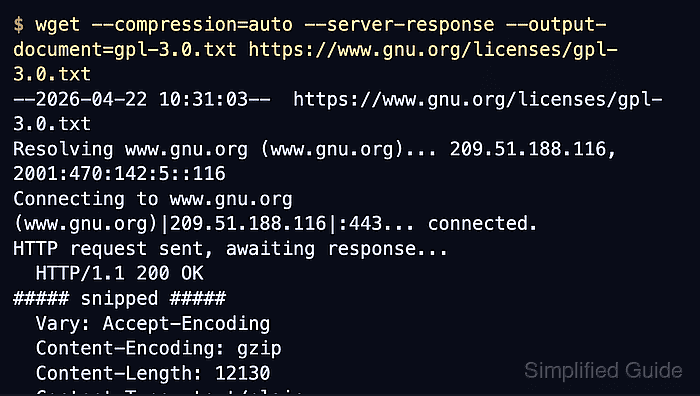
In GNU wget, --compression=auto and --compression=gzip ask the server for gzip-compressed HTTP content, and wget expands the response back into a normal local file when the server replies with Content-Encoding: gzip. --compression=none asks for the identity response on current builds and tells wget not to decompress a server-encoded response.
Use compression for text-heavy HTTP downloads, not for archives or checksum-sensitive transfers where you need the exact bytes sent on the wire. Servers can also ignore the request, so the transfer is only compressed when the remote endpoint chooses to send a compressed response.
Steps to use download compression in wget:
- Confirm that the local wget build supports compression control and note the default mode.
$ wget --help
##### snipped #####
       --compression=TYPE          choose compression, one of auto, gzip and none. (default: none)
##### snipped #####
The default none mode means wget will not ask the server for compressed HTTP content until you enable it explicitly.
- Download a text response with compression enabled and inspect the server response.
$ wget --compression=auto --server-response --output-document=report-compressed.txt http://downloads.example.net/report.txt
--2026-06-06 10:21:00--  http://downloads.example.net/report.txt
Connecting to downloads.example.net... connected.
HTTP request sent, awaiting response...
  HTTP/1.0 200 OK
  Vary: Accept-Encoding
  Content-Encoding: gzip
  X-Original-Content-Length: 24480
  Content-Length: 307
  Content-Type: text/plain
Length: 307 [text/plain]
Saving to: 'report-compressed.txt'

##### snipped #####
2026-06-06 10:21:00 (45.0 MB/s) - 'report-compressed.txt' saved [24480]
The Content-Encoding: gzip header confirms that the transfer used gzip. The smaller Content-Length is the encoded transfer size, while the larger saved byte count shows that wget expanded the response before writing the file.
- Confirm that the saved file is ordinary text after the download completes.
$ file report-compressed.txt
report-compressed.txt: CSV ASCII text
- Compare the same URL with compression disabled.
$ wget --compression=none --server-response --output-document=report-plain.txt http://downloads.example.net/report.txt
--2026-06-06 10:21:00--  http://downloads.example.net/report.txt
Connecting to downloads.example.net... connected.
HTTP request sent, awaiting response...
  HTTP/1.0 200 OK
  Vary: Accept-Encoding
  X-Original-Content-Length: 24480
  Content-Length: 24480
  Content-Type: text/plain
Length: 24480 (24K) [text/plain]
Saving to: 'report-plain.txt'

##### snipped #####
2026-06-06 10:21:00 (2.16 GB/s) - 'report-plain.txt' saved [24480/24480]
No Content-Encoding header and matching transfer and saved sizes mean the server sent the plain response without gzip compression.
Add --debug when you need to inspect the request itself. Current GNU Wget sends Accept-Encoding: gzip with auto or gzip, and Accept-Encoding: identity with none.
- Remove the temporary files after the test.
$ rm report-compressed.txt report-plain.txt
Use --compression=none for archive downloads or checksum comparisons where transparent decompression would change the saved bytes.