Some downloads only work after a site sets the same session or application cookies that a browser, login helper, or earlier HTTP client already received. Replaying those values in wget lets you test or repeat the protected request directly from the command line without rebuilding the full sign-in flow each time.
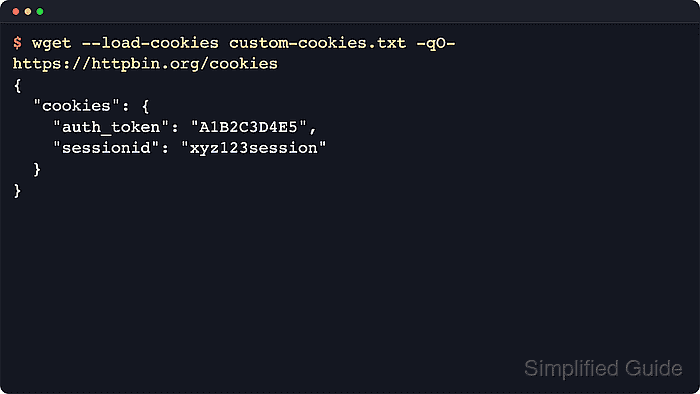
GNU wget can send custom cookies in two practical ways. --load-cookies reads a Netscape-format cookie jar and still applies the stored domain, path, secure, and expiry rules, while --header='Cookie: ...' sends one raw cookie line exactly as written for a narrow one-off request.
Copied cookies should be treated like temporary credentials. Store cookie jars in a private path, keep raw Cookie headers out of shared shell history when possible, confirm that the response body is really the authenticated result you expected, and remove the cookie material when the check is finished.
Related: How to save session cookies in wget
Related: How to send custom headers with wget
Tool: Wget Command Generator
Steps to use custom cookies with wget:
- Write the custom cookies in Netscape cookie-file format under a private directory when you want wget to honor normal cookie scope rules.
$ install -d -m 700 "$HOME/.local/share/wget/cookies"
$ cat > "$HOME/.local/share/wget/cookies/custom-cookies.txt" <<'EOF'
# HTTP Cookie File

httpbin.org	FALSE	/	FALSE	0	download_session	sess_01JQF6Z2M9R4********5T7V8W1X3Y
httpbin.org	FALSE	/	FALSE	0	csrf_token	v1%3Acsrf_01JQF6Z2M9R4********8K2N5P7Q1R
EOF
$ chmod 600 "$HOME/.local/share/wget/cookies/custom-cookies.txt"
The fields are domain, include-subdomains flag, path, secure flag, expiry time, cookie name, and cookie value. GNU wget also recognizes an expiry value of 0 as a session cookie when it loads the jar.
- Review the file before you use it so the domain, path, names, and values match the request you want to replay.
$ cat "$HOME/.local/share/wget/cookies/custom-cookies.txt"
# HTTP Cookie File

httpbin.org	FALSE	/	FALSE	0	download_session	sess_01JQF6Z2M9R4********5T7V8W1X3Y
httpbin.org	FALSE	/	FALSE	0	csrf_token	v1%3Acsrf_01JQF6Z2M9R4********8K2N5P7Q1R
If the target URL does not match the cookie domain or path, wget will not send that row from the jar.
- Load the jar with --load-cookies and confirm that the remote service receives the custom values.
$ wget --load-cookies "$HOME/.local/share/wget/cookies/custom-cookies.txt" \
  --quiet --output-document=- https://httpbin.org/cookies
{
  "cookies": {
    "csrf_token": "v1%3Acsrf_01JQF6Z2M9R4********8K2N5P7Q1R",
    "download_session": "sess_01JQF6Z2M9R4********5T7V8W1X3Y"
  }
}
Use the jar method when you want wget to apply the same cookie scope rules that a browser-style cookie file carries.
- Send a raw Cookie: header for a single short request when you do not have a Netscape-format jar.
$ wget --no-cookies \
  --header='Cookie: download_session=sess_01JQF6Z2M9R4********5T7V8W1X3Y; csrf_token=v1%3Acsrf_01JQF6Z2M9R4********8K2N5P7Q1R' \
  --quiet --output-document=- https://httpbin.org/cookies
{
  "cookies": {
    "csrf_token": "v1%3Acsrf_01JQF6Z2M9R4********8K2N5P7Q1R",
    "download_session": "sess_01JQF6Z2M9R4********5T7V8W1X3Y"
  }
}
A raw Cookie: header bypasses the jar's domain, path, secure, and expiry handling, so keep it limited to one-off checks instead of unattended reuse.
Related: How to send custom headers with wget
- Remove the temporary cookie file after you verify the authenticated response.
$ rm -f "$HOME/.local/share/wget/cookies/custom-cookies.txt"
Anyone who can read the file can usually replay the same session until the site expires or revokes it.

Mohd Shakir Zakaria is a cloud architect with deep roots in software development and open-source advocacy. Certified in AWS, Red Hat, VMware, ITIL, and Linux, he specializes in designing and managing robust cloud and on-premises infrastructures.


