A Tomcat HTTPS connector needs two things to work at runtime: a TLS certificate with its private key, and a connector configuration that the Tomcat service account can read. When Tomcat terminates TLS directly on a port such as 8443, a restart is not enough proof until a client receives an HTTPS response from that connector.
Current Tomcat connectors support nested SSLHostConfig and Certificate elements for TLS material. A PKCS#12 keystore is a good default for new Java TLS stores, and setting the key alias explicitly prevents Tomcat from choosing an unintended key when a keystore later contains more than one private key entry.
The commands use the Ubuntu and Debian package layout with /etc/tomcat10/server.xml, /var/lib/tomcat10 as CATALINA_BASE, and the tomcat10 systemd service. For a tarball install, place the keystore under $CATALINA_BASE/conf and edit $CATALINA_BASE/conf/server.xml instead; relative certificate paths in Tomcat connector configuration resolve from CATALINA_BASE.
Steps to configure HTTPS in Tomcat with a Java keystore:
- Confirm the packaged Tomcat base path before editing.
$ systemctl show tomcat10 -p Environment
Environment=CATALINA_HOME=/usr/share/tomcat10 CATALINA_BASE=/var/lib/tomcat10 CATALINA_TMPDIR=/tmp JAVA_OPTS=-Djava.awt.headless=true
If the service name is not tomcat10, use the unit that starts the target Tomcat instance. The connector edit must go into the server.xml loaded by that instance, not a sample file from another install.
- Back up the current Tomcat server configuration.
$ sudo cp /etc/tomcat10/server.xml /etc/tomcat10/server.xml.before-https
Keep the backup until the HTTPS connector has been restarted and tested. Restoring this file and restarting tomcat10 returns the connector layout to its previous state.
- Create a restricted directory for Tomcat TLS material.
$ sudo install -d -o root -g tomcat -m 750 /etc/tomcat10/ssl
The tomcat group must match the account used by the service. Confirm with id tomcat when the package or site policy uses a different service account.
- Set the keystore password in the current shell without printing it.
$ read -rsp "Keystore password: " KEYSTORE_PASSWORD
Use a new password for the real keystore. Do not reuse the placeholder from the examples, and do not paste production passwords into command transcripts, screenshots, tickets, or chat.
- Generate a PKCS#12 keystore with one server key.
$ sudo env KEYSTORE_PASSWORD="$KEYSTORE_PASSWORD" \
  keytool -genkeypair \
  -alias tomcat \
  -keyalg RSA \
  -keysize 2048 \
  -validity 365 \
  -storetype PKCS12 \
  -keystore /etc/tomcat10/ssl/localhost.p12 \
  -storepass:env KEYSTORE_PASSWORD \
  -keypass:env KEYSTORE_PASSWORD \
  -dname "CN=tomcat.example.com, OU=IT, O=Example Corp, L=Kuala Lumpur, ST=Kuala Lumpur, C=MY" \
  -ext "SAN=dns:tomcat.example.com,ip:127.0.0.1"
Generating 2,048 bit RSA key pair and self-signed certificate (SHA384withRSA) with a validity of 365 days
	for: CN=tomcat.example.com, OU=IT, O=Example Corp, L=Kuala Lumpur, ST=Kuala Lumpur, C=MY
Replace the CN and SAN values with the DNS names and IP addresses clients will use. Modern TLS clients check Subject Alternative Name entries; a familiar common name alone is not enough.
This command creates a self-signed certificate that is useful for connector setup, lab systems, and private trust stores. For public or user-facing service, import the certificate authority reply and intermediate chain into the same keystore alias before treating the endpoint as trusted.
- Restrict the keystore file so Tomcat can read it but web applications cannot write it.
$ sudo chown root:tomcat /etc/tomcat10/ssl/localhost.p12
$ sudo chmod 640 /etc/tomcat10/ssl/localhost.p12
- Save the same password in a root-owned password file for the connector.
$ sudoedit /etc/tomcat10/ssl/localhost.p12.pass
change-this-keystore-password
$ sudo chown root:tomcat /etc/tomcat10/ssl/localhost.p12.pass
$ sudo chmod 640 /etc/tomcat10/ssl/localhost.p12.pass
Put the real keystore password in this file, not the placeholder. Keep the file outside any web application directory, and protect it with the same care as the keystore.
- Confirm the keystore contains the expected private key entry.
$ sudo env KEYSTORE_PASSWORD="$KEYSTORE_PASSWORD" \
  keytool -list \
  -keystore /etc/tomcat10/ssl/localhost.p12 \
  -storetype PKCS12 \
  -storepass:env KEYSTORE_PASSWORD \
  -alias tomcat
tomcat, Jun 10, 2026, PrivateKeyEntry,
##### snipped #####

$ unset KEYSTORE_PASSWORD
The fingerprint shown here is sample output from isolated test material. A real keystore will have a different fingerprint.
- Open the Tomcat server configuration.
$ sudoedit /etc/tomcat10/server.xml
- Add an HTTPS connector inside the existing <Service name="Catalina"> element.
- /etc/tomcat10/server.xml
<Connector port="8443" protocol="HTTP/1.1"
           SSLEnabled="true"
           scheme="https"
           secure="true">
    <SSLHostConfig>
        <Certificate certificateKeystoreFile="/etc/tomcat10/ssl/localhost.p12"
                     certificateKeystorePasswordFile="/etc/tomcat10/ssl/localhost.p12.pass"
                     certificateKeystoreType="PKCS12"
                     certificateKeyAlias="tomcat" />
    </SSLHostConfig>
</Connector>
Use 8443 unless the host is meant to serve HTTPS directly on 443 and the service has permission to bind that privileged port. Leave the existing HTTP connector in place unless the application is ready to stop accepting plain HTTP.
scheme=“https” and secure=“true” make servlet requests on this connector report HTTPS semantics to applications.
- Test the edited configuration before restarting the service.
$ sudo env CATALINA_HOME=/usr/share/tomcat10 \
  CATALINA_BASE=/var/lib/tomcat10 \
  CATALINA_TMPDIR=/tmp \
  /usr/share/tomcat10/bin/catalina.sh configtest
Jun 10, 2026 8:28:38 PM org.apache.coyote.AbstractProtocol init
INFO: Initializing ProtocolHandler ["https-openssl-nio-8443"]
Jun 10, 2026 8:28:38 PM org.apache.tomcat.util.net.AbstractEndpoint logCertificate
INFO: Connector [https-openssl-nio-8443] configured from keystore [/etc/tomcat10/ssl/localhost.p12] using alias [tomcat]
Jun 10, 2026 8:28:38 PM org.apache.catalina.startup.Catalina load
INFO: Server initialization in [543] milliseconds
If the output reports that the keystore file is missing, the password is incorrect, or the alias cannot be found, fix that issue before restarting tomcat10.
- Restart Tomcat to bind the HTTPS connector.
$ sudo systemctl restart tomcat10
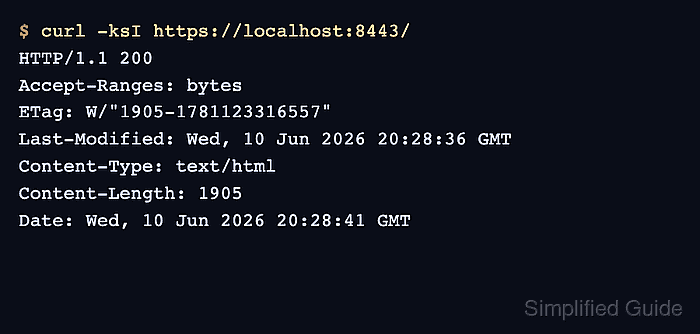
- Request the HTTPS connector from the Tomcat host.
$ curl -ksI https://localhost:8443/
HTTP/1.1 200
Accept-Ranges: bytes
ETag: W/"1905-1781123316557"
Last-Modified: Wed, 10 Jun 2026 20:28:36 GMT
Content-Type: text/html
Content-Length: 1905
Date: Wed, 10 Jun 2026 20:28:41 GMT
-k is used only because the example certificate is self-signed. A certificate trusted by the client should pass without -k.
Tool: TLS Handshake Trace can inspect a reachable Tomcat HTTPS endpoint after DNS, firewall, and routing expose the listener.
- Check Tomcat logs if the port does not answer.
$ sudo journalctl -u tomcat10 --no-pager
##### snipped #####
INFO: Connector [https-openssl-nio-8443] configured from keystore [/etc/tomcat10/ssl/localhost.p12] using alias [tomcat]
##### snipped #####
Related: How to view Tomcat logs on Linux

Mohd Shakir Zakaria is a cloud architect with deep roots in software development and open-source advocacy. Certified in AWS, Red Hat, VMware, ITIL, and Linux, he specializes in designing and managing robust cloud and on-premises infrastructures.


