Backing up Tomcat before an upgrade, host move, or risky deployment change should capture both the server configuration and the applications that Tomcat deploys. A tar archive that contains only /etc/tomcat10 leaves the deployed WAR files and expanded application directories behind, while a webapps-only copy misses connector, user, realm, and context settings.
Package-managed Tomcat on Ubuntu keeps editable configuration under /etc/tomcat10 and the default application base under /var/lib/tomcat10/webapps. Tomcat's Host configuration treats the application base as the directory where deployable WAR files and unpacked webapp directories are discovered, so the backup should preserve both the config tree and that application tree together.
The commands use the tomcat10 package layout. Replace tomcat10 with the service and directory suffix used by your installation, such as tomcat11 or a custom CATALINA_BASE instance, and stop or quiesce writers before creating the archive so expanded applications, uploaded files, and generated descriptors are not captured halfway through a change.
Related: How to upgrade Tomcat on Ubuntu
Related: How to deploy a WAR file to Tomcat on Ubuntu
Steps to back up Tomcat configuration and webapps:
- Confirm the active configuration and webapps paths before creating the archive.
$ sudo ls -d /etc/tomcat10 /var/lib/tomcat10/webapps
/etc/tomcat10
/var/lib/tomcat10/webapps
For a custom installation, back up the active CATALINA_BASE/conf directory and the appBase configured for the virtual host instead of these package paths.
- Stop Tomcat during the backup window when deployed applications can write files under the webapps tree.
$ sudo systemctl stop tomcat10
- Create a restricted directory for the backup archive.
$ sudo install -d -m 0750 /srv/tomcat-backups
- Create the compressed archive from the configuration and webapps trees.
$ sudo tar --create --gzip --verbose --file /srv/tomcat-backups/tomcat-config-webapps-2026-06-10.tar.gz /etc/tomcat10 /var/lib/tomcat10/webapps
tar: Removing leading `/' from member names
/etc/tomcat10/
/etc/tomcat10/tomcat-users.xml
##### snipped #####
/etc/tomcat10/server.xml
/var/lib/tomcat10/webapps/
/var/lib/tomcat10/webapps/inventory/WEB-INF/web.xml
/var/lib/tomcat10/webapps/ROOT/index.jsp
Use a dated file name that matches your maintenance ticket or backup rotation. The archive stores paths without the leading slash so a test restore can be unpacked under a temporary directory.
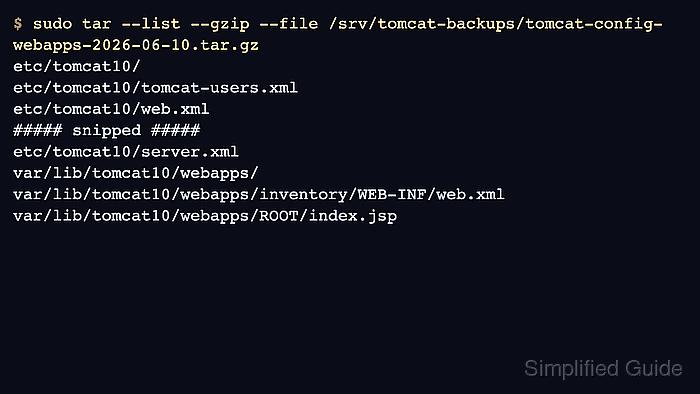
- List the archive contents before relying on it.
$ sudo tar --list --gzip --file /srv/tomcat-backups/tomcat-config-webapps-2026-06-10.tar.gz
etc/tomcat10/
etc/tomcat10/tomcat-users.xml
##### snipped #####
etc/tomcat10/server.xml
var/lib/tomcat10/webapps/
var/lib/tomcat10/webapps/inventory/WEB-INF/web.xml
var/lib/tomcat10/webapps/ROOT/index.jsp
- Create a temporary restore directory for a non-destructive recovery check.
$ sudo install -d -m 0750 /tmp/tomcat-restore-check
Do not extract an untested archive over live /etc/tomcat10 or /var/lib/tomcat10/webapps. Use a temporary directory first so missing files or wrong paths are caught safely.
- Extract the archive into the temporary restore directory.
$ sudo tar --extract --gzip --file /srv/tomcat-backups/tomcat-config-webapps-2026-06-10.tar.gz --directory /tmp/tomcat-restore-check
- Verify the restored webapps tree from the temporary location.
$ sudo ls -R /tmp/tomcat-restore-check/var/lib/tomcat10/webapps
/tmp/tomcat-restore-check/var/lib/tomcat10/webapps:
ROOT
inventory

/tmp/tomcat-restore-check/var/lib/tomcat10/webapps/ROOT:
META-INF
index.html
index.jsp

/tmp/tomcat-restore-check/var/lib/tomcat10/webapps/inventory:
WEB-INF

/tmp/tomcat-restore-check/var/lib/tomcat10/webapps/inventory/WEB-INF:
web.xml
- Remove the temporary restore directory after the check passes.
$ sudo rm -rf /tmp/tomcat-restore-check
- Start Tomcat after the backup window closes.
$ sudo systemctl start tomcat10

Mohd Shakir Zakaria is a cloud architect with deep roots in software development and open-source advocacy. Certified in AWS, Red Hat, VMware, ITIL, and Linux, he specializes in designing and managing robust cloud and on-premises infrastructures.


