Moving a tmux window changes its position in one session's window list without restarting the shell, editor, or long-running command inside it. Reordering windows keeps the status bar aligned with the work being done, which makes prefix-number navigation faster and reduces wrong-window jumps.
The move-window command retargets an existing window to another window index inside the same session. The default Ctrl-b . binding prompts for a new index for the current window, while the shell command form lets you name the source window, insert it before or after an occupied target, or replace an occupied slot deliberately.
Window numbers belong to each session and start at 0 unless base-index has been changed in the configuration. List the current windows before moving anything, because tmux refuses an occupied destination index unless -a, -b, or -k is used, and moving a window to an unused slot can leave a numbering gap until the session is renumbered.
Related: How to create a window in tmux
Related: How to rename a window in tmux
Related: How to customize the tmux status bar
Steps to move a window in tmux:
- List the windows in the target session so the current window numbers and names are visible before you move anything.
$ tmux list-windows -t demo
0: shell* (1 panes) [80x24] [layout b25d,80x24,0,0,0] @0 (active)
1: logs (1 panes) [80x24] [layout b25e,80x24,0,0,1] @1
2: editor (1 panes) [80x24] [layout b25f,80x24,0,0,2] @2
The number before each colon is the window index used in the session:window target syntax for move-window. The asterisk marks the active window.
- Move the source window to an unused index when the destination slot is already known.
$ tmux move-window -s demo:2 -t demo:3
-s selects the source window and -t selects the destination index, so demo:2 becomes window 3 in the demo session.
If the destination already exists, tmux stops with an error such as index in use: 1 instead of shifting windows automatically.
- List the windows again to confirm the window now appears at the new index.
$ tmux list-windows -t demo
0: shell- (1 panes) [80x24] [layout b25d,80x24,0,0,0] @0
1: logs (1 panes) [80x24] [layout b25e,80x24,0,0,1] @1
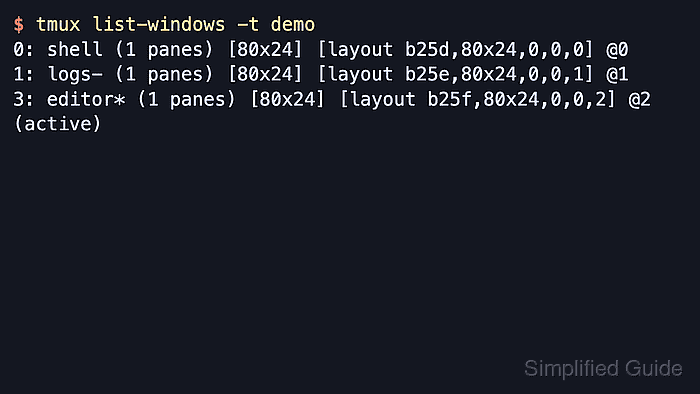
3: editor* (1 panes) [80x24] [layout b25f,80x24,0,0,2] @2 (active)
The asterisk marks the current window, and the numbering gap shows that the move succeeded even though index 2 is now unused.
- Renumber the session after a move when the window list should become compact again without unused gaps.
$ tmux move-window -r -t demo
move-window -r renumbers the session sequentially while respecting the configured base-index.
- List the windows again to confirm the gap has been removed.
$ tmux list-windows -t demo
0: shell- (1 panes) [80x24] [layout b25d,80x24,0,0,0] @0
1: logs (1 panes) [80x24] [layout b25e,80x24,0,0,1] @1
2: editor* (1 panes) [80x24] [layout b25f,80x24,0,0,2] @2 (active)
- Insert a source window before an occupied target when the existing windows should shift instead of causing an error.
$ tmux move-window -b -s demo:2 -t demo:1
-b inserts the source before the target window. Use -a instead when the source should be inserted after the target window.
- List the windows again to verify the inserted order.
$ tmux list-windows -t demo
0: shell- (1 panes) [80x24] [layout b25d,80x24,0,0,0] @0
1: editor* (1 panes) [80x24] [layout b25f,80x24,0,0,2] @2 (active)
2: logs (1 panes) [80x24] [layout b25e,80x24,0,0,1] @1
The editor window is now before logs, and both windows remain in the demo session.
- Confirm the default occupied-index refusal before replacing a destination window.
$ tmux move-window -s demo:2 -t demo:1
index in use: 1
An occupied destination is not overwritten unless -k is included, so a plain move protects the window already in that slot.
- Replace the occupied destination only after confirming the window in that slot can be closed.
$ tmux move-window -k -s demo:2 -t demo:1
-k destroys the destination window to make room for the source window, so use it only when that existing window can be removed deliberately.
- List the windows one final time to verify the replacement.
$ tmux list-windows -t demo
0: shell- (1 panes) [80x24] [layout b25d,80x24,0,0,0] @0
1: logs* (1 panes) [80x24] [layout b25e,80x24,0,0,1] @1 (active)
Inside an attached tmux client, the default Ctrl-b . binding opens a prompt for the new index and runs move-window against the current window.

Mohd Shakir Zakaria is a cloud architect with deep roots in software development and open-source advocacy. Certified in AWS, Red Hat, VMware, ITIL, and Linux, he specializes in designing and managing robust cloud and on-premises infrastructures.


