Masking a systemd service creates a hard block that prevents the unit from starting manually, through dependencies, or through install-time activation. Use it when a service must stay unavailable during maintenance, incident response, or a deliberate policy lockout.
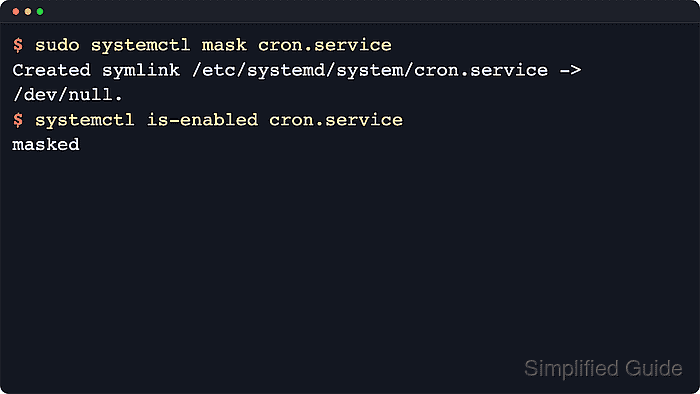
The systemctl mask command places a unit-name symlink to /dev/null in systemd's writable unit path. That changes the unit's load state to masked, which is stronger than disable because systemd refuses all normal start requests instead of only removing boot-time install links.
Examples below use cron.service on Ubuntu Server 24.04, while many Red Hat family systems use crond.service instead. Add --runtime when the mask should disappear after reboot, omit --now when the service should keep running until a separate stop, and remember that current upstream systemd documentation says masking works best for vendor units under /usr/lib/systemd/system because locally created unit files already stored in /etc/systemd/system or /run/systemd/system can block the symlink operation. Use systemctl --user mask instead of the system manager command for per-user services.
Related: How to unmask a service in systemd
Related: How to disable a service using systemctl
Steps to mask a service with systemctl:
- Open a terminal session with an account that can use sudo.
- Check the current unit-file state before applying the mask.
$ systemctl is-enabled cron.service
enabled
Replace cron.service with the real unit name on the host, such as crond.service, ssh.service, or nginx.service. systemctl mask expects a unit name, not a unit file path.
- Mask the service and stop it now.
$ sudo systemctl mask --now cron.service
Created symlink /etc/systemd/system/cron.service → /dev/null.
Drop --now when the service should stay running until a separate maintenance step stops it.
- Confirm that the unit is now masked and inactive.
$ systemctl status --no-pager --full cron.service
○ cron.service
     Loaded: masked (Reason: Unit cron.service is masked.)
     Active: inactive (dead)
##### snipped #####
The Loaded: line proves the hard block is in place, and Active: inactive confirms that --now stopped the current service instance.
- Try starting the unit to confirm that systemd refuses new activation.
$ sudo systemctl start cron.service
Failed to start cron.service: Unit cron.service is masked.
Masking remote-access, network, storage, or boot-critical units can cut off management access or keep later targets from starting normally. Keep console or other out-of-band recovery available before masking anything critical.

Mohd Shakir Zakaria is a cloud architect with deep roots in software development and open-source advocacy. Certified in AWS, Red Hat, VMware, ITIL, and Linux, he specializes in designing and managing robust cloud and on-premises infrastructures.


