Turning a laptop or workstation into a temporary Wi-Fi hotspot is a practical way to share a wired uplink, provide a short-lived local network for testing, or bring another device online when no normal access point is available. The fastest supported path on current SUSE desktops is to let NetworkManager create the hotspot directly from the shell.
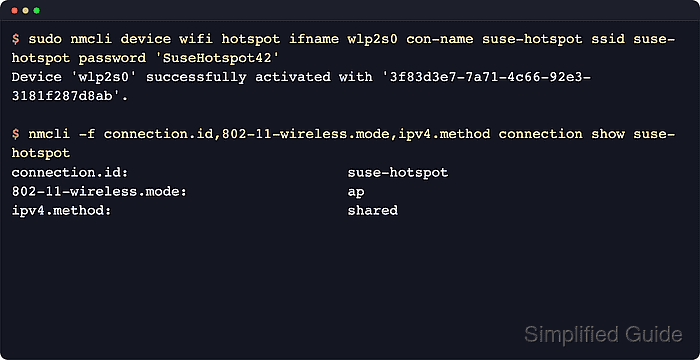
When NetworkManager activates hotspot mode, it creates a wireless connection profile in AP mode, assigns the hotspot interface a private subnet, and uses shared IPv4 behavior so connected clients can receive addresses automatically. The nmcli device wifi hotspot command wraps that setup into one action and can also set a fixed SSID, band, and passphrase.
This workflow requires a NetworkManager-managed Wi-Fi adapter that supports access-point mode. openSUSE desktops and laptops usually meet that requirement, but some SLES systems still use wicked or are deployed without a compatible wireless device, and many adapters cannot stay connected to an upstream Wi-Fi network while also broadcasting the hotspot from the same radio.
Steps to enable a Wi-Fi hotspot in openSUSE and SLES with NetworkManager:
- Identify the wireless interface that NetworkManager can use for the hotspot.
$ nmcli device status
DEVICE         TYPE      STATE                   CONNECTION
wlp2s0         wifi      disconnected            --
enp1s0         ethernet  connected               Wired connection 1
lo             loopback  unmanaged               --
If nmcli reports that NetworkManager is not running, start it with sudo systemctl enable --now NetworkManager and make sure the host is using NetworkManager instead of wicked for this adapter.
- Create and activate the hotspot with an explicit connection name, SSID, and passphrase.
$ sudo nmcli device wifi hotspot ifname wlp2s0 con-name suse-hotspot ssid suse-hotspot password 'SuseHotspot42'
Use an 8 to 63 character passphrase. Add band a before password when the adapter and regulatory domain should prefer a 5 GHz hotspot.
If the system is already using the same Wi-Fi radio as its internet uplink, activating hotspot mode can disconnect that existing wireless connection. Ethernet, USB tethering, or another upstream interface is the safer sharing path.
- Confirm that the new connection profile is in access-point mode and using shared IPv4.
$ nmcli -f GENERAL.STATE,GENERAL.CONNECTION device show wlp2s0
GENERAL.STATE:                          100 (connected)
GENERAL.CONNECTION:                     suse-hotspot

$ nmcli -f connection.id,802-11-wireless.mode,ipv4.method connection show suse-hotspot
connection.id:                          suse-hotspot
802-11-wireless.mode:                   ap
ipv4.method:                            shared
shared means NetworkManager assigns a private subnet on the hotspot side and forwards client traffic through the current upstream connection when one is available.
- Check the hotspot-side address that client devices should use as their local gateway.
$ nmcli -f IP4.ADDRESS,IP4.GATEWAY device show wlp2s0
IP4.ADDRESS[1]:                         10.42.0.1/24
IP4.GATEWAY:                            --
The hotspot interface commonly uses a private 10.42.x.1/24 address. The exact subnet can vary, and the hotspot interface itself usually has no upstream gateway because it is the local access point.
- Join the new SSID from another device and verify that the client receives an address on the same private subnet.
If the client connects to the SSID but does not receive an address, check custom firewall policy, regulatory-domain restrictions, and whether the adapter or driver actually supports AP mode cleanly on this hardware.
- Stop the hotspot when it is no longer needed.
$ sudo nmcli connection down suse-hotspot
Bring the same hotspot back later with sudo nmcli connection up suse-hotspot.

Mohd Shakir Zakaria is a cloud architect with deep roots in software development and open-source advocacy. Certified in AWS, Red Hat, VMware, ITIL, and Linux, he specializes in designing and managing robust cloud and on-premises infrastructures.


