Managing a systemd service on openSUSE or SLES is the normal control point for applying daemon configuration changes, starting new packages after installation, and keeping important services available after a reboot. A clear service workflow reduces downtime when you need to start, stop, restart, reload, or re-enable a unit from the shell.
Current openSUSE Leap, openSUSE Tumbleweed, and SLES releases use systemd for system services, and systemctl is the supported interface for those units. The examples below use sshd.service as a concrete unit name, but the same commands work for docker.service, firewalld.service, nginx.service, and other units shown by systemctl list-unit-files --type=service.
Use reload when a daemon supports rereading its own configuration without a full stop, use restart when a full process restart is required, and use daemon-reload only after changing a systemd unit file or drop-in under /etc/systemd/system. Enabling or disabling a service changes boot-time behavior, while --now applies the same choice immediately in the current session.
Related: How to check Linux service status
Related: How to enable SSH on openSUSE and SLES
| Task | Command |
|---|---|
| List installed service unit files | systemctl list-unit-files --type=service |
| Check full service status | systemctl status SERVICE |
| Start or stop a service | systemctl start SERVICE systemctl stop SERVICE |
| Reload or restart a service | systemctl reload SERVICE systemctl restart SERVICE |
| Enable or disable at boot | systemctl enable SERVICE systemctl disable SERVICE |
Steps to manage services in openSUSE and SLES:
- List installed service unit files to confirm the exact unit name you want to manage.
$ systemctl list-unit-files --type=service | grep '^sshd\.service'
sshd.service                            disabled disabled
systemd accepts both sshd and sshd.service, but using the full unit name makes status output and troubleshooting clearer.
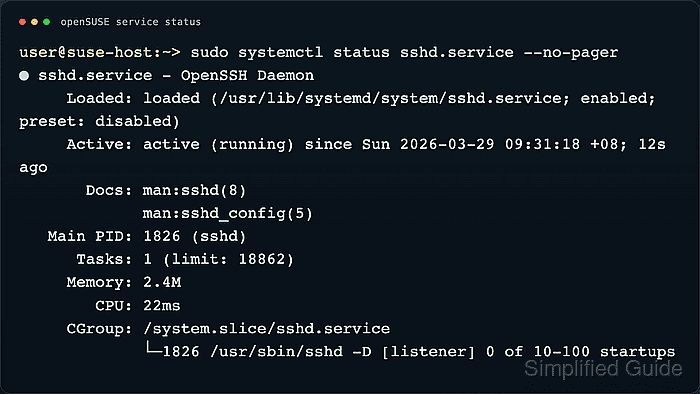
- Check the current service status before changing anything.
$ sudo systemctl status sshd.service --no-pager
● sshd.service - OpenSSH Daemon
     Loaded: loaded (/usr/lib/systemd/system/sshd.service; enabled; preset: disabled)
     Active: active (running) since Sun 2026-03-29 09:31:18 +08; 12s ago
       Docs: man:sshd(8)
             man:sshd_config(5)
   Main PID: 1826 (sshd)
      Tasks: 1 (limit: 18862)
     Memory: 2.4M
        CPU: 22ms
     CGroup: /system.slice/sshd.service
             └─1826 /usr/sbin/sshd -D [listener] 0 of 10-100 startups
##### snipped #####
The bottom of the status output shows recent journal lines for the unit.
- Start the service if it is installed but not currently running.
$ sudo systemctl start sshd.service
- Reload the service configuration when the unit supports a reload action.
$ sudo systemctl reload sshd.service
When you are not sure whether a unit implements reload, use sudo systemctl reload-or-restart sshd.service.
- Restart the service when the daemon must fully stop and start again.
$ sudo systemctl restart sshd.service
Restarting sshd from a remote shell can drop active sessions if the daemon fails to return cleanly.
- Enable the service at boot and start it immediately when the host should keep it available after reboots.
$ sudo systemctl enable --now sshd.service
Created symlink /etc/systemd/system/multi-user.target.wants/sshd.service -> /usr/lib/systemd/system/sshd.service.
The --now option applies the enablement change and also starts the service in the current boot.
- Verify quickly whether the service is currently running.
$ systemctl is-active sshd.service
active
Common results include active, inactive, and failed.
- Verify quickly whether the service is enabled to start during boot.
$ systemctl is-enabled sshd.service
enabled
Common results include enabled, disabled, static, and masked.
- Stop the service only when the workload can be interrupted safely.
$ sudo systemctl stop sshd.service
Stopping sshd over your current SSH session can lock you out of the host until local console access is restored.
- Disable the service at boot and stop it immediately only when the service should no longer be available.
$ sudo systemctl disable --now sshd.service
Removed "/etc/systemd/system/multi-user.target.wants/sshd.service".
Use this on remote-access or network-critical services only when you have another way back into the system.
- Reload the systemd manager after editing a unit file or drop-in override.
$ sudo systemctl daemon-reload
This rereads unit definitions and dependency data, but it does not reload a daemon's own application configuration or restart the service.

Mohd Shakir Zakaria is a cloud architect with deep roots in software development and open-source advocacy. Certified in AWS, Red Hat, VMware, ITIL, and Linux, he specializes in designing and managing robust cloud and on-premises infrastructures.


