System-wide proxy policy matters on SUSE hosts that reach package repositories, update services, or outbound web endpoints only through a controlled gateway. Setting the proxy once at the OS level keeps interactive shells, YaST-driven maintenance, and other proxy-aware tools aligned with the same network path instead of repeating one-off environment exports in every session.
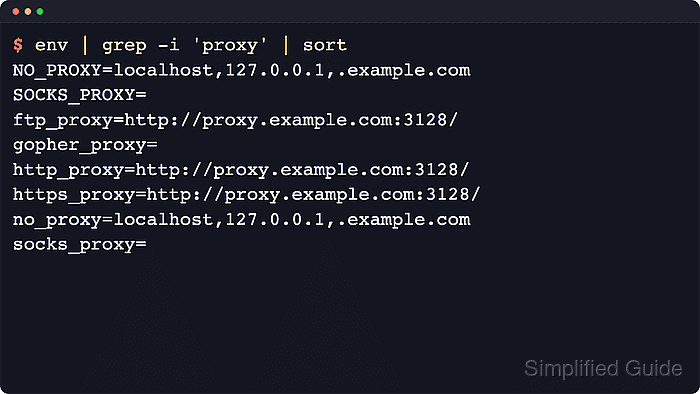
On openSUSE and SLES, the YaST proxy module writes the main proxy endpoints and bypass list to /etc/sysconfig/proxy. New login shells read that file through /etc/profile.d/profile.sh and export the matching http_proxy, https_proxy, ftp_proxy, no_proxy, and NO_PROXY variables when PROXY_ENABLED is set to yes.
Credentials and runtime scope need extra care before enabling the policy. yast proxy authentication stores proxy credentials for root-owned curl access under /root/.curlrc, but existing shells do not inherit new values until the next login, and long-running services may still need their own environment or a restart if they do not read the interactive shell profile.
Steps to set the system proxy in openSUSE and SLES:
- Confirm that the YaST proxy client is available on the host.
$ sudo yast proxy summary
- Install the matching YaST proxy module only if the previous command reports that the proxy client is unavailable.
$ sudo zypper install --no-confirm yast2-proxy
- Set the HTTP, HTTPS, FTP, and bypass values that should become the system policy.
$ sudo yast proxy set \
    http=http://proxy.example.com:3128/ \
    https=http://proxy.example.com:3128/ \
    ftp=http://proxy.example.com:3128/ \
    noproxy=localhost,127.0.0.1,.example.com
The noproxy= value becomes the NO_PROXY and no_proxy bypass list exported to new login shells.
- Add proxy authentication only when the proxy requires a username and password.
$ sudo yast proxy authentication username=proxyuser password='REDACTED'
This stores the credential for root-owned curl access under /root/.curlrc. Tools that do not read that file may still need their own authenticated proxy settings.
- Enable the configured proxy policy.
$ sudo yast proxy enable
- Verify that the saved system policy now exists in /etc/sysconfig/proxy.
$ grep -E '^(PROXY_ENABLED|HTTP_PROXY|HTTPS_PROXY|FTP_PROXY|NO_PROXY)=' /etc/sysconfig/proxy
PROXY_ENABLED="yes"
HTTP_PROXY="http://proxy.example.com:3128/"
HTTPS_PROXY="http://proxy.example.com:3128/"
FTP_PROXY="http://proxy.example.com:3128/"
NO_PROXY="localhost,127.0.0.1,.example.com"
This confirms the durable sysconfig state even before the current shell is refreshed.
- Start a fresh login shell, or sign out and back in, before testing the exported proxy environment.
Current shells keep their old environment until a new login session reads /etc/profile.d/profile.sh again.
- Confirm that the new login session now exports the proxy variables from the saved policy.
$ env | grep -Ei '^(NO_PROXY|http_proxy|https_proxy|ftp_proxy|no_proxy)=' | sort
NO_PROXY=localhost,127.0.0.1,.example.com
ftp_proxy=http://proxy.example.com:3128/
http_proxy=http://proxy.example.com:3128/
https_proxy=http://proxy.example.com:3128/
no_proxy=localhost,127.0.0.1,.example.com
A fresh login shell should export the saved HTTP, HTTPS, FTP, and bypass values from /etc/sysconfig/proxy.

Mohd Shakir Zakaria is a cloud architect with deep roots in software development and open-source advocacy. Certified in AWS, Red Hat, VMware, ITIL, and Linux, he specializes in designing and managing robust cloud and on-premises infrastructures.


