Large downloads and forgotten Trash contents can leave an openSUSE desktop short of storage. Dolphin can recover disk space by removing files you no longer need from your home folder.
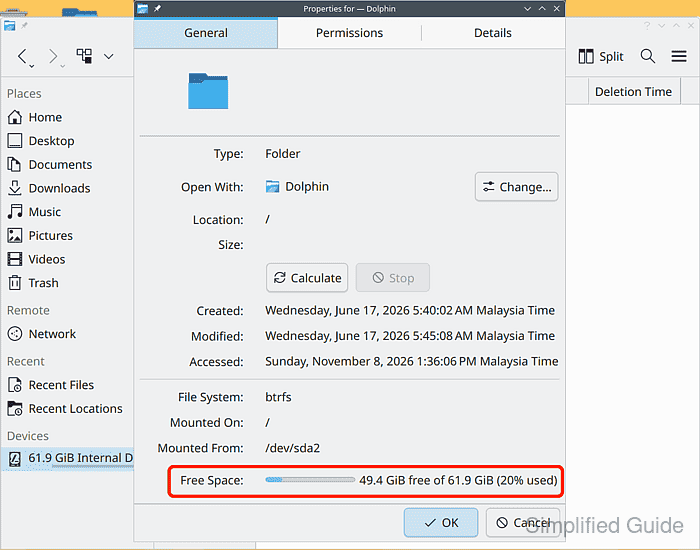
On openSUSE Leap 16.0 with KDE Plasma, Dolphin provides access to Downloads and Trash through its Places sidebar. Personal-file cleanup does not require an administrator password or remove installed applications.
Moving a file to Trash keeps it recoverable and usually does not free its disk space. Emptying Trash permanently deletes every item there, including files discarded earlier, so anything you may need later should have another copy before deletion.
Steps to clean up disk space in openSUSE:
- Open Dolphin with Meta+E.
The Meta key is usually the key with the Windows logo.
- Click Downloads in the Places sidebar.
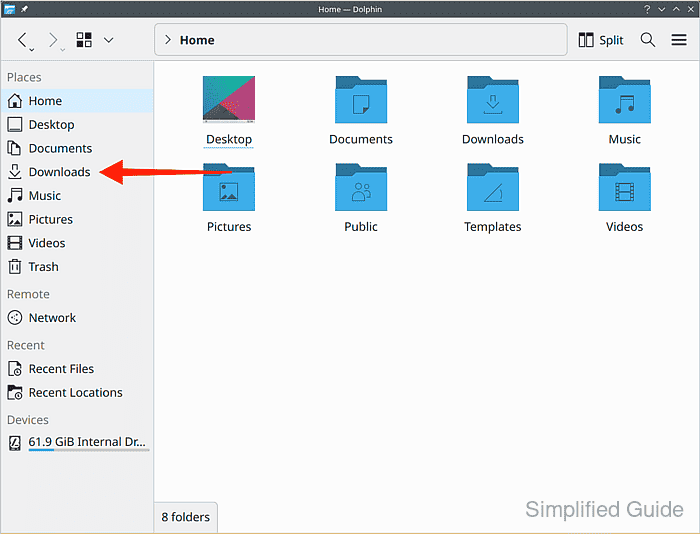
Another personal folder can be used when its files occupy the drive that needs space.
- Note the available space by hovering over the affected drive under Devices.
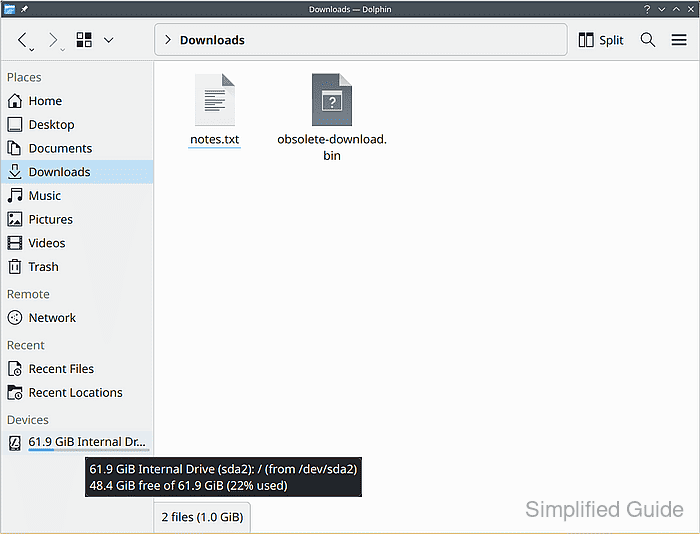
The pictured drive has 48.4 GiB free before cleanup; your value will differ. A separate home or data partition has its own free-space figure.
- Select only downloaded files you recognize and no longer need.
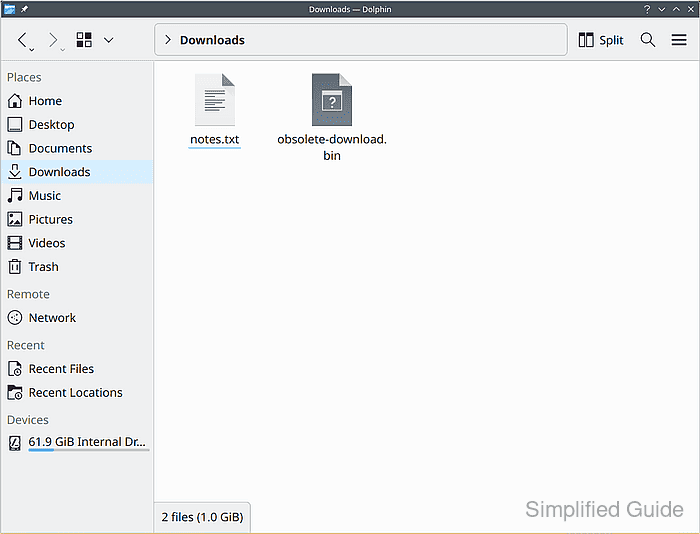
Ctrl+click selects individual files without selecting everything in the folder.
- Press Delete to move the selected files to Trash.
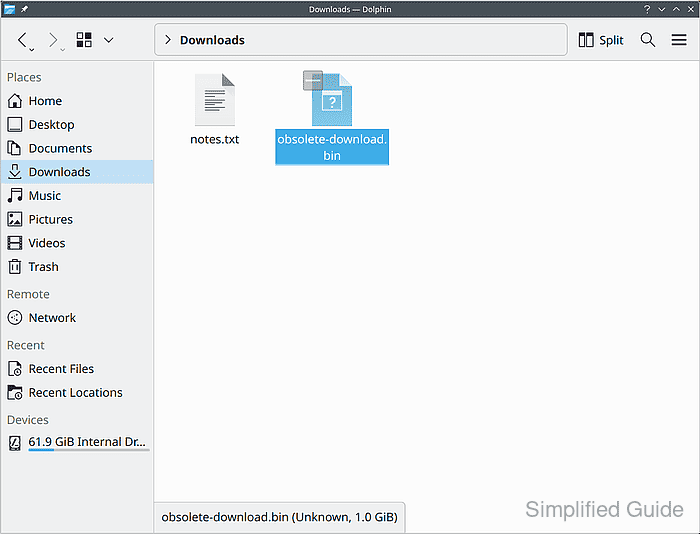
The selected download is 1.0 GiB. Moving it to Trash still leaves that space occupied.
- Click Trash in the Places sidebar.
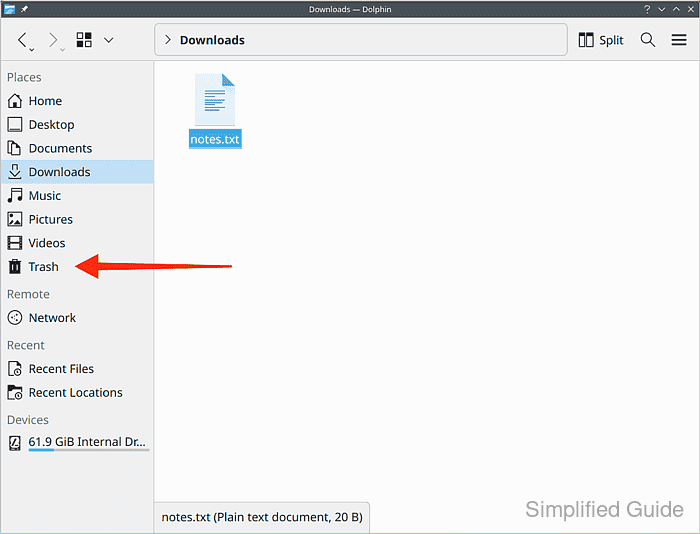
- Confirm that every file listed in Trash can be permanently deleted.
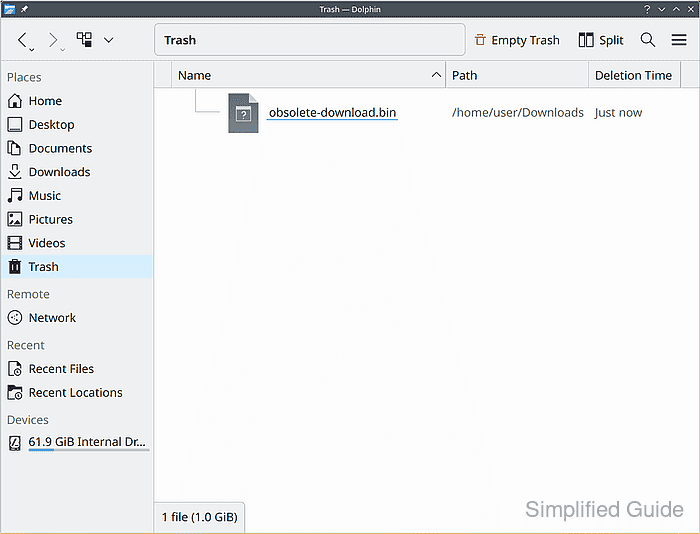
Emptying Trash removes all its contents, including older discarded files. If a file is still needed, its right-click Restore action returns it to its original location before permanent deletion.
- Click Empty Trash in the toolbar.
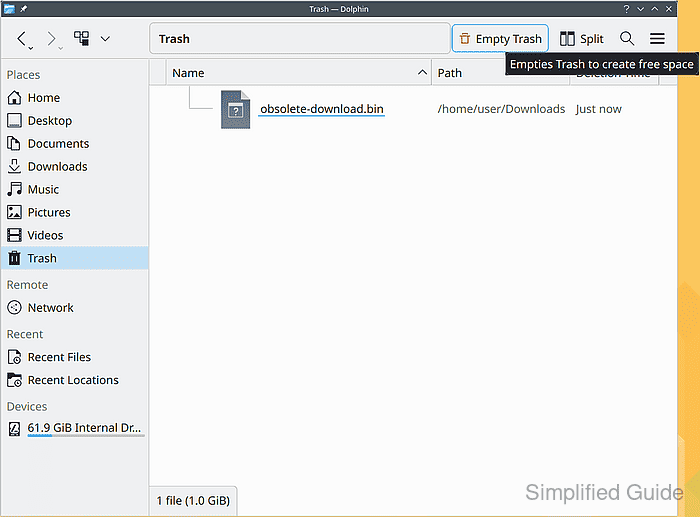
- Click Empty Trash in the confirmation dialog.
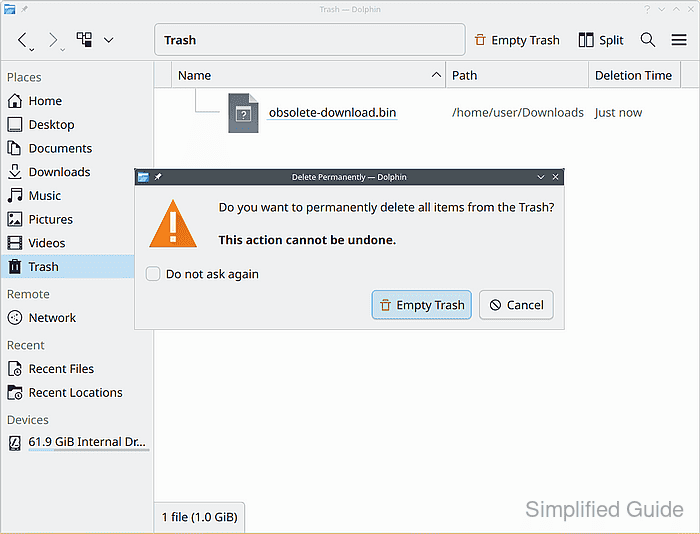
Leaving Do not ask again unchecked preserves the warning for future deletions.
- Right-click the drive used for the initial space check under Devices.
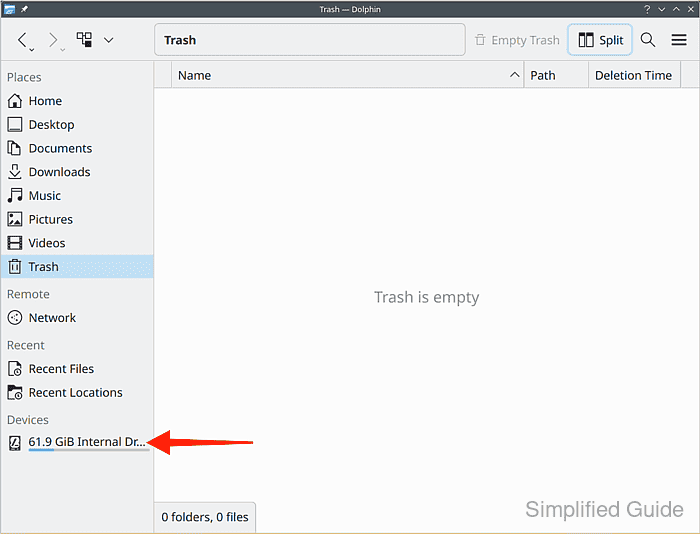
- Choose Properties from the drive's context menu.
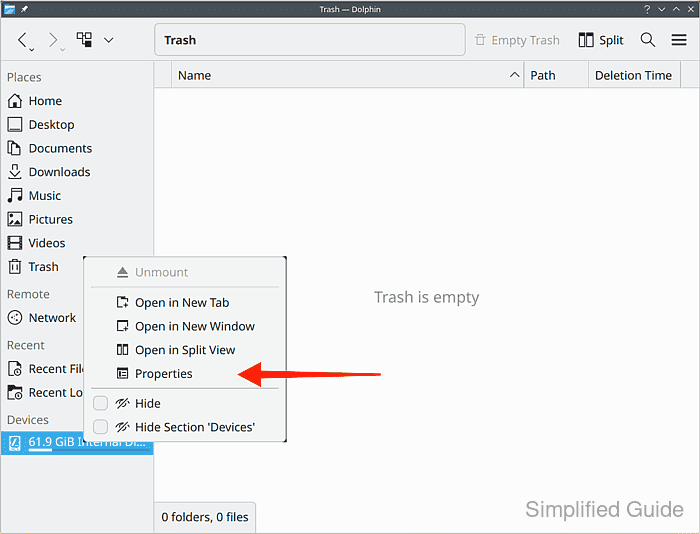
- Check that Free Space is greater than the initial reading.
Removing the 1.0 GiB download increased the pictured drive's free space from 48.4 GiB to 49.4 GiB. The Properties dialog reads the current value; the sidebar tooltip can retain an older figure.
Btrfs snapshots can retain deleted data. If emptying Trash does not recover the expected space, snapshot storage or a different filesystem may be responsible.