An interactive root shell is useful when several administrative commands need the same privileged context, but it also removes the guardrail of prefixing each command with sudo. Open one only for a bounded task, verify that the shell is really running as root, and exit before returning to normal user work.
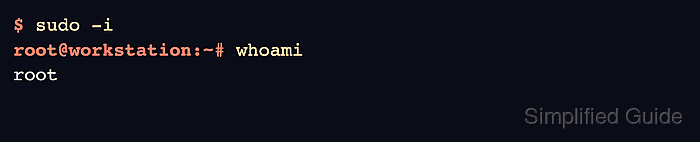
The sudo -i option starts the target user's shell as a login shell, changes to that user's home directory, and builds an environment like a normal login. Because sudo defaults to the root run-as user, sudo -i is the usual choice when the privileged work should behave like a fresh root login.
Use sudo -s only when the shell should keep the current working directory while still running as root. Both forms are controlled by the local sudoers policy, and normal sudo logs record the shell command that was opened rather than every command typed afterward unless I/O logging is configured.
Related: List sudo privileges for a user
Related: Enable sudo I/O logging
Related: Clear cached sudo credentials
Steps to open a root shell with sudo:
- Confirm the current user and directory before switching context.
$ whoami
deployer

$ pwd
/home/deployer/project
The examples use a deployer account in a project directory. Replace both with the local account and working path on the target host.
- Open a login-style root shell with sudo -i.
$ sudo -i
root@workstation:~# whoami
root
root@workstation:~# pwd
/root
Enter the invoking user's password if sudo prompts for authentication. A passwordless sudoers rule may open the shell without a prompt.
- Use the root shell only for the commands that need the shared privileged context.
Commands typed inside this shell run as root. Check paths and destructive options before changing files, packages, services, or ownership.
- Exit the root shell as soon as the privileged work is finished.
root@workstation:~# exit
logout

$ whoami
deployer
Returning to the original user prompt confirms that new commands are no longer running with UID 0.
- Open a non-login root shell with sudo -s only when the current directory should remain active.
$ pwd
/home/deployer/project

$ sudo -s
root@workstation:/home/deployer/project# whoami
root
root@workstation:/home/deployer/project# pwd
/home/deployer/project
sudoers still controls the environment for sudo -s. On many Linux systems, HOME is still set to /root even though the working directory remains unchanged.
- Clear cached sudo authentication if the terminal is being handed off or left unattended.
$ sudo -k
sudo -k invalidates the current session's cached sudo timestamp without removing sudo privileges.
Related: How to clear cached sudo credentials

Mohd Shakir Zakaria is a cloud architect with deep roots in software development and open-source advocacy. Certified in AWS, Red Hat, VMware, ITIL, and Linux, he specializes in designing and managing robust cloud and on-premises infrastructures.


