A long-lived sudo timestamp can keep a terminal able to run privileged commands after the person who typed the password has moved on. Shortening the timeout makes sudo ask again sooner, while lengthening it reduces repeated prompts during controlled maintenance windows.
The sudoers policy controls this cache with timestamp_timeout, measured in minutes and accepting fractional values such as 2.5. The default is commonly 5; 0 always prompts, and a negative value leaves the timestamp valid until reboot, which is rarely appropriate for shared systems.
Set the timeout in a sudoers drop-in and validate the whole policy before closing the privileged session used to make the change. Use sudo -k to discard any old timestamp before testing, then use sudo -n -v to confirm whether the account can still validate sudo without an interactive password prompt.
Related: Clear cached sudo credentials
Related: Check sudoers syntax with visudo
Related: Create a sudoers drop-in file
Steps to change the sudo password timeout:
- Choose the scope and timeout value for the policy.
Entry Scope Defaults timestamp_timeout=10 Every sudoers user unless a more specific Defaults entry overrides it. Defaults:deployer timestamp_timeout=10 The single user deployer. Defaults:%sudo timestamp_timeout=10 Members of the Unix group sudo. Use timestamp_timeout for the cached authentication lifetime. Do not change passwd_timeout unless the task is to change how long sudo waits at the password prompt before giving up.
- Open a dedicated sudoers drop-in with visudo.
$ sudo visudo -f /etc/sudoers.d/password-timeout
Use a file name without dots or backup suffixes. Sudo skips some included files under /etc/sudoers.d, including names that contain a dot or end with ~.
Related: How to create a sudoers drop-in file
- Add one timestamp_timeout entry for the intended scope.
- /etc/sudoers.d/password-timeout
Defaults:%sudo timestamp_timeout=10
This example lets members of the sudo group reuse a successful authentication for ten minutes. Change the group, user, or value to match the account set being managed.
A negative timeout keeps the timestamp valid until reboot. Prefer a positive value or 0 on shared workstations, jump hosts, and production shells where every privileged action should require a recent approval.
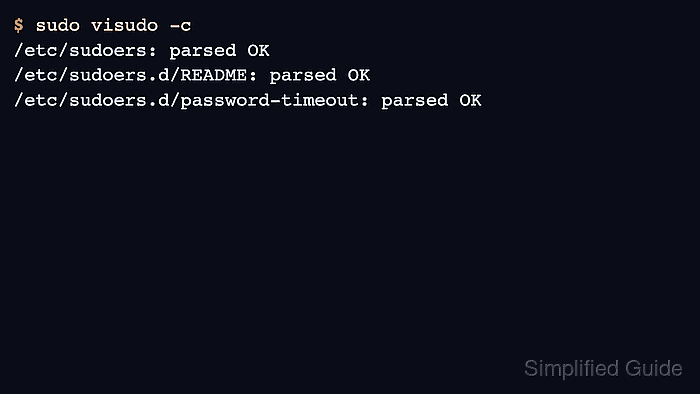
- Validate the complete sudoers policy after saving the drop-in.
$ sudo visudo -c
/etc/sudoers: parsed OK
/etc/sudoers.d/README: parsed OK
/etc/sudoers.d/password-timeout: parsed OK
Do not stop after checking only the new drop-in. The full policy check proves the main sudoers file and included files parse together.
- Reset the current account's cached timestamp before testing.
$ sudo -k
sudo -k invalidates the cached credential for the current session. It does not remove sudo privileges or change the new timeout value.
Related: How to clear cached sudo credentials
- Refresh the timestamp with a normal sudo authentication.
$ sudo -v
[sudo] password for user:
sudo -v validates credentials without running a command. A successful password entry starts a fresh timestamp for the current terminal or parent process.
- Confirm that cached validation works before the timeout expires.
$ sudo -n -v
No output means the account can validate sudo non-interactively because the timestamp is still fresh.
- Wait until the configured timeout has passed, then verify that sudo requires a password again.
$ sudo -n -v
sudo: interactive authentication is required
The --non-interactive behavior from sudo -n turns the missing password prompt into an error. That error proves the cached timestamp has expired for this session.

Mohd Shakir Zakaria is a cloud architect with deep roots in software development and open-source advocacy. Certified in AWS, Red Hat, VMware, ITIL, and Linux, he specializes in designing and managing robust cloud and on-premises infrastructures.


