Unauthenticated SSH connections should not sit open for minutes while clients stall, scanners pause, or password prompts are abandoned. Limiting LoginGraceTime controls how long sshd waits for authentication before closing a connection that has not logged in.
The LoginGraceTime directive belongs to the OpenSSH daemon configuration, normally /etc/ssh/sshd_config plus any included drop-in files. OpenSSH defaults to 120 seconds, and a value of 0 removes the pre-authentication time limit rather than tightening it.
Shorter grace periods reduce the time that unauthenticated sessions can consume server slots, but very small values can interrupt users on high-latency links or systems that require multi-factor prompts. Values such as 30 or 60 seconds are common starting points for hardening, and the change should be tested before the current administrative session is closed.
Steps to limit SSH LoginGraceTime:
- Open a terminal on the SSH server with sudo privileges.
$ whoami
user
Keep an existing SSH session or console path open until a new login succeeds after the reload.
- Check the current effective LoginGraceTime value.
$ sudo sshd -T
port 22
addressfamily any
listenaddress [::]:22
listenaddress 0.0.0.0:22
usepam yes
pamservicename sshd
logingracetime 120
##### snipped #####
sshd -T validates the configuration and prints the effective daemon settings after defaults and included files are applied.
Related: How to view SSH server configuration
- Check whether the main configuration loads local drop-in files.
$ grep -i '^Include' /etc/ssh/sshd_config
Include /etc/ssh/sshd_config.d/*.conf
If no Include line appears, place the same LoginGraceTime directive in the global section of /etc/ssh/sshd_config instead.
- Back up the main SSH daemon configuration file.
$ sudo cp -a /etc/ssh/sshd_config /etc/ssh/sshd_config.backup
A syntax error in the SSH daemon configuration can block new remote logins until fixed from an existing session or console.
- Open a local SSH daemon drop-in file.
$ sudoedit /etc/ssh/sshd_config.d/90-login-grace-time.conf
- Set the grace period to the chosen number of seconds.
LoginGraceTime 30
Do not use LoginGraceTime 0 for hardening; zero disables the authentication grace timeout.
- Test the SSH daemon configuration.
$ sudo sshd -t
No output means the configuration parsed successfully.
Related: How to test SSH server configuration
- Reload the SSH service.
$ sudo systemctl reload ssh
Use sudo systemctl reload sshd on distributions where the daemon unit is named sshd.
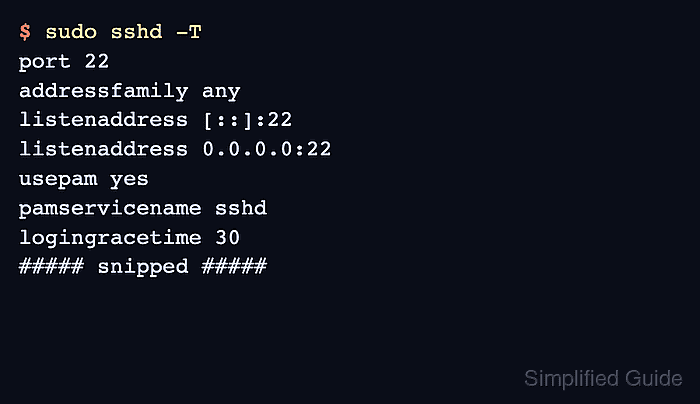
- Verify the effective LoginGraceTime value after the reload.
$ sudo sshd -T
port 22
addressfamily any
listenaddress [::]:22
listenaddress 0.0.0.0:22
usepam yes
pamservicename sshd
logingracetime 30
##### snipped #####
- Leave a test authentication prompt idle from a separate client session.
$ ssh user@host.example.net
user@host.example.net's password:
Connection closed by host.example.net port 22
The server should close the unauthenticated connection near the configured grace period while successful logins continue to work normally.

Mohd Shakir Zakaria is a cloud architect with deep roots in software development and open-source advocacy. Certified in AWS, Red Hat, VMware, ITIL, and Linux, he specializes in designing and managing robust cloud and on-premises infrastructures.


