An SSH server that accepts blank passwords turns a stray local account with an empty password into a remote login path. Setting PermitEmptyPasswords to no keeps password-based SSH from accepting accounts whose password field is empty while leaving key-based logins unaffected.
On Debian and Ubuntu OpenSSH packages, sshd reads /etc/ssh/sshd_config and include snippets from /etc/ssh/sshd_config.d/*.conf near the start of the main file. For most daemon directives, the first value obtained wins, so a dedicated early include file gives the local hardening rule a clear place instead of relying on a commented default later in the main configuration.
OpenSSH defaults PermitEmptyPasswords to no, but an explicit file makes the policy visible during audits and safer after later authentication edits. Keep an existing session or console path available, test the configuration with sshd -t, reload the ssh service, and confirm the effective setting with sshd -T because saving a file alone does not prove the daemon is using the value.
Steps to disable empty-password SSH logins:
- Keep one administrator session open on the server before changing SSH authentication.
- Create a dedicated SSH daemon include file for the hardening setting.
$ sudoedit /etc/ssh/sshd_config.d/00-disable-empty-passwords.conf
Current Debian and Ubuntu OpenSSH packages load /etc/ssh/sshd_config.d/*.conf from the main daemon config. On a system without that include directory, place the same directive in /etc/ssh/sshd_config before any later PermitEmptyPasswords line.
- Set PermitEmptyPasswords to no in the include file.
/etc/ssh/sshd_config.d/00-disable-empty-passwords.conf
PermitEmptyPasswords no
The 00- prefix keeps the local setting early in the include order. Verify the effective value after reload because another earlier file or Match rule can still change what sshd uses.
- Test the SSH daemon configuration.
$ sudo sshd -t
No output means sshd parsed the active configuration tree successfully.
Related: How to test SSH server configuration - Reload the ssh service.
$ sudo systemctl reload ssh
Reloading applies authentication changes to new sessions; keep the existing administrator session open until a separate login test works.
- Confirm the service is active after the reload.
$ systemctl is-active ssh
active
Use sshd as the unit name on distributions that package the server as sshd.service.
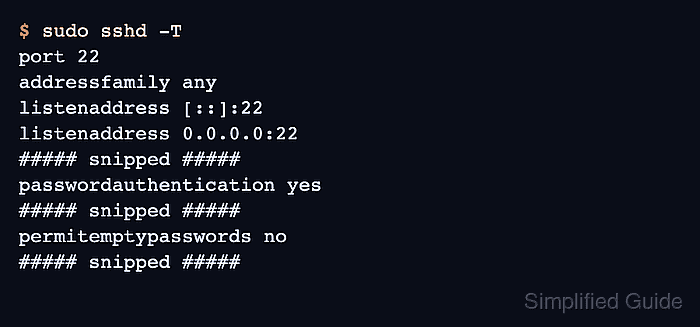
- Verify the effective empty-password setting.
$ sudo sshd -T
port 22
addressfamily any
listenaddress [::]:22
listenaddress 0.0.0.0:22
##### snipped #####
passwordauthentication yes
##### snipped #####
permitemptypasswords no
##### snipped #####
The permitemptypasswords no line proves the daemon's final configuration blocks empty-password logins. If it still reports yes, inspect earlier include files or matching Match blocks before reloading again.
- Test a normal SSH login from a separate client.
$ ssh user@host.example.net 'echo SSH login accepted'
SSH login accepted
Use an account that already authenticates with a password, key, or other approved method; this check confirms the hardening change did not block ordinary access.

Mohd Shakir Zakaria is a cloud architect with deep roots in software development and open-source advocacy. Certified in AWS, Red Hat, VMware, ITIL, and Linux, he specializes in designing and managing robust cloud and on-premises infrastructures.


