Moving a file to a server over SSH is a common handoff for reports, scripts, archives, and configuration snippets when the destination already accepts remote logins. scp keeps the copy operation inside the existing SSH trust boundary, so the same host key check and authentication method used for an interactive login also protect the transfer.
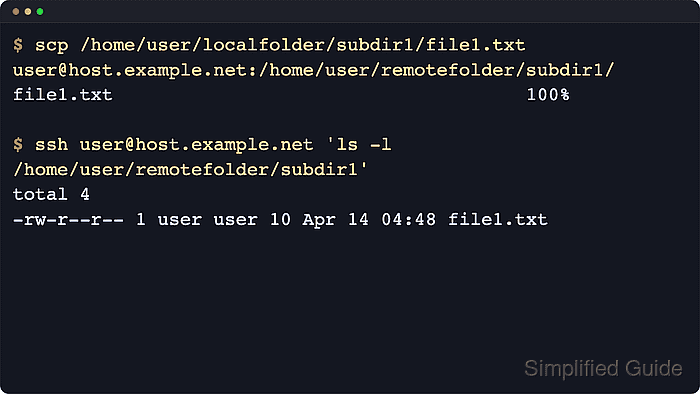
Current OpenSSH clients run scp transfers over the SFTP protocol by default while keeping the familiar scp command syntax. The source file comes first, and the final argument names the remote account, host, and destination path. The examples below use a local file at /home/user/reports/q1.csv and a remote destination directory at /home/user/uploads.
The remote SSH service must already be reachable, the destination directory must exist, and the remote account must have permission to write there. If an older server lacks SFTP support, scp -O can force the legacy SCP protocol, but that mode uses the remote shell for filename handling and should be treated as a compatibility exception.
Steps to copy a file with scp over SSH:
- Create the remote destination directory.
$ ssh user@host.example.net 'mkdir -p /home/user/uploads'
Use an existing directory instead when the destination has already been prepared. scp does not create missing parent directories for the target file path.
- Copy the local file to the remote directory with scp.
$ scp /home/user/reports/q1.csv user@host.example.net:/home/user/uploads/
Add -P 2222 before the source path when the server listens on a non-default SSH port, or add -i ~/.ssh/deploy_key when the transfer must use a specific private key.
Related: How to connect to an SSH server on a different port - Check that the file exists at the remote path.
$ ssh user@host.example.net 'ls -l /home/user/uploads/q1.csv'
-rw-r--r-- 1 user user 25 Jun 13 01:24 /home/user/uploads/q1.csv
- Read the copied file from the remote host.
$ ssh user@host.example.net 'cat /home/user/uploads/q1.csv'
Quarter,Revenue
Q1,28400

Mohd Shakir Zakaria is a cloud architect with deep roots in software development and open-source advocacy. Certified in AWS, Red Hat, VMware, ITIL, and Linux, he specializes in designing and managing robust cloud and on-premises infrastructures.


