Monitoring active SSH connections shows who is still attached to a server and whether those sessions match the maintenance, automation, or support work expected for that host. Checking both login records and live sockets helps catch forgotten shells, unexpected logins, and background access that stayed open longer than intended.
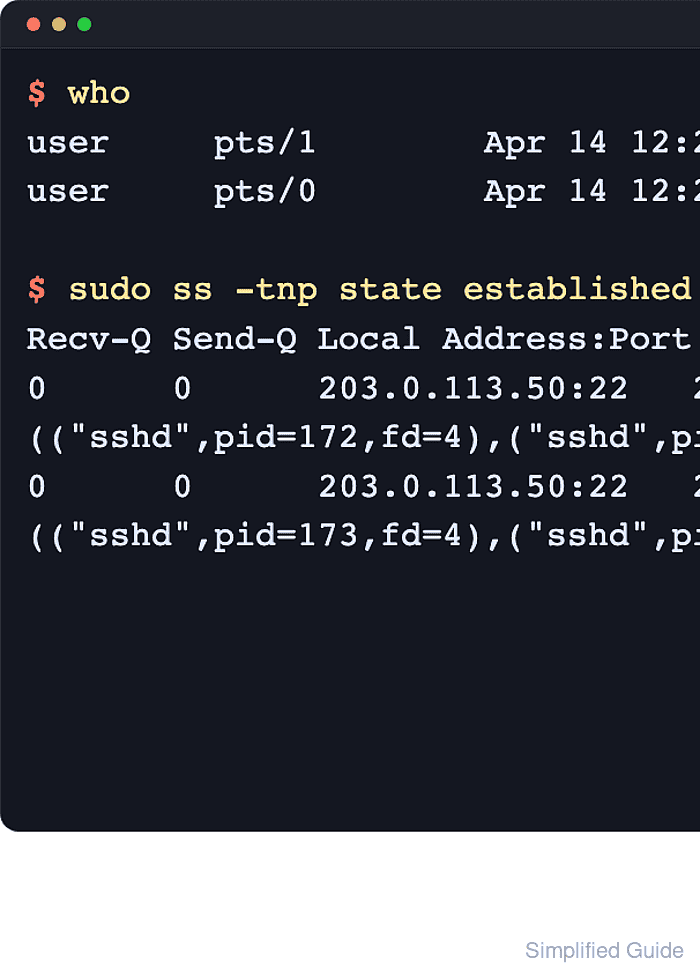
On a current Linux server, who reads login records for terminal-backed sessions, w adds idle time and current command information, and ss reads live TCP sockets owned by the server side of the connection. Using the terminal views before the socket view separates normal interactive shells from port forwards, remote commands, and other no-PTY connections that do not appear as ordinary logins.
These checks are read-only, but ss process details normally require sudo, and the reported source address may be a jump host, VPN gateway, NAT device, or cloud egress address instead of the operator workstation. The examples assume the server listens on the default SSH service port; replace :ssh with a numeric port such as :2222 when the daemon listens elsewhere.
Steps to monitor active SSH connections:
- Open a terminal on the Linux server with an account that can use sudo.
$ whoami
user
- List the current login records to find interactive SSH terminals and their client addresses.
$ who
user     pts/0        2026-06-13 01:22 (198.51.100.24)
who shows terminal-backed logins such as pts/0, while local console or desktop sessions usually appear as entries such as tty2 or seat0.
- Check the active-user view to see idle time and the current command for each terminal-backed session.
$ w
 01:22:30 up 1 day,  3:41,  1 user,  load average: 0.18, 0.16, 0.14
USER     TTY      FROM             LOGIN@   IDLE   JCPU   PCPU WHAT
user     pts/0    198.51.100.24    01:22    1:14   0.03s  0.03s -bash
The FROM, IDLE, and WHAT columns help distinguish an active shell from an idle terminal. Some w builds hide FROM by default, so use who and ss when address evidence is required.
- Show the live TCP connections currently established to the SSH service.
$ sudo ss -tn state established '( sport = :ssh )'
Recv-Q Send-Q Local Address:Port Peer Address:Port
0      0      203.0.113.50:22  198.51.100.24:59796
0      0      203.0.113.50:22  198.51.100.24:59810
The filter can use the service name :ssh, but the -n flag keeps displayed ports numeric in the output; use :2222 when the daemon listens on TCP port 2222.
- Include process information to map each live socket back to the sshd session process that owns it.
$ sudo ss -tnp state established '( sport = :ssh )'
Recv-Q Send-Q Local Address:Port Peer Address:Port Process
0      0      203.0.113.50:22  198.51.100.24:59796 users:(("sshd-session",pid=43,fd=7))
0      0      203.0.113.50:22  198.51.100.24:59810 users:(("sshd-session",pid=58,fd=7))
Current OpenSSH builds may show sshd-session for per-connection workers, while older or differently packaged systems may show sshd. Process details are usually hidden from unprivileged accounts, which is why this view is normally run with sudo.
- Compare the terminal views from who and w with the socket list from ss before deciding whether a connection is unexpected.
A socket in ss without a matching pts record usually indicates no-PTY SSH usage such as a port forward, remote command, file copy, or multiplexed connection rather than a second interactive shell.
- Check the operator's public egress address when matching a Peer Address back to a person.
Tool: What Is My IP Address?

Mohd Shakir Zakaria is a cloud architect with deep roots in software development and open-source advocacy. Certified in AWS, Red Hat, VMware, ITIL, and Linux, he specializes in designing and managing robust cloud and on-premises infrastructures.


