Editing the packaged /etc/ssh/sshd_config for every local SSH server change makes upgrades harder to review and roll back. A drop-in file under /etc/ssh/sshd_config.d keeps one local setting in a named file while the packaged baseline remains mostly unchanged.
The OpenSSH daemon reads /etc/ssh/sshd_config and any files loaded through Include. Include globs are expanded in lexical order, and for most scalar keywords the first value wins, so filename order matters when two files set the same directive.
Use a low-risk directive when testing the pattern, keep another login path open for access-control changes, and validate with sshd -t before reloading. The example sets LogLevel VERBOSE because it is easy to confirm with sshd -T and does not block authentication by itself.
Related: How to enable verbose SSH server logging
Related: How to configure SSH Match blocks
Steps to create SSH server config drop-in files:
- Open a terminal on the SSH server with an account that can use sudo.
- Keep a second SSH session or console path open before changing login-related directives.
Do not close the existing session until a new login succeeds after the reload.
- Confirm that the main daemon configuration loads the drop-in directory.
$ grep -n 'sshd_config.d' /etc/ssh/sshd_config
12:Include /etc/ssh/sshd_config.d/*.conf
If no Include line appears, add Include /etc/ssh/sshd_config.d/*.conf near the top of /etc/ssh/sshd_config before relying on drop-in files.
- Review existing drop-in filenames before choosing the local filename.
$ ls -1 /etc/ssh/sshd_config.d/
50-cloud-init.conf
OpenSSH expands included files in lexical order. For most single-value directives, a lower-numbered file such as 10-local-loglevel.conf can win over 50-cloud-init.conf, while a later file may be ignored for the same directive.
- Create the local drop-in file.
$ sudoedit /etc/ssh/sshd_config.d/10-local-loglevel.conf
LogLevel VERBOSE
Replace LogLevel VERBOSE with the server directive that belongs to the change. Keep one purpose per drop-in file so rollback is obvious.
- Check the drop-in file ownership and mode.
$ sudo ls -l /etc/ssh/sshd_config.d/10-local-loglevel.conf
-rw-r--r-- 1 root root 17 Jun 13 09:56 /etc/ssh/sshd_config.d/10-local-loglevel.conf
Fix any file that is writable by non-root users before reloading sshd.
- Test the SSH daemon configuration.
$ sudo sshd -t
No output means the active configuration tree parsed successfully.
Related: How to test SSH server configuration
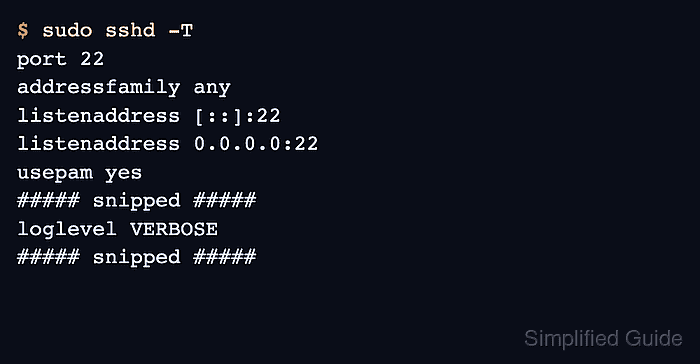
- Confirm that sshd resolves the drop-in setting.
$ sudo sshd -T
port 22
addressfamily any
listenaddress [::]:22
listenaddress 0.0.0.0:22
usepam yes
##### snipped #####
loglevel VERBOSE
##### snipped #####
If the expected value does not appear, another earlier directive or earlier included file is probably winning.
Related: How to view SSH server configuration
- Reload the SSH service to apply the drop-in file.
$ sudo systemctl reload ssh
Use sshd instead of ssh on distributions where the unit is named sshd.service.
- Confirm that the service remains active after the reload.
$ systemctl is-active ssh
active
- Test a new login from a separate client session.
$ ssh user@host.example.net 'echo SSH drop-in loaded'
SSH drop-in loaded
For directives such as AllowUsers, DenyUsers, PasswordAuthentication, or PermitRootLogin, keep the old session open until the account and source address that should retain access can log in.

Mohd Shakir Zakaria is a cloud architect with deep roots in software development and open-source advocacy. Certified in AWS, Red Hat, VMware, ITIL, and Linux, he specializes in designing and managing robust cloud and on-premises infrastructures.


