When one SSH server handles normal users, backup accounts, automation jobs, and trusted network ranges, one global sshd policy can be too broad. OpenSSH Match blocks let the daemon change selected server settings only for sessions that match a user, group, source address, local address, local port, host name, or server version.
The OpenSSH daemon reads /etc/ssh/sshd_config and any included files before it accepts new sessions. A Match block continues until the next Match line or the end of the file, and if the same keyword is set by more than one satisfied Match block, sshd uses the first matching instance of that keyword. Keep unconditional server settings before the first Match block so they do not become conditional by accident.
Back up the server file, add one focused condition, test syntax with sshd -t, and inspect the effective policy with sshd -T -C before reloading the service. Keep an existing SSH session or console path open until a new login works, especially when changing authentication, forwarding, shell, chroot, or SFTP rules.
Steps to configure SSH Match blocks:
- Open a terminal on the SSH server with an account that can use sudo.
Keep a second SSH session or console path open until the changed configuration reloads and the intended login path still works.
- Back up the active server configuration file.
$ sudo cp /etc/ssh/sshd_config /etc/ssh/sshd_config.bak.match-blocks
- Open the server configuration file with elevated privileges.
$ sudoedit /etc/ssh/sshd_config
Use the local editor required by your environment, but edit the active file that sshd reads.
- Set or confirm the global authentication defaults before the first Match block.
PasswordAuthentication no
PubkeyAuthentication yes
If an active directive already appears earlier in the file or in an included snippet, change that existing directive instead of adding a duplicate below it. For most sshd_config keywords, the first active value wins.
- Add the conditional Match block after the unconditional server settings.
Match User backupuser Address 192.0.2.0/24
    PasswordAuthentication yes
    DisableForwarding yes
    PermitTTY no
Replace backupuser and 192.0.2.0/24 with the account and source network that should receive the exception. All criteria on the Match line must match for the block to apply.
- Keep any later unconditional server settings above the first Match block.
A Match line is not closed with braces. Start another Match block for another condition, or move ordinary global directives above the first Match line.
- Save the file in the editor.
- Test the sshd configuration syntax.
$ sudo sshd -t
No output means the configuration parsed successfully.
Related: How to test SSH server configuration
- Inspect the effective settings for a connection that should match the block.
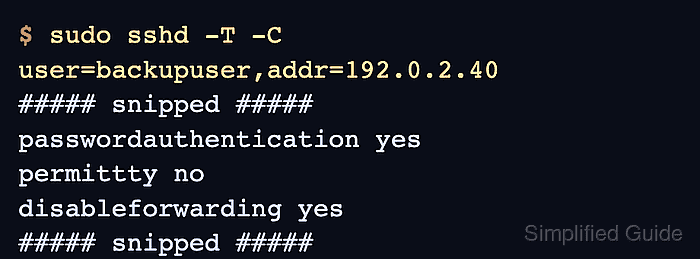
$ sudo sshd -T -C user=backupuser,addr=192.0.2.40
port 22
addressfamily any
listenaddress [::]:22
listenaddress 0.0.0.0:22
##### snipped #####
pubkeyauthentication yes
passwordauthentication yes
##### snipped #####
permittty no
disableforwarding yes
##### snipped #####
sshd -T -C evaluates Match rules without opening a network connection. Add only the fields your rules use, such as user=, addr=, host=, laddr=, lport=, or rdomain=.
Related: How to view SSH server configuration
- Inspect a connection that should not match the block.
$ sudo sshd -T -C user=backupuser,addr=203.0.113.10
port 22
addressfamily any
listenaddress [::]:22
listenaddress 0.0.0.0:22
##### snipped #####
pubkeyauthentication yes
passwordauthentication no
##### snipped #####
permittty yes
disableforwarding no
##### snipped #####
The non-matching output should keep the global policy, which confirms the exception is limited to the intended source range.
- Reload the SSH service after both checks return the expected values.
$ sudo systemctl reload ssh
Use sudo systemctl reload sshd on distributions that name the unit sshd. Use a restart instead of a reload only when the local service guide or package requires it.
- Check that the SSH service is still active.
$ sudo systemctl is-active ssh
active
- Open a new SSH session that should match the condition before closing the recovery session.
$ ssh backupuser@host.example.net 'echo SSH Match policy loaded'
backupuser@host.example.net's password:
SSH Match policy loaded
Run this smoke test from a client inside the source network used in the Address condition.

Mohd Shakir Zakaria is a cloud architect with deep roots in software development and open-source advocacy. Certified in AWS, Red Hat, VMware, ITIL, and Linux, he specializes in designing and managing robust cloud and on-premises infrastructures.


