Snap Store login connects the local snap command to a store account. It is needed for account-scoped actions such as installing private snaps, using publisher workflows, or confirming which identity the local snap client will use for store requests.
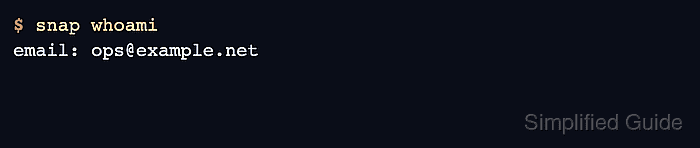
The login is stored by snapd on the host, not only in the current shell. Use snap whoami before and after login so the active account is explicit, especially on shared administration hosts.
A completed login should show the expected email address in snap whoami and should allow the account-scoped store operation that prompted the login. Do not save real account names, recovery codes, or one-time passwords in command transcripts or screenshots.
Related: How to check snap package information
Related: How to configure snapd proxy settings
Steps to log in to the Snap Store:
- Check the current Snap Store identity.
$ snap whoami
email: -
- Start the login prompt.
$ snap login
Email address: ops@example.net
Password:
Two-factor code:
Login successful
Enter the real password and multi-factor code only at the interactive prompt. Do not place credentials directly in a shell command.
- Verify the logged-in account.
$ snap whoami
email: ops@example.net
- Run the account-scoped store action that required login.
$ snap info private-tool
name:      private-tool
publisher: Example Publisher
summary:   Internal operations tool
channels:
  latest/stable: 1.4.2
Use the private snap, publisher operation, or store action that prompted the login. Public snaps do not normally require authentication.
- Clear the local store session when the host should no longer stay authenticated.
$ snap logout
Logged out
Skip logout only when the host is intentionally kept authenticated for managed store operations.

Mohd Shakir Zakaria is a cloud architect with deep roots in software development and open-source advocacy. Certified in AWS, Red Hat, VMware, ITIL, and Linux, he specializes in designing and managing robust cloud and on-premises infrastructures.


