Automated browser checks often fail at a visual transition that logs cannot reconstruct. A screenshot taken in the same WebDriver session preserves the rendered layout, message, or overlay as a PNG artifact for later diagnosis.
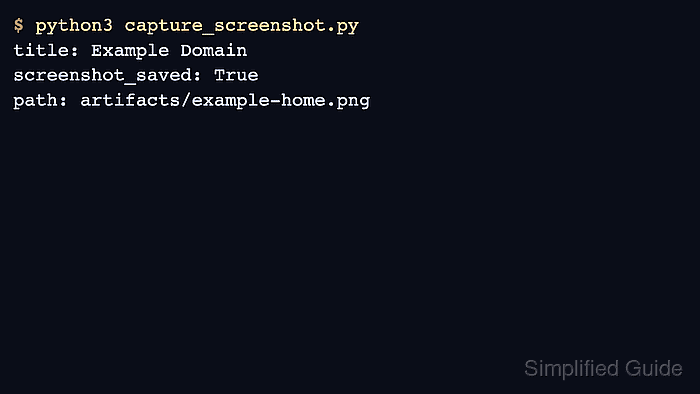
A unique filename prevents parallel jobs or repeated runs from replacing earlier evidence. An explicit Chromium viewport also gives the retained image deliberate dimensions instead of inheriting an unpredictable browser window.
Navigation can finish before client-rendered content reaches the state worth preserving, so the capture needs its own page-specific expected condition. Treat the resulting file as sensitive when the page can expose account names, private records, session data, or internal URLs.
Steps to capture a screenshot with Selenium:
- Define a collision-safe PNG destination and 1280-by-720 viewport at the start of capture_screenshot.py.
- capture_screenshot.py
from pathlib import Path
import shutil
from struct import unpack
from uuid import uuid4

from selenium import webdriver
from selenium.webdriver.chrome.options import Options
from selenium.webdriver.chrome.service import Service
from selenium.webdriver.support import expected_conditions as EC
from selenium.webdriver.support.ui import WebDriverWait


viewport = (1280, 720)
output_directory = Path("artifacts")
output_directory.mkdir(parents=True, exist_ok=True)
output_file = output_directory / f"example-home-{uuid4().hex}.png"
- Configure headless Chrome below the capture boundary.
options = Options()
options.add_argument("--headless=new")
Drive the browser to a capture-ready state:
- Select a PATH-provided ChromeDriver before falling back to Selenium Manager.
driver_path = shutil.which("chromedriver")
service = Service(driver_path) if driver_path else Service()
A configured chromedriver takes precedence when it is available; an empty Service() lets Selenium Manager resolve the driver otherwise.
Related: How to configure ChromeDriver for Selenium - Start a Chrome WebDriver session with the selected service and options.
driver = webdriver.Chrome(service=service, options=options)
try:
- Apply the selected viewport to the active Chromium session inside the try block.
    driver.execute_cdp_cmd(
        "Emulation.setDeviceMetricsOverride",
        {
            "width": viewport[0],
            "height": viewport[1],
            "deviceScaleFactor": 1,
            "mobile": False,
        },
    )
- Navigate the session to https://example.com/.
driver.get("https://example.com/")
Navigation waits for the selected page-load strategy, but client-rendered state may still need its own condition.
Related: How to wait for page load in Selenium - Wait until the page title exactly matches Example Domain.
    WebDriverWait(driver, timeout=10).until(
        EC.title_is("Example Domain")
    )
- Require save_screenshot() to return True for the collision-safe PNG path.
    if not driver.save_screenshot(str(output_file)):
        raise RuntimeError("Selenium did not save the screenshot")
- Quit the Chrome session from a finally block.
finally:
    driver.quit()
Prove the PNG survived session cleanup:
- Reject a retained file without a valid PNG signature after the Chrome session closes.
png_bytes = output_file.read_bytes()
if len(png_bytes) < 24 or png_bytes[:8] != b"\x89PNG\r\n\x1a\n":
    raise RuntimeError("The retained file is not a valid PNG")
- Reject retained PNG dimensions that differ from the selected viewport.
width, height = unpack(">II", png_bytes[16:24])
if (width, height) != viewport:
    raise RuntimeError(
        f"Expected {viewport[0]} x {viewport[1]}, got {width} x {height}"
    )

print(f"retained: {output_file}")
print(f"png bytes: {len(png_bytes)}")
print(f"png dimensions: {width} x {height}")
- Run capture_screenshot.py to verify the retained PNG.
$ python3 capture_screenshot.py
retained: artifacts/example-home-8f667723547b416996c12e8a957d19f2.png
png bytes: 17117
png dimensions: 1280 x 720

Mohd Shakir Zakaria is a cloud architect with deep roots in software development and open-source advocacy. Certified in AWS, Red Hat, VMware, ITIL, and Linux, he specializes in designing and managing robust cloud and on-premises infrastructures.


