Native browser dialogs interrupt Selenium page interaction because the active WebDriver command must deal with the dialog before it can return to page elements. Tests around deletion buttons, confirmation prompts, or browser warnings can otherwise fail at the next locator or click.
An explicit alert_is_present() wait returns the Alert object only after the browser exposes the dialog. The test can then read its text and call accept() or dismiss() without racing the JavaScript that opened it.
This approach applies to native alert(), confirm(), and prompt() dialogs. A modal drawn with HTML and CSS remains part of the document, so it needs ordinary locators and element waits instead of the alert API.
Steps to handle browser alerts with Selenium:
- Create alert-demo.html with a confirmation dialog and a visible result state.
- alert-demo.html
<!doctype html>
<html lang="en">
  <head>
    <meta charset="utf-8">
    <title>Selenium alert demo</title>
  </head>
  <body>
    <button id="delete">Delete test record</button>
    <p id="state">waiting</p>
    <script>
      document.getElementById("delete").addEventListener("click", () => {
        const accepted = window.confirm("Delete this test record?");
        document.getElementById("state").textContent =
          accepted ? "accepted" : "dismissed";
      });
    </script>
  </body>
</html>
- Start selenium-alert-handle.py with the imports, local page URL, and headless browser options.
- selenium-alert-handle.py
from pathlib import Path

from selenium import webdriver
from selenium.webdriver.chrome.options import Options
from selenium.webdriver.common.by import By
from selenium.webdriver.support import expected_conditions as EC
from selenium.webdriver.support.ui import WebDriverWait


PAGE_URL = Path("alert-demo.html").resolve().as_uri()
options = Options()
options.add_argument("--headless=new")
- Complete selenium-alert-handle.py with the confirmation action and fail-capable assertions.
- selenium-alert-handle.py
from pathlib import Path

from selenium import webdriver
from selenium.webdriver.chrome.options import Options
from selenium.webdriver.common.by import By
from selenium.webdriver.support import expected_conditions as EC
from selenium.webdriver.support.ui import WebDriverWait


PAGE_URL = Path("alert-demo.html").resolve().as_uri()
options = Options()
options.add_argument("--headless=new")


def handle_confirmation():
    driver = webdriver.Chrome(options=options)
    try:
        driver.get(PAGE_URL)
        driver.find_element(By.ID, "delete").click()

        alert = WebDriverWait(driver, 5).until(EC.alert_is_present())
        message = alert.text
        assert message == "Delete this test record?"
        alert.accept()

        state = driver.find_element(By.ID, "state").text
        assert state == "accepted"

        print(f"Alert text: {message}")
        print("Alert accepted")
        print(f"Page state: {state}")
    finally:
        driver.quit()


if __name__ == "__main__":
    handle_confirmation()
accept() chooses OK, while dismiss() chooses Cancel on a confirmation dialog. A prompt() accepts text through send_keys() before accept().
accept() confirms the browser action. Tests against destructive application flows should use disposable records or another isolated test fixture.
- Run the completed script from the directory that contains both files.
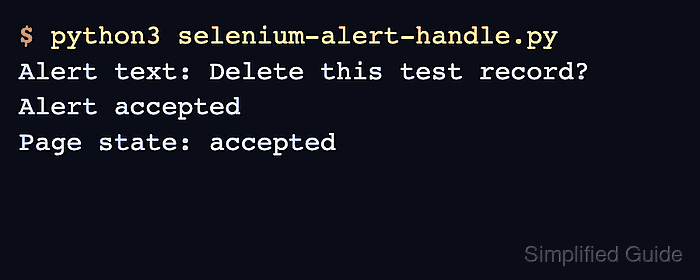
$ python3 selenium-alert-handle.py
Alert text: Delete this test record?
Alert accepted
Page state: accepted

Mohd Shakir Zakaria is a cloud architect with deep roots in software development and open-source advocacy. Certified in AWS, Red Hat, VMware, ITIL, and Linux, he specializes in designing and managing robust cloud and on-premises infrastructures.


