A finished Screen window can stay in a session after a command, log view, or temporary shell is no longer needed. Killing one window removes that terminal workspace while keeping the other windows in the same session available.
The kill command removes one Screen window. From inside an attached session it is bound to C-a k and C-a C-k, and from another shell screen -S work -p logs -X kill sends the same command to the selected window.
Confirm the target before running the command because kill sends a HANGUP signal to the process in that window and removes the window entry. Destroying the last window exits Screen, while quit closes the entire session, so use a window-specific target when other work should stay available.
Steps to kill a Screen window:
- List windows in the target session and identify the exact title or number to remove.
$ screen -S work -Q windows
0 shell  1 logs  2 monitor
Use the session name from screen -ls when your session is not named work. Inside an attached session, C-a " opens the interactive window list.
- Kill only the target window by title or number.
$ screen -S work -p logs -X kill
This sends a HANGUP signal to the process in the logs window. Save work in editors, shells, or long-running commands before closing the window.
Inside an attached session, select the target window first, then press C-a k or C-a C-k to run kill on the current window.
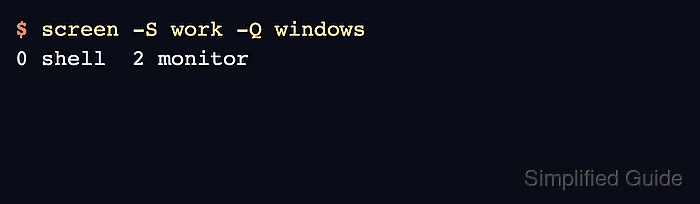
- List windows again and confirm the target is absent while other windows remain.
$ screen -S work -Q windows
0 shell  2 monitor
The logs window is gone, but the shell and monitor windows remain in the work session.