Unattended backups need a copy command, a scheduler that survives logout, and a record of each run. Pairing rsync with system cron suits small server directories and local backup volumes when the source, destination, run time, and failure boundary are explicit.
A root-owned script keeps the rsync options out of the schedule and uses absolute command paths that do not depend on an interactive shell. The system entry under /etc/cron.d adds the run-as user after its five time fields, while flock prevents a second copy from starting before the previous run releases its lock.
System cron evaluates its five time fields in the server's local timezone and reloads files under /etc/cron.d when they change. A daemon-created destination plus a matching start and finish pair in the log distinguishes a working schedule from a file that was merely saved.
Steps to schedule rsync backups with cron:
- Check the server timezone used by cron.
$ readlink /etc/localtime
/usr/share/zoneinfo/Etc/UTC
The path after /usr/share/zoneinfo/ is the configured timezone. With Etc/UTC returned above, the production entry runs at 02:17 UTC.
- Preview the backup before scheduling it.
$ sudo rsync \
  --archive \
  --delete \
  --dry-run \
  --itemize-changes \
  /srv/app-data/ \
  /backup/app-data/
created directory /backup/app-data
cd+++++++++ ./
>f+++++++++ app.conf
cd+++++++++ uploads/
>f+++++++++ uploads/logo.png
Keep --delete only when the destination should mirror source removals. An unattended run can remove destination-only files without another prompt.
- Create the backup script.
- /usr/local/sbin/rsync-backup
#!/bin/sh
set -eu

LOG=/var/log/rsync-backup.log

/usr/bin/mkdir -p /backup/app-data
printf '[%s] starting rsync backup\n' "$(/usr/bin/date -u +%Y-%m-%dT%H:%M:%SZ)" >> "$LOG"
/usr/bin/rsync \
  --archive \
  --delete \
  --itemize-changes \
  /srv/app-data/ \
  /backup/app-data/ >> "$LOG" 2>&1
printf '[%s] finished rsync backup\n' "$(/usr/bin/date -u +%Y-%m-%dT%H:%M:%SZ)" >> "$LOG"
set -e stops the script before the finished timestamp when rsync exits with an error. The UTC timestamps keep separate runs comparable when the server timezone changes.
- Set the script owner to root.
$ sudo chown root:root /usr/local/sbin/rsync-backup
- Restrict the script to root.
$ sudo chmod 0750 /usr/local/sbin/rsync-backup
- Confirm that non-root users cannot modify the script.
$ sudo stat -c '%U:%G %a' /usr/local/sbin/rsync-backup
root:root 750
cron runs this script as root. Do not enable the schedule if the owner or mode lets a non-root account modify it.
- Check the script syntax.
$ sudo sh -n /usr/local/sbin/rsync-backup
No output means the shell parsed the script without a syntax error.
- Install the production schedule with a temporary one-minute proof line under /etc/cron.d.
- /etc/cron.d/rsync-backup
SHELL=/bin/sh
PATH=/usr/local/sbin:/usr/local/bin:/usr/sbin:/usr/bin:/sbin:/bin
MAILTO=""
17 2 * * * root /usr/bin/flock --nonblock /run/lock/rsync-backup.lock /usr/local/sbin/rsync-backup
* * * * * root /usr/bin/flock --nonblock /run/lock/rsync-backup.lock /usr/local/sbin/rsync-backup
The second entry runs every minute. Remove only that temporary line after one cron-triggered backup finishes; the 17 2 production line stays in place throughout the proof run.
The username column makes these system cron entries. --nonblock skips a new invocation when another run still owns the lock.
Related: How to create a cron job in Linux
Tool: Crontab Generator - Set the cron file owner.
$ sudo chown root:root /etc/cron.d/rsync-backup
- Set the cron file mode.
$ sudo chmod 0644 /etc/cron.d/rsync-backup
- Confirm the cron file attributes.
$ sudo stat -c '%U:%G %a' /etc/cron.d/rsync-backup
root:root 644
- Check the cron syntax before allowing the one-minute line to run.
$ sudo crontab -n /etc/cron.d/rsync-backup
The syntax of the crontab file was successfully checked.
On current Ubuntu releases, crontab -n checks the time fields and command syntax without installing the file as a user crontab.
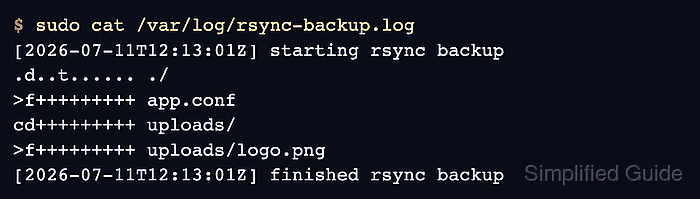
- Wait for the next minute without running the script manually, then inspect the backup log.
$ sudo cat /var/log/rsync-backup.log
[2026-07-11T12:13:01Z] starting rsync backup
.d..t...... ./
>f+++++++++ app.conf
cd+++++++++ uploads/
>f+++++++++ uploads/logo.png
[2026-07-11T12:13:01Z] finished rsync backup
A start and finish pair created after the proof line was installed confirms that cron launched the script and rsync returned successfully. A start line without its finish line marks a failed run.
- Check the files created by the cron-triggered run.
$ sudo find /backup/app-data -type f -print
/backup/app-data/app.conf
/backup/app-data/uploads/logo.png
- Remove only the temporary one-minute line and leave the production entry unchanged.
- /etc/cron.d/rsync-backup
SHELL=/bin/sh
PATH=/usr/local/sbin:/usr/local/bin:/usr/sbin:/usr/bin:/sbin:/bin
MAILTO=""
17 2 * * * root /usr/bin/flock --nonblock /run/lock/rsync-backup.lock /usr/local/sbin/rsync-backup
- Check the retained production file after the edit.
$ sudo crontab -n /etc/cron.d/rsync-backup
The syntax of the crontab file was successfully checked.
- Reload or restart cron so its in-memory table contains only the retained production line.
$ sudo systemctl reload-or-restart cron
cron normally notices changed files automatically. Reloading or restarting immediately removes the temporary one-minute entry from the daemon's loaded table.
Related: How to manage a Linux service with systemctl - Confirm that cron is active after loading the production file.
$ sudo systemctl is-active cron active - Review the recent cron log for the scheduled command and the later service start.
$ sudo journalctl -u cron --since "5 minutes ago" --no-pager
##### snipped #####
Jul 11 12:13:01 backup-node CRON[3142]: (root) CMD (/usr/bin/flock --nonblock /run/lock/rsync-backup.lock /usr/local/sbin/rsync-backup)
##### snipped #####
Jul 11 12:13:14 backup-node systemd[1]: Stopped cron.service - Regular background program processing daemon.
Jul 11 12:13:14 backup-node systemd[1]: Started cron.service - Regular background program processing daemon.
##### snipped #####
The CMD line records the daemon-triggered backup while the 17 2 line was already present. The later service start follows removal of the one-minute line and the final syntax check, leaving the same successful root command scheduled for 02:17.

Mohd Shakir Zakaria is a cloud architect with deep roots in software development and open-source advocacy. Certified in AWS, Red Hat, VMware, ITIL, and Linux, he specializes in designing and managing robust cloud and on-premises infrastructures.


