Archiving a Redmine project moves inactive work out of normal project lists while keeping its issues, wiki pages, files, and history in the application. It fits completed, paused, or retired projects that should stop appearing to regular users but may need administrator recovery later.
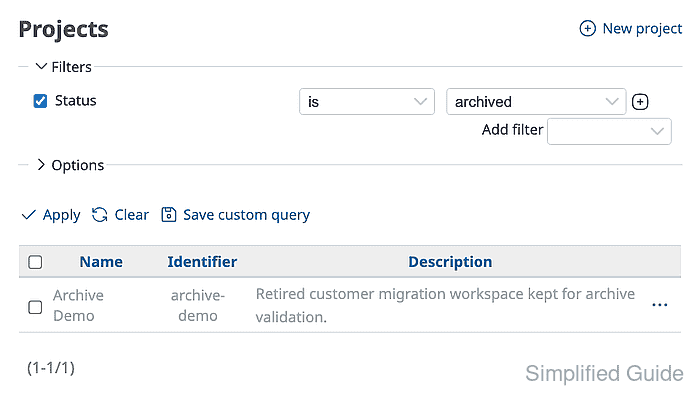
Redmine performs the archive action from the administrator Projects list. The list starts with active projects, and the status filter can be changed to archived after the action to confirm where the project moved.
An archive is different from deletion or closing. Deleted projects remove data, closed projects remain visible but read-only, and archived projects are hidden from users without reducing database or file storage. Archiving a parent project also archives its subprojects.
Related: How to create a Redmine project
Related: How to back up and restore Redmine
Steps to archive a Redmine project:
- Sign in to Redmine with an administrator account.
- Open Administration → Projects.
- Confirm the Status filter is set to active and locate the project row.
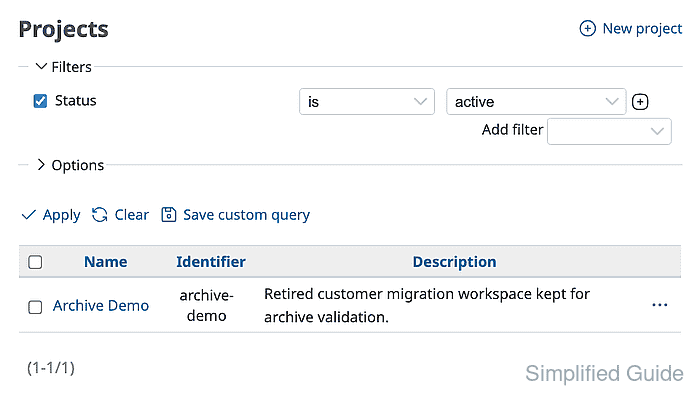
The administrator project list shows active projects by default.
- Open the row Actions menu and click Archive.

- Accept the browser confirmation prompt.
Archiving a parent project also archives its subprojects. The action hides project content from users but does not reclaim database or attachment storage.
- Change the Status filter to archived and click Apply.
The archived row appears gray in the administrator list. Administrators can use the row Actions menu later to unarchive the project.
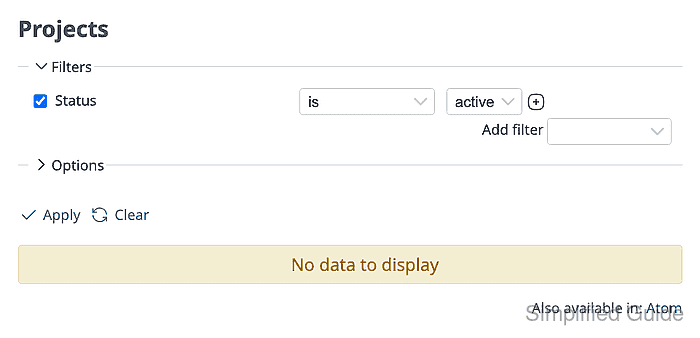
- Open Projects from a signed-out or non-administrator session and confirm the archived project is not listed.

Mohd Shakir Zakaria is a cloud architect with deep roots in software development and open-source advocacy. Certified in AWS, Red Hat, VMware, ITIL, and Linux, he specializes in designing and managing robust cloud and on-premises infrastructures.


