Redmine issue statuses name the stages an issue can move through, such as New, In Progress, Closed, or a team-specific waiting state. Creating a status is needed when a project lifecycle has a state that should appear in issue lists, filters, and history instead of being written only as a note.
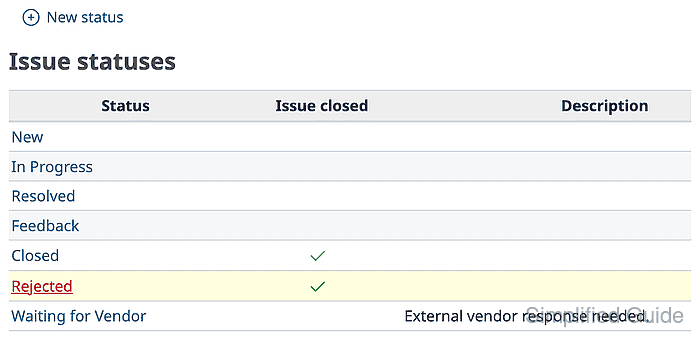
Issue statuses are site-level administration values. A new status is not automatically available to every tracker and role; Redmine uses the workflow matrix to decide which users can move an issue from one status to another.
Use a short status name, add a plain description, and decide whether the status should close issues before saving. After the status exists, add at least one workflow transition for the target tracker and role, then test the change with a project member account.
Related: How to create a Redmine tracker
Related: How to create a Redmine issue
Steps to create a Redmine issue status:
- Sign in to Redmine with an administrator account and open Administration → Issue statuses.
https://redmine.example.net/issue_statuses
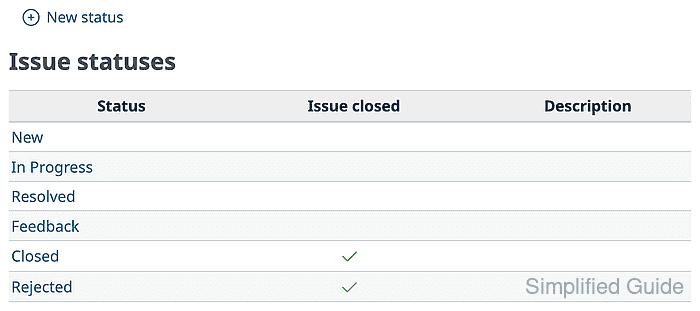
Replace the hostname with the URL for your Redmine site.
- Click New status, enter Waiting for Vendor in Name, add a short Description, and leave Issue closed unchecked.
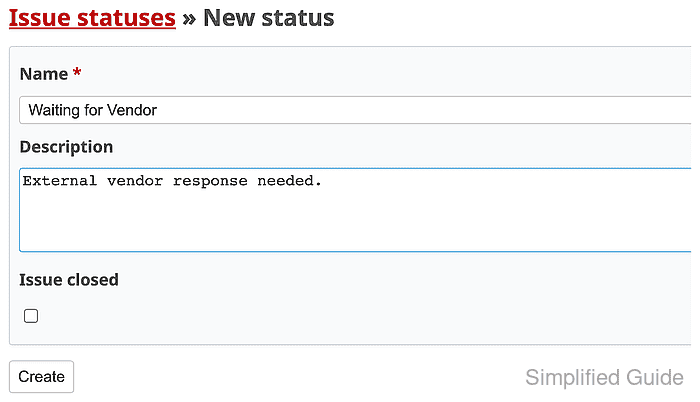
Enable Issue closed only for terminal states that should count as closed issues.
- Click Create and confirm the status appears in the list.
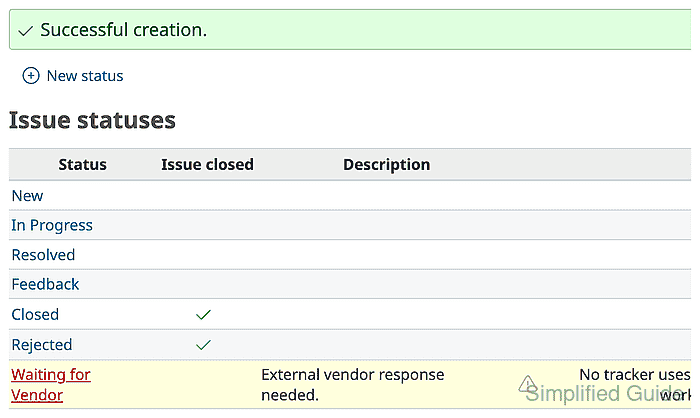
Redmine can warn that no tracker uses the status until a workflow transition points to it.
- Open Administration → Workflow and select the role and tracker that should use the status.
https://redmine.example.net/workflows/edit
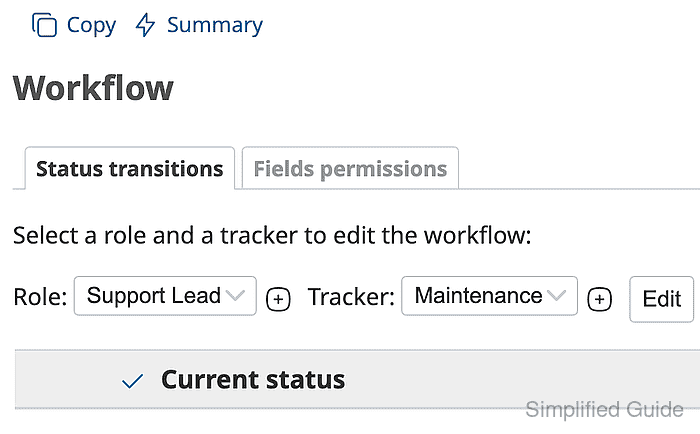
Clear Only display statuses that are used by this tracker when the new status is hidden from the matrix.
- Enable the transition from the current status to the new status.
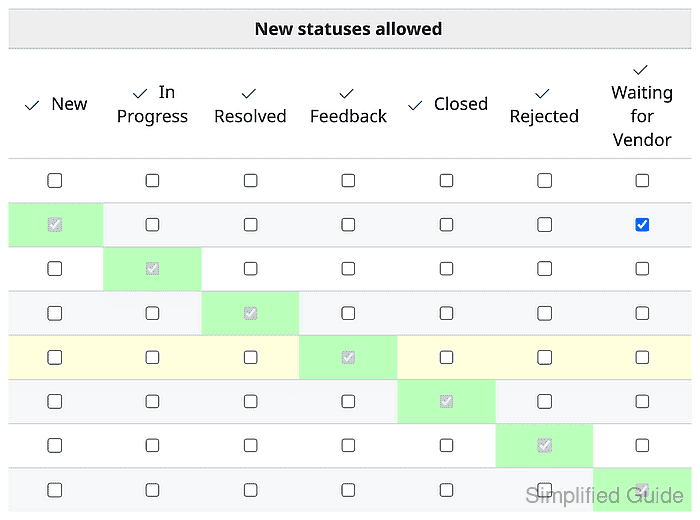
The selected matrix should allow Support Lead users to move Maintenance issues from New to Waiting for Vendor.
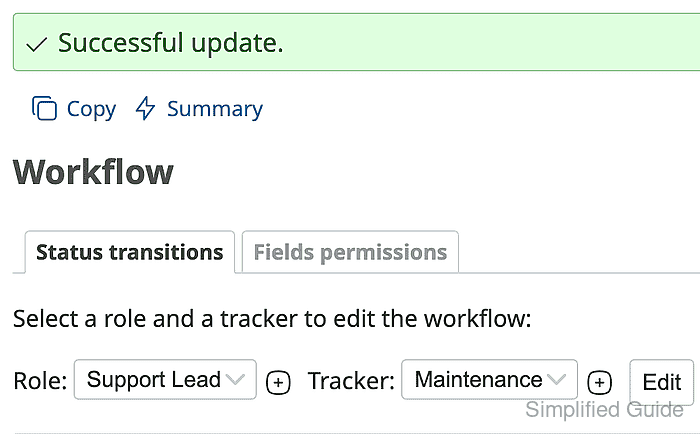
- Click Save and confirm Successful update appears.
Related: How to configure a Redmine workflow
- Sign in as a project member with the selected role and open an issue that uses the selected tracker.
The issue must be in a current status that the workflow allows to move into the new status.
- Click Edit and select the new status from Status.
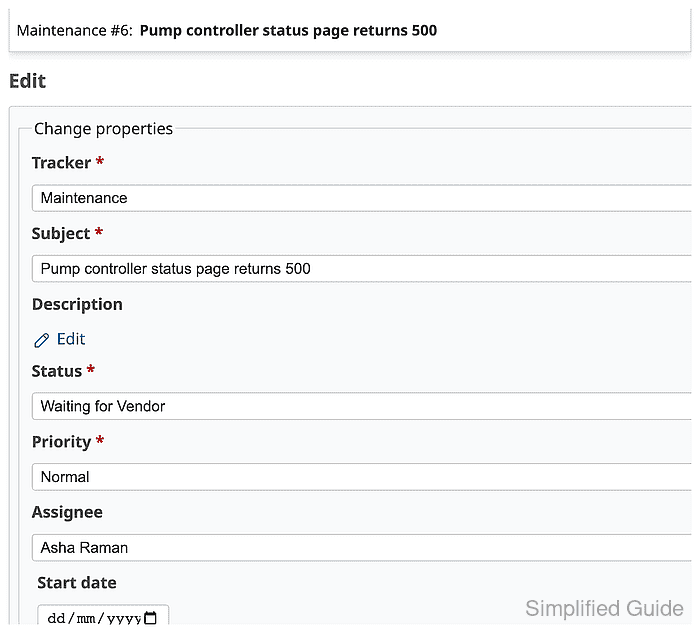
- Click Submit and confirm the issue shows the new status.
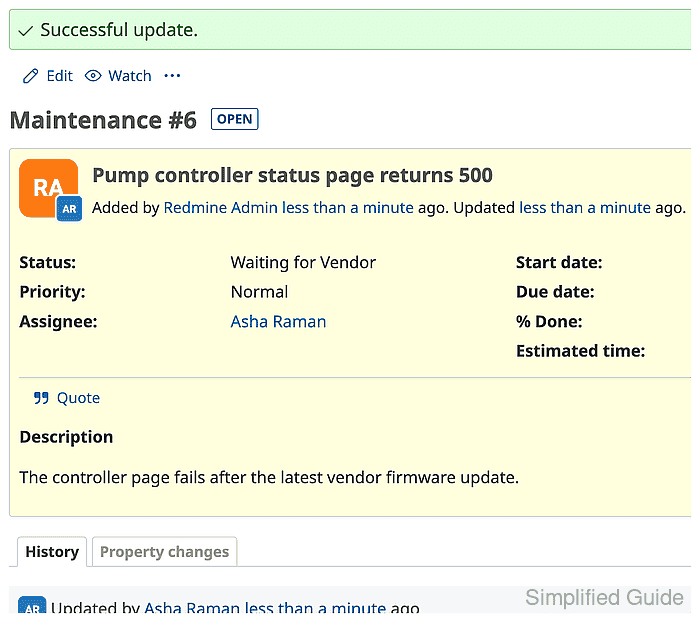
The issue history should record the status change from New to Waiting for Vendor.

Mohd Shakir Zakaria is a cloud architect with deep roots in software development and open-source advocacy. Certified in AWS, Red Hat, VMware, ITIL, and Linux, he specializes in designing and managing robust cloud and on-premises infrastructures.


