Connection spikes in PostgreSQL can exhaust backend slots before the database is actually out of CPU or disk. Setting connection limits keeps a runaway application role or one busy database from consuming the whole server and leaving administrators without a login path.
Each client session uses a server-side backend process, so idle connections still consume memory and scheduler time. PostgreSQL enforces a server-wide ceiling with max_connections, reserves emergency slots with superuser_reserved_connections and, on current releases, reserved_connections, then applies CONNECTION LIMIT attributes on roles and databases when new sessions start.
Prefer role and database limits before raising max_connections because they target the application that needs control without increasing every connection-related allocation. Existing sessions are not disconnected when a role or database limit changes, while increasing max_connections requires a planned restart on packaged systemd hosts and enough memory headroom for the larger backend pool.
Steps to set connection limits in PostgreSQL:
- Open a terminal on the PostgreSQL host with sudo privileges.
- Display the server-wide connection cap and reserved slots.
$ sudo -u postgres psql --no-psqlrc --command "SELECT name, setting FROM pg_settings WHERE name IN ('max_connections','reserved_connections','superuser_reserved_connections') ORDER BY name;"
              name              | setting
--------------------------------+---------
 max_connections                | 100
 reserved_connections           | 0
 superuser_reserved_connections | 3
(3 rows)
Ordinary client sessions use the remaining slots after reserved connection settings are accounted for. Older PostgreSQL releases may not show reserved_connections.
- Count current client sessions from pg_stat_activity.
$ sudo -u postgres psql --no-psqlrc --tuples-only --no-align --command "SELECT count(*) FROM pg_stat_activity WHERE usename IS NOT NULL;"
2
- List connections per role and database before choosing a cap.
$ sudo -u postgres psql --no-psqlrc --command "SELECT datname, usename, count(*) AS connections FROM pg_stat_activity WHERE usename IS NOT NULL GROUP BY datname, usename ORDER BY connections DESC;" datname | usename | connections ----------+----------+------------- postgres | postgres | 1 | postgres | 1 (2 rows) - Check the current role connection limit for the application role.
$ sudo -u postgres psql --no-psqlrc --command "SELECT rolname, rolconnlimit FROM pg_roles WHERE rolname = 'appuser';"
 rolname | rolconnlimit
---------+--------------
 appuser |           -1
(1 row)
Replace appuser with the login role used by the application. A value of -1 means no role-specific limit.
- Check the current database connection limit for the application database.
$ sudo -u postgres psql --no-psqlrc --command "SELECT datname, datconnlimit FROM pg_database WHERE datname = 'appdb';"
 datname | datconnlimit
---------+--------------
 appdb   |           -1
(1 row)
Replace appdb with the target database. A value of -1 means no database-specific limit.
- Set a per-role connection limit for the application role.
$ sudo -u postgres psql --no-psqlrc --command "ALTER ROLE appuser CONNECTION LIMIT 2;"
ALTER ROLE
Use a value that leaves enough sessions for normal traffic, migrations, health checks, and pooler connections. CONNECTION LIMIT is enforced when sessions start and can reject excess logins with a FATAL error.
- Set a per-database connection limit for the application database.
$ sudo -u postgres psql --no-psqlrc --command "ALTER DATABASE appdb CONNECTION LIMIT 20;"
ALTER DATABASE
Database limits help when several applications share the same max_connections pool and one database should not consume it all.
- Verify the saved role connection limit from pg_roles.
$ sudo -u postgres psql --no-psqlrc --tuples-only --no-align --command "SELECT rolname, rolconnlimit FROM pg_roles WHERE rolname = 'appuser';"
appuser|2
- Verify the saved database connection limit from pg_database.
$ sudo -u postgres psql --no-psqlrc --tuples-only --no-align --command "SELECT datname, datconnlimit FROM pg_database WHERE datname = 'appdb';"
appdb|20
- Change max_connections only when a higher global cap is required.
$ sudo -u postgres psql --no-psqlrc --command "ALTER SYSTEM SET max_connections = 120;"
ALTER SYSTEM
Changing max_connections requires a PostgreSQL restart and increases memory requirements for connection-related structures. Keep standby servers at the same or a higher max_connections value than the primary.
- Restart PostgreSQL to apply the new max_connections value.
$ sudo systemctl restart postgresql
A restart disconnects active sessions and should be scheduled for a maintenance window.
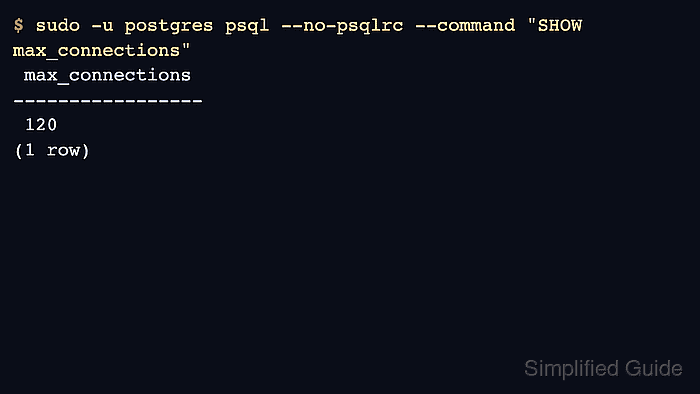
- Confirm the updated max_connections value after the restart.
$ sudo -u postgres psql --no-psqlrc --tuples-only --no-align --command "SHOW max_connections;"
120
- Confirm the role-limit rejection from a separate test connection only after the role already has the configured number of sessions open.
$ psql "host=127.0.0.1 dbname=appdb user=appuser"
psql: error: connection to server at "127.0.0.1", port 5432 failed: FATAL:  too many connections for role "appuser"
Idle sessions count toward connection limits, so pooling typically reduces both connection count and rejection risk.

Mohd Shakir Zakaria is a cloud architect with deep roots in software development and open-source advocacy. Certified in AWS, Red Hat, VMware, ITIL, and Linux, he specializes in designing and managing robust cloud and on-premises infrastructures.


