A miniONE deployment turns one fresh Linux server into an OpenNebula evaluation cloud with the frontend, FireEdge Sunstone, a local KVM host, a starter network, and an imported Alpine Linux VM template. It is the fastest way to test OpenNebula on local hardware before planning a manual frontend and cluster build.
miniONE is meant for evaluation, testing, and learning rather than production clouds. The on-prem path uses a privileged installer run on a clean supported host, installs the OpenNebula services, configures the local machine as a KVM node, and prints the Sunstone URL plus the initial oneadmin credential.
Use a physical server when possible because nested virtualization can make the sample VM slow or unstable. The all-in-one on-prem path expects a fresh supported operating system, SSH on port 22, web UI access on port 80, at least 32 GiB RAM, and 80 GiB free disk for the frontend plus local KVM workload path.
Steps to deploy OpenNebula on-prem with miniONE:
- Start from a fresh supported Linux host with root access.
OpenNebula 7.2 miniONE supports RHEL or AlmaLinux 9 or 10, Debian 12 or 13, Ubuntu 22.04 or 24.04, openSUSE 16.0, and SLES 15.7.
- Confirm that KVM acceleration is available.
$ ls -l /dev/kvm
crw-rw----+ 1 root kvm 10, 232 Jun 25 09:00 /dev/kvm
If /dev/kvm is missing, miniONE can fall back to QEMU emulation, but the local VM smoke test will be slower and may not match bare-metal behavior.
- Download the latest miniONE release.
$ wget https://github.com/OpenNebula/minione/releases/latest/download/minione
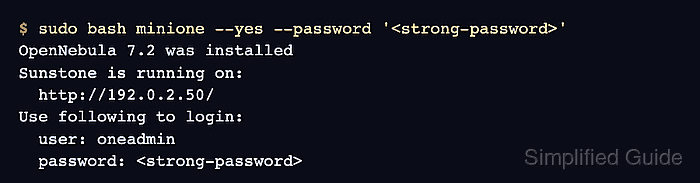
- Run miniONE with a saved initial oneadmin password.
$ sudo bash minione --yes --password '<strong-password>'
OpenNebula 7.2 was installed
Sunstone is running on:
  http://192.0.2.50/
Use following to login:
  user: oneadmin
  password: <strong-password>
Replace <strong-password> with a real secret before running the installer. The oneadmin account has administrative control of the evaluation cloud.
- Sync the local KVM host after installation.
$ sudo -u oneadmin onehost sync --force
The sync can take a few minutes while OpenNebula refreshes the local host drivers and monitoring state.
- Wait until the local host reports on in OpenNebula.
$ sudo -u oneadmin onehost list
  ID NAME      CLUSTER    RVM      ALLOCATED_CPU      ALLOCATED_MEM STAT
   0 localhost default      0       0 / 3200 (0%)       0K / 31.2G on
- Confirm that the frontend services are active.
$ systemctl is-active opennebula opennebula-fireedge opennebula-flow opennebula-gate
active
active
active
active
If a service is not active, inspect the matching journald unit and /var/log/one logs before retrying.
Related: How to manage OpenNebula services with systemctl in Linux - Open the Sunstone URL printed by miniONE.
http://192.0.2.50/
Log in as oneadmin with the password shown in the miniONE report. Use the reported address from your host, not the sample documentation address.
Related: How to log in to OpenNebula Sunstone - List the imported VM template.
$ sudo -u oneadmin onetemplate list
  ID USER     GROUP    NAME               REGTIME
   0 oneadmin oneadmin Alpine Linux 3.20  06/25 09:18:44
- Instantiate the imported Alpine Linux template as a smoke test.
$ sudo -u oneadmin onetemplate instantiate "Alpine Linux 3.20" --name minione-alpine-test
VM ID: 0
Use the template name shown by onetemplate list if miniONE imported a different appliance for your architecture.
Related: How to instantiate an OpenNebula virtual machine - Verify that the smoke-test VM reaches running state.
$ sudo -u oneadmin onevm list
  ID USER     GROUP    NAME                STAT CPU     MEM        HOSTNAME        TIME
   0 oneadmin oneadmin minione-alpine-test runn   1    768M       localhost 00 00:01:18
- Terminate the smoke-test VM when it was created only to prove the deployment.
$ sudo -u oneadmin onevm terminate --hard 0
terminate --hard deletes the VM immediately. Keep the VM running instead when it is the first workload for further testing.

Mohd Shakir Zakaria is a cloud architect with deep roots in software development and open-source advocacy. Certified in AWS, Red Hat, VMware, ITIL, and Linux, he specializes in designing and managing robust cloud and on-premises infrastructures.


