Upgrading an OpenNebula Front-end replaces the control-plane packages while keeping the existing users, Hosts, resources, configuration, and database state. A planned upgrade needs a quiet VM state, disabled Hosts, stopped services, and recoverable backups before package changes touch the management server.
Single Front-end deployments running OpenNebula 6.x or newer follow the same upgrade order across supported Linux distributions. The package commands differ by distribution, but the control-plane sequence stays the same: stop the cloud, back up state, upgrade packages, migrate configuration, migrate the database, then restart and sync Hosts.
Configuration migration is handled by onecfg, and database migration is handled by onedb. Keep the package-manager prompt choice on the existing modified configuration files so onecfg can merge the new release defaults after the packages are installed.
Steps to upgrade an OpenNebula frontend:
- Confirm that no virtual machines are in a transient state before the maintenance window begins.
$ sudo -u oneadmin onevm list
  ID USER     GROUP    NAME        STAT CPU     MEM HOST        TIME
  12 prod     cloud    app-01      runn   2      4G kvm01   14d 04h15
  17 prod     cloud    db-01       poff   4      8G -        6d 02h03
Wait for prolog, migrate, epilog, and save states to finish before continuing. Those states indicate active image, migration, or checkpoint work.
- Disable each Host so monitoring and placement stop during the upgrade.
$ sudo -u oneadmin onehost disable 0
- Check that the Host state changed to disabled.
$ sudo -u oneadmin onehost list
  ID NAME            CLUSTER   TVM      ALLOCATED_CPU      ALLOCATED_MEM STAT
   0 kvm01           default     2        200 / 1600       8G / 64G      dsbl
- Stop the installed Front-end services.
$ sudo systemctl stop opennebula opennebula-flow.service opennebula-gate.service opennebula-hem.service opennebula-fireedge.service
Older deployments that still have opennebula-scheduler.service should stop that unit in the same maintenance window.
Related: How to manage OpenNebula services with systemctl in Linux - Confirm that the Front-end services are inactive.
$ systemctl is-active opennebula opennebula-flow.service opennebula-gate.service opennebula-hem.service opennebula-fireedge.service
inactive
inactive
inactive
inactive
inactive
- Back up the active Front-end configuration directory.
$ sudo cp -a /etc/one /etc/one.$(date +%F)
- Back up the remote driver configuration directory.
$ sudo cp -a /var/lib/one/remotes/etc /var/lib/one/remotes/etc.$(date +%F)
- Create an OpenNebula database backup before the package upgrade.
$ sudo -u oneadmin onedb backup
Sqlite database backup stored in /var/lib/one/one.db_2026-06-25_10:15:42.bck
Use 'onedb restore' to restore the DB.
onedb restore can restore the backup, but onedb does not downgrade an already migrated database to an older schema. Keep OS and package rollback media together with this database backup.
Related: How to back up the OpenNebula database - Refresh package metadata after the configured OpenNebula repository points at the target release.
$ sudo apt-get update
Hit:1 https://enterprise.opennebula.io/repo/7.2/Ubuntu/24.04 stable InRelease
Reading package lists... Done
- Upgrade the Front-end packages.
$ sudo apt-get install --only-upgrade opennebula opennebula-gate opennebula-flow opennebula-fireedge opennebula-migration opennebula-guacd python3-pyone
The following packages will be upgraded:
  opennebula opennebula-fireedge opennebula-flow opennebula-gate
  opennebula-guacd opennebula-migration python3-pyone
7 upgraded, 0 newly installed, 0 to remove and 0 not upgraded.
##### snipped #####
Setting up opennebula (7.2.0-1) ...
Setting up opennebula-migration (7.2.0-1) ...
When the package manager asks about modified configuration files, keep the installed versions. onecfg applies the release configuration changes in the next steps.
- Check the pending configuration migration.
$ sudo onecfg status
--- Versions ------------------------------
OpenNebula:  7.2.0
Config:      6.10.0

--- Available Configuration Updates -------
New config:  7.2.0
- from 6.10.0 to 6.10.2 (YAML, Ruby)
- from 6.10.2 to 7.2.0 (YAML, Ruby)
- Apply the configuration migration.
$ sudo onecfg upgrade
ANY   : Found backed up configuration to process!
ANY   : Snapshot to update from '/var/lib/one/backups/config/2026-06-25_10:20:03-v6.10.0'
ANY   : Backup stored in '/var/lib/one/backups/config/2026-06-25_10:26:31_14312'
ANY   : Configuration updated to 7.2.0
Resolve onecfg conflicts before starting opennebula. A failed or skipped configuration migration can leave the daemon reading old settings with new binaries.
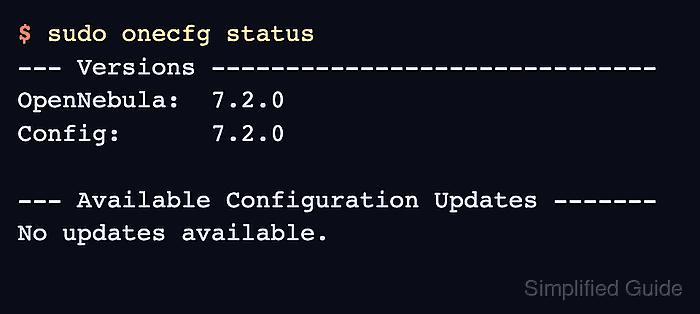
- Confirm that no configuration updates remain.
$ sudo onecfg status
--- Versions ------------------------------
OpenNebula:  7.2.0
Config:      7.2.0

--- Available Configuration Updates -------
No updates available.
- Upgrade the database schema.
$ sudo -u oneadmin onedb upgrade -v
Version read:
Shared tables 6.10.0 : OpenNebula 6.10.0 daemon bootstrap
Local tables  6.10.0 : OpenNebula 6.10.0 daemon bootstrap
Sqlite database backup stored in /var/lib/one/one.db_2026-06-25_10:32:14.bck
Use 'onedb restore' to restore the DB.

>>> Running migrators for shared tables
  > Running migrator /usr/lib/one/ruby/onedb/shared/6.10.0_to_7.2.0.rb
  > Done in 0.00s
Database migrated from 6.10.0 to 7.2.0 (OpenNebula 7.2.0) by onedb command.

>>> Running migrators for local tables
  > Running migrator /usr/lib/one/ruby/onedb/local/6.10.0_to_7.2.0.rb
  > Done in 0.08s
Database migrated from 6.10.0 to 7.2.0 (OpenNebula 7.2.0) by onedb command.

Total time: 0.12s
- Check database consistency after the schema migration.
$ sudo -u oneadmin onedb fsck
MySQL dump stored in /var/lib/one/mysql_localhost_opennebula.sql
Use 'onedb restore' or restore the DB using the mysql command:
mysql -u user -h server -P port db_name < backup_file

Total errors found: 0
- Reload systemd unit files after the package upgrade.
$ sudo systemctl daemon-reload
- Start the Front-end services.
$ sudo systemctl start opennebula opennebula-flow.service opennebula-gate.service opennebula-hem.service opennebula-fireedge.service
Start the reverse proxy too when FireEdge is published through Apache or Nginx.
Related: How to manage OpenNebula services with systemctl in Linux - Confirm that the Front-end services are active.
$ systemctl is-active opennebula opennebula-flow.service opennebula-gate.service opennebula-hem.service opennebula-fireedge.service
active
active
active
active
active
- Upgrade the node package on each KVM Host.
$ sudo apt-get install --only-upgrade opennebula-node-kvm
The following packages will be upgraded:
  opennebula-node-kvm
1 upgraded, 0 newly installed, 0 to remove and 0 not upgraded.
##### snipped #####
Setting up opennebula-node-kvm (7.2.0-1) ...
Use opennebula-node-lxc instead on LXC Hosts. For KVM Hosts, restart the libvirt service after the node package upgrade.
Related: How to install an OpenNebula KVM node - Sync the updated virtualization, storage, and networking drivers to the Hosts.
$ sudo -u oneadmin onehost sync
* Adding remotes to Host kvm01
* Updating virtualization drivers
* Updating storage drivers
* Updating networking drivers
- Enable each Host after the package and driver updates finish.
$ sudo -u oneadmin onehost enable 0
- Confirm that OpenNebula can read the upgraded Host.
$ sudo -u oneadmin onehost show 0
HOST 0 INFORMATION
ID                    : 0
NAME                  : kvm01
STATE                 : MONITORED
IM_MAD                : kvm
VM_MAD                : kvm

Mohd Shakir Zakaria is a cloud architect with deep roots in software development and open-source advocacy. Certified in AWS, Red Hat, VMware, ITIL, and Linux, he specializes in designing and managing robust cloud and on-premises infrastructures.


