Video playback in OpenCV uses the same frame loop that later powers annotation, tracking, and interactive inspection tools. Displaying a short file in a HighGUI window confirms that video decoding, frame timing, keyboard handling, and desktop GUI support are available before deeper processing is added.
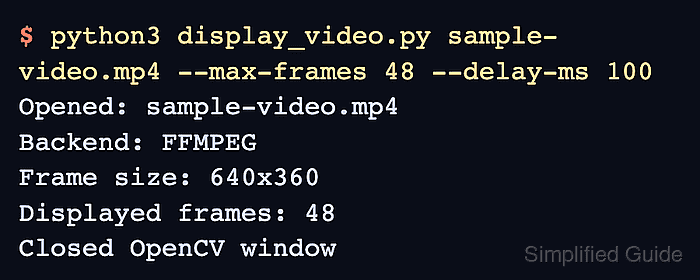
A small Python 3 script can open a file with cv.VideoCapture, show each frame with cv.imshow, and call cv.waitKey during the loop so the window repaints and accepts keyboard input. Pressing q exits early, while a frame limit keeps a smoke test from playing the whole file.
Use the standard opencv-python or opencv-contrib-python package for desktop display work. The opencv-python-headless packages are for servers and containers without GUI dependencies, so they are the wrong wheel family for scripts that call cv.imshow.
Steps to display video with OpenCV:
- Create a short sample video when no test file is ready.
- make_sample_video.py
#!/usr/bin/env python3
from pathlib import Path

import cv2 as cv
import numpy as np


output = Path("sample-video.mp4")
width, height = 640, 360
fps = 24.0
frame_count = 72

writer = cv.VideoWriter(
    str(output),
    cv.VideoWriter_fourcc(*"mp4v"),
    fps,
    (width, height),
)

if not writer.isOpened():
    raise SystemExit("Cannot create sample-video.mp4")

for index in range(frame_count):
    frame = np.zeros((height, width, 3), dtype=np.uint8)
    frame[:] = (34, 44, 64)
    x = 60 + (index * 7) % (width - 160)
    color = (80 + index % 120, 180, 230)
    cv.rectangle(frame, (x, 120), (x + 100, 220), color, -1)
    cv.putText(
        frame,
        f"Frame {index + 1:02d}",
        (40, 70),
        cv.FONT_HERSHEY_SIMPLEX,
        1.3,
        (245, 245, 245),
        2,
        cv.LINE_AA,
    )
    cv.putText(
        frame,
        "OpenCV video display",
        (40, 315),
        cv.FONT_HERSHEY_SIMPLEX,
        0.9,
        (210, 230, 255),
        2,
        cv.LINE_AA,
    )
    writer.write(frame)

writer.release()
print(f"Created {output}")
print(f"Frames: {frame_count}")
print(f"Frame size: {width}x{height}")
Skip this sample generator when an existing .mp4, .mov, or .avi file is already available.
- Generate the sample video file.
$ python3 make_sample_video.py
Created sample-video.mp4
Frames: 72
Frame size: 640x360
The mp4v codec is widely available for short local tests. Use a project video instead when the display loop must match a specific codec, resolution, or frame rate.
- Create the OpenCV display script.
- display_video.py
#!/usr/bin/env python3
import argparse
import sys
from pathlib import Path

import cv2 as cv


parser = argparse.ArgumentParser(description="Display a video file with OpenCV HighGUI.")
parser.add_argument("video", help="path to a readable video file")
parser.add_argument("--delay-ms", type=int, default=25, help="wait time between frames")
parser.add_argument("--max-frames", type=int, default=0, help="stop after this many frames; 0 means no limit")
parser.add_argument("--window-title", default="OpenCV video preview", help="HighGUI window title")
args = parser.parse_args()

video_path = Path(args.video)
cap = cv.VideoCapture(str(video_path))

if not cap.isOpened():
    sys.exit(f"Cannot open video: {video_path}")

backend = cap.getBackendName()
width = int(cap.get(cv.CAP_PROP_FRAME_WIDTH))
height = int(cap.get(cv.CAP_PROP_FRAME_HEIGHT))
frames_displayed = 0
stopped_by_key = False

try:
    while True:
        ok, frame = cap.read()
        if not ok or frame is None:
            break

        cv.imshow(args.window_title, frame)
        frames_displayed += 1

        key = cv.waitKey(args.delay_ms) & 0xFF
        if key == ord("q"):
            stopped_by_key = True
            break

        if args.max_frames and frames_displayed >= args.max_frames:
            break
finally:
    cap.release()
    cv.destroyAllWindows()

if frames_displayed == 0:
    sys.exit(f"No frames were displayed from {video_path}")

print(f"Opened: {video_path}")
print(f"Backend: {backend}")
print(f"Frame size: {width}x{height}")
print(f"Displayed frames: {frames_displayed}")
if stopped_by_key:
    print("Stopped by key: q")
print("Closed OpenCV window")
cv.waitKey is part of the display loop, not only a keyboard shortcut. It lets HighGUI process window events while the frames are shown.
- Run the display script against the sample video.
$ python3 display_video.py sample-video.mp4 --max-frames 48 --delay-ms 100
Opened: sample-video.mp4
Backend: FFMPEG
Frame size: 640x360
Displayed frames: 48
Closed OpenCV window
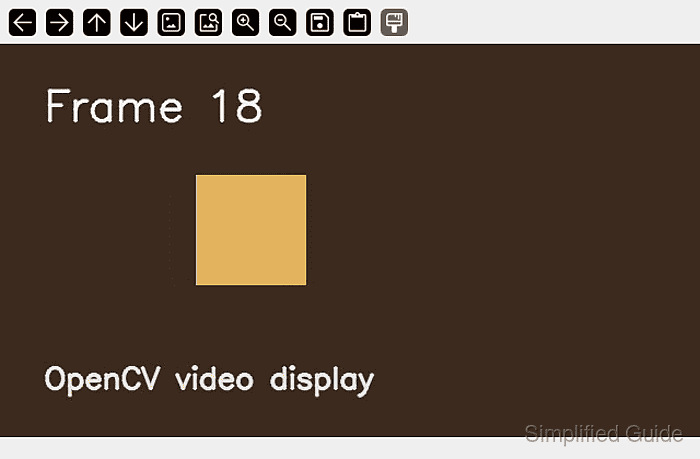
Press q while the OpenCV window is focused to close it before the frame limit. Replace sample-video.mp4 with a project video when the display loop must use real footage, and lower --delay-ms toward 25 for normal playback.
- Remove the smoke-test files when they are no longer needed.
$ rm -f make_sample_video.py display_video.py sample-video.mp4
Keep display_video.py when it will become the starting point for an annotation, tracking, or frame-processing tool.

Mohd Shakir Zakaria is a cloud architect with deep roots in software development and open-source advocacy. Certified in AWS, Red Hat, VMware, ITIL, and Linux, he specializes in designing and managing robust cloud and on-premises infrastructures.


