A shared directory lets people keep the same username and password across internal applications. Open WebUI can authenticate those accounts through LDAP while keeping its own user roles.
The application account searches the directory for the supplied username, then Open WebUI checks the password by binding as that user. The directory mail attribute identifies the Open WebUI account, so directory email addresses must be unique and controlled by your organization.
An existing LDAPS directory, a read-only search account, and a public CA certificate readable inside the Open WebUI runtime are prerequisites. A signed-in local administrator and an enabled Login Form preserve access if directory authentication fails.
Steps to enable LDAP authentication in Open WebUI:
- Confirm the application account finds the test user over trusted LDAPS from the Open WebUI network.
$ LDAPTLS_CACERT=/run/ldap/ca.pem ldapsearch -LLL -x \
  -H ldaps://ldap.example.com:636 \
  -D "cn=openwebui,ou=service,dc=example,dc=com" -W \
  -b "ou=people,dc=example,dc=com" \
  "(&(uid=morgan.identity)(objectClass=inetOrgPerson))" uid mail
Enter LDAP Password:
dn: uid=morgan.identity,ou=people,dc=example,dc=com
uid: morgan.identity
mail: morgan.identity@example.com
The OpenLDAP client tools must already be available on a host with the same directory reachability as Open WebUI. The public CA PEM is at /run/ldap/ca.pem here; its path may differ on the client and inside the Open WebUI container. The search account needs read access to user attributes, without directory write privileges.
- Confirm the directory user can bind with their password over LDAPS.
$ LDAPTLS_CACERT=/run/ldap/ca.pem ldapwhoami -x \
  -H ldaps://ldap.example.com:636 \
  -D "uid=morgan.identity,ou=people,dc=example,dc=com" -W
Enter LDAP Password:
dn:uid=morgan.identity,ou=people,dc=example,dc=com
A failed bind points to the user DN, password, account state, certificate trust, or directory policy before Open WebUI is involved. Both commands prompt for passwords rather than exposing them in command arguments.
- Open the administrator's user menu.
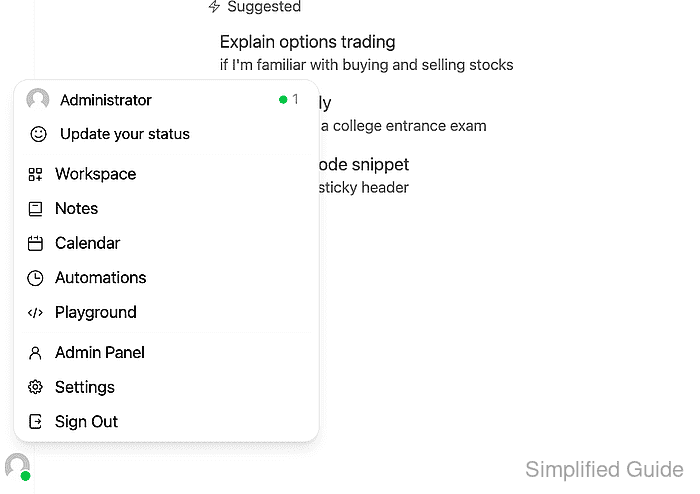
- Select Settings.
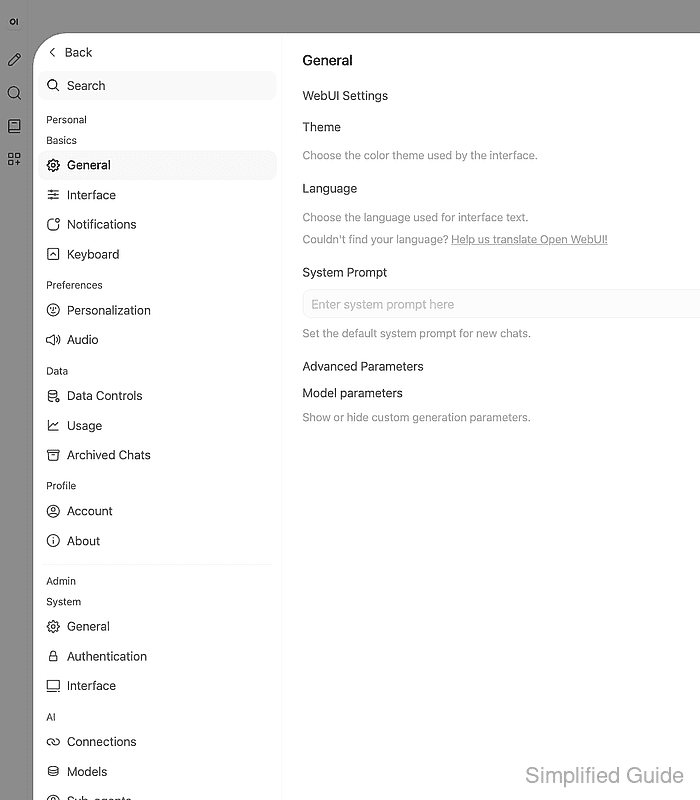
- Select Authentication under Admin.
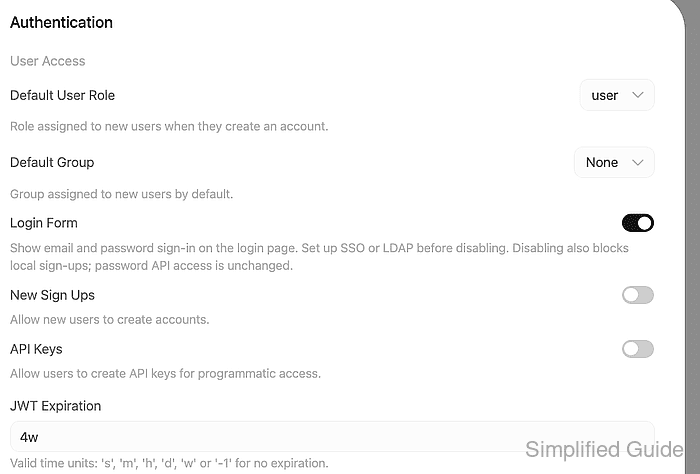
An enabled Login Form keeps Continue with Email available to local administrators. Disabling it before directory login works can lock administrators out. The Default User Role determines access for newly created directory accounts; user permits normal access, while pending requires approval.
- Enable LDAP.
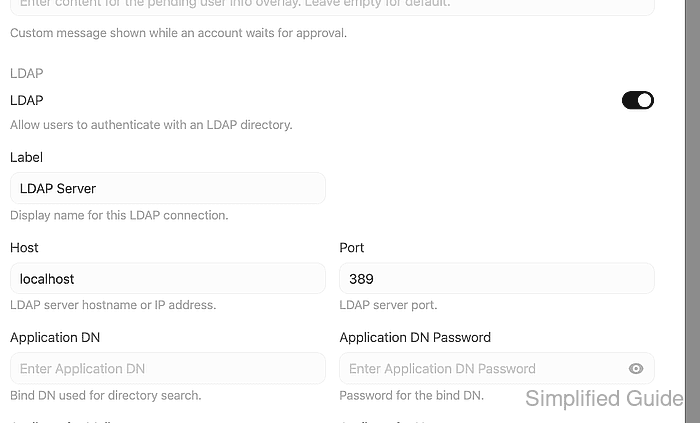
- Enter Company LDAP in Label.

- Enter ldap.example.com in Host.

Host contains only a hostname or IP address, without ldaps://.
- Set Port to 636.

The numeric port must match the directory's implicit TLS listener.
- Enter the read-only search account in Application DN.
cn=openwebui,ou=service,dc=example,dc=com

- Enter that account's password in Application DN Password.

- Confirm Attribute for Mail is mail.

The attribute must match your directory's email field. An existing Open WebUI account with the same email is matched during login.
- Confirm Attribute for Username is uid.

The attribute must match your directory's username field. For example, Active Directory commonly uses sAMAccountName instead of uid.
- Enter the user subtree in Search Base.
ou=people,dc=example,dc=com

- Enter the additional condition in Search Filters.
(objectClass=inetOrgPerson)

The username condition is added automatically; uid=%s placeholders are not substituted. An empty additional filter is valid when the search base already limits access appropriately.
- Confirm the TLS switch is enabled.

TLS selects implicit LDAPS, normally on port 636. StartTLS on port 389 is unsupported.
- Confirm Validate Certificate is enabled.

Disabling certificate validation permits an impersonated directory server to receive credentials.
- Enter the public CA PEM's runtime path in Certificate Path.
/run/ldap/ca.pem

The file must be readable inside the Open WebUI process or container and contain the CA that issued the directory's certificate. A host-only path is insufficient for a container. The server certificate must also match the configured hostname.
- Click Save.
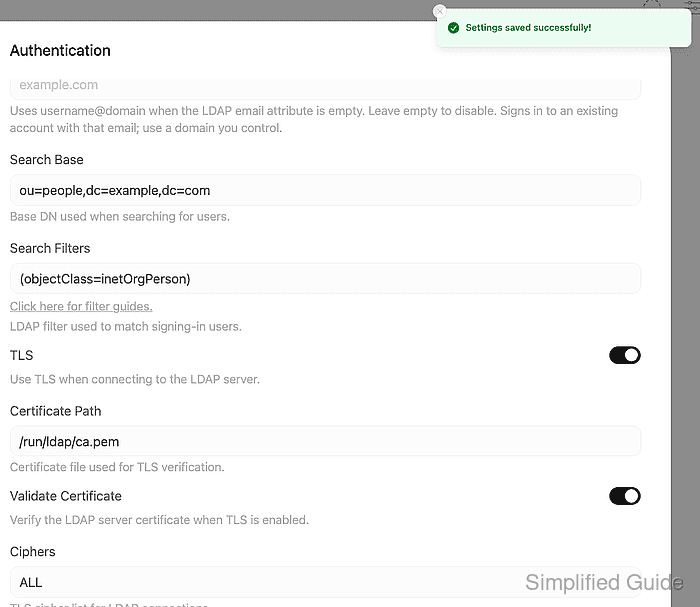
The saved settings apply to the next login without restarting Open WebUI.
- Open the Open WebUI sign-in page in a private browser window.
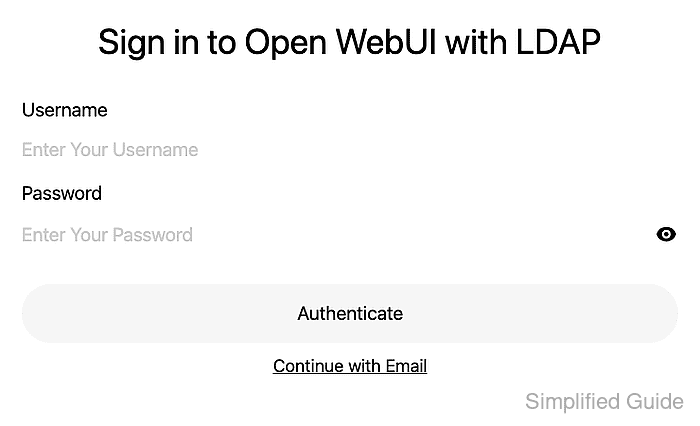
- Enter the test user's directory username.
morgan.identity
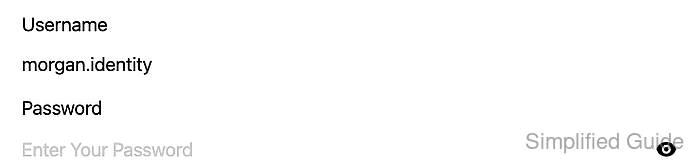
- Enter the directory user's password.
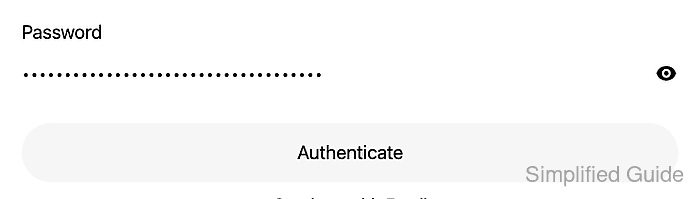
- Click Authenticate.
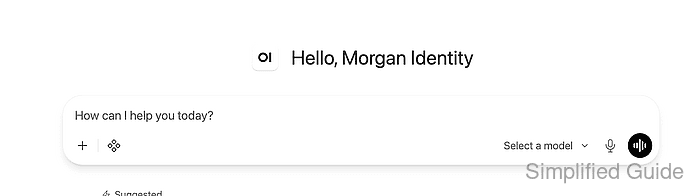
The authenticated workspace should show the directory user's name. A pending-account screen instead means authentication succeeded but the account awaits approval.
- Click Back in the retained administrator's Settings dialog.
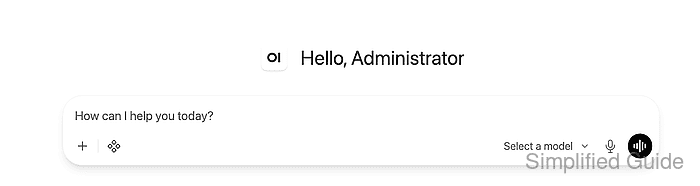
- Open the user menu in the retained administrator session.
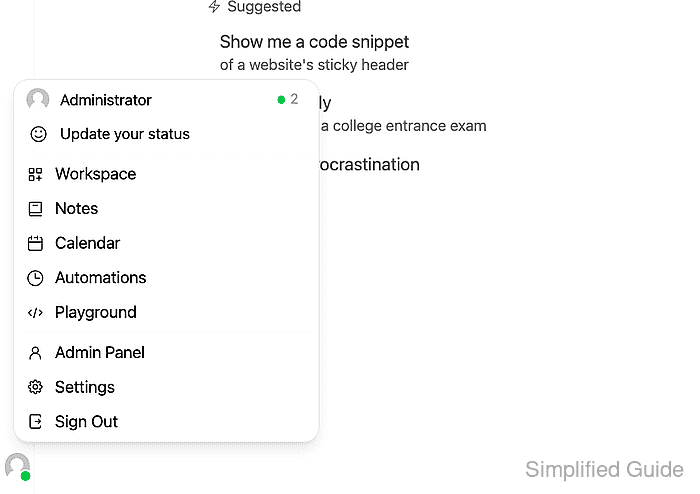
- Select Admin Panel.
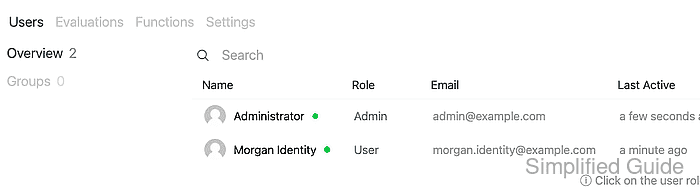
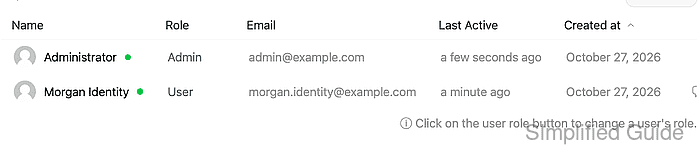
- Confirm the directory user's email and intended role appear in Users.
Morgan Identity has morgan.identity@example.com and the User role here. The signed-in workspace and matching account confirm directory authentication and the resulting Open WebUI access.