Accounts and conversations need a longer lifetime than Kubernetes pods. The official Open WebUI Helm chart installs the web interface with a persistent volume claim, while Helm records the deployment as a release that can later be upgraded.
A working cluster, configured kubectl access, and Helm installed from its official distribution are prerequisites. The cluster needs a default StorageClass that can provision the chart's storage, or an administrator-provided equivalent. The default claim requests 2 GiB for accounts, chats, settings, and uploads; that storage is separate from model storage.
One Open WebUI replica and the chart's bundled Redis are enough for an initial installation. Ollama and Pipelines are omitted when model services will be connected separately. A Kubernetes Secret preserves the application's signing key across pod replacement, and local port forwarding keeps the first administrator setup off the public network.
Steps to install Open WebUI on Kubernetes with Helm:
- Check the cluster's default storage class.
$ kubectl get storageclass
A class marked (default) supplies storage when the chart leaves persistence.storageClass empty. Without a suitable provisioner, the claim stays Pending and the installation cannot finish. A cluster administrator can supply a storage class name for persistence.storageClass in the values file instead.
Related: How to check Kubernetes cluster access - Add the official Open WebUI chart repository.
$ helm repo add open-webui https://helm.openwebui.com/
- Refresh the Helm repository index.
$ helm repo update
- Create the namespace for the release and its secret.
$ kubectl create namespace open-webui
The namespace must exist before its Secret is created. These names assume a new installation with no existing open-webui release.
Related: How to install a Helm chart on Kubernetes - Generate the signing key directly into a Kubernetes Secret.
Anyone allowed to read this Secret can obtain the signing key. It needs private backup alongside the application data; deleting or replacing it can invalidate sessions and encrypted integration credentials. The pipeline keeps the generated value out of shell history, command arguments, and terminal output.
Related: How to set WEBUI_SECRET_KEY in Open WebUI$ openssl rand -hex 32 | tr -d '\n' | kubectl create secret generic open-webui-secret --from-file=WEBUI_SECRET_KEY=/dev/stdin --namespace open-webui
OpenSSL must be available on the machine running kubectl. The Secret is created separately from the Helm release, so a later chart upgrade can reference the same key.
- Create open-webui-values.yaml in your text editor.
- open-webui-values.yaml
ollama:
  enabled: false
pipelines:
  enabled: false
extraEnvVars:
  - name: WEBUI_SECRET_KEY
    valueFrom:
      secretKeyRef:
        name: open-webui-secret
        key: WEBUI_SECRET_KEY
readinessProbe:
  httpGet:
    path: /health
    port: http
  periodSeconds: 5
The two disabled subcharts avoid installing a model server and Pipelines service that this instance does not need yet. extraEnvVars reads the existing key without putting its value in the file. The readiness probe waits for the application's HTTP listener; this chart otherwise has no readiness probe. Persistence remains enabled at its default size of 2 GiB.
- Save open-webui-values.yaml in your current directory.
- Install chart version 18.3.0 as release open-webui.
$ helm install open-webui open-webui/open-webui --version 18.3.0 --namespace open-webui --values open-webui-values.yaml --wait --timeout 20m
This chart version uses Open WebUI 0.13.3. The version pin makes a later repository refresh leave this installation choice unchanged. --wait waits for resources to become ready, including the configured HTTP probe; image downloads and first startup can take several minutes. A timeout requires checking pod events and PVC status before another install attempt.
The claim survives pod replacement, but it is not a backup. Uninstalling this chart deletes its default PVC and can delete the stored data; a separate backup is needed before removal or a database-changing upgrade.
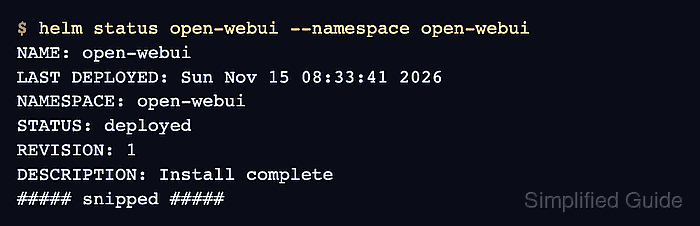
- Confirm that Helm reports the release as deployed. Example output:
$ helm status open-webui --namespace open-webui
NAME: open-webui
LAST DEPLOYED: Sun Nov 15 08:33:41 2026
NAMESPACE: open-webui
STATUS: deployed
REVISION: 1
DESCRIPTION: Install complete
##### snipped #####
The status should include STATUS: deployed. Helm records later changes as release revisions.
Related: How to upgrade a Helm release on Kubernetes
Related: How to roll back a Helm release on Kubernetes - Check the Open WebUI pod, storage claim, and service.
$ kubectl get pods,pvc,svc --namespace open-webui
The open-webui-0 pod should be 1/1 Running, the open-webui claim should be Bound, and the open-webui service should be ClusterIP on port 80. Redis has its own pod and service. A Pending claim or an unready pod means the installation needs attention before access is tested.
- Forward the Open WebUI service to port 8080 on your machine.
The first person to create an account becomes the administrator. The default port-forward binds only to localhost; keeping it local prevents remote users from claiming that account. A NodePort, LoadBalancer, Ingress, or --address 0.0.0.0 would widen access and needs authentication and TLS planning first.
$ kubectl port-forward --namespace open-webui svc/open-webui 8080:80
This command stays running in its terminal. Port 80 on the service routes to the application's port 8080. If its selected pod is replaced, the old tunnel can stop serving; a replacement port-forward needs the old command stopped with Ctrl+C first.
- Check the forwarded health endpoint from another terminal. Example output:
$ curl --fail --silent --show-error --include http://127.0.0.1:8080/health
HTTP/1.1 200 OK
##### snipped #####

{"status":true}
An HTTP/1.1 200 OK response with {"status":true} confirms that the installed application answers through its service. The same local address serves the Open WebUI welcome page. A healthy interface does not imply that a model provider is connected.