Node.js projects often keep dependency ranges in package.json while package-lock.json records the exact package tree used by installs. Updating a dependency with npm refreshes the resolved package version so fixes can land without hiding what changed from reviewers.
npm outdated shows the installed version, the highest version allowed by the manifest range, and the package's latest registry tag. npm update uses that range-aware target for local packages, which keeps routine patch and minor refreshes separate from deliberate range or major-version changes.
Range-safe updates fit routine refreshes before a release, after an audit finding, or when a dependency fix should stay inside the project's declared compatibility window. A new major version belongs in a separate reviewed change because it changes the version range and may require source-code or test updates.
Steps to update Node.js dependencies with npm:
- Check the selected dependency from the project root.
$ npm outdated lodash
Package  Current  Wanted  Latest  Location             Depended by
lodash   4.17.20  4.18.1  4.18.1  node_modules/lodash  project
Wanted is the highest version allowed by package.json. If Latest is higher than Wanted, make the range change separately with npm install lodash@latest after release-note and test review.
- Update the selected dependency within the declared package range.
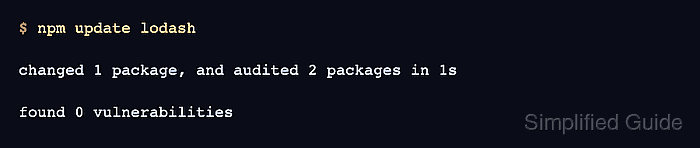
$ npm update lodash

changed 1 package, and audited 2 packages in 1s

found 0 vulnerabilities
Use explicit package names for small reviewable changes. Omit the package name only when the whole project dependency refresh is intended.
- Review the source-control diff for manifest and lockfile changes.
$ git diff -- package.json package-lock.json
diff --git a/package-lock.json b/package-lock.json
--- a/package-lock.json
+++ b/package-lock.json
##### snipped #####
-      "version": "4.17.20",
-      "resolved": "https://registry.npmjs.org/lodash/-/lodash-4.17.20.tgz",
+      "version": "4.18.1",
+      "resolved": "https://registry.npmjs.org/lodash/-/lodash-4.18.1.tgz",
##### snipped #####
package-lock.json should show the resolved package change. package.json changes only when the dependency range was edited or npm was told to save a new range.
- Confirm the manifest range still matches the intended compatibility window.
$ npm pkg get dependencies.lodash
"^4.17.20"
- Confirm the lockfile resolves the updated package version.
$ npm ls lodash --package-lock-only --depth=0
demo-app@1.0.0 /path/demo-app
`-- lodash@4.18.1
--package-lock-only makes npm ls read package-lock.json instead of the installed node_modules tree.
- Run the project's dependency-sensitive test or smoke command.
$ npm test

> demo-app@1.0.0 test
> node test.js

dependency smoke test passed
Use the test command that covers the updated package in the real project, such as npm test, npm run build, or an application smoke check.