An undersized Nginx worker pool can leave CPU capacity unused during traffic spikes, while an oversized pool adds scheduling overhead without increasing the connection limit by itself. Tuning worker_processes sets how many request-handling workers the master process keeps running after a reload.
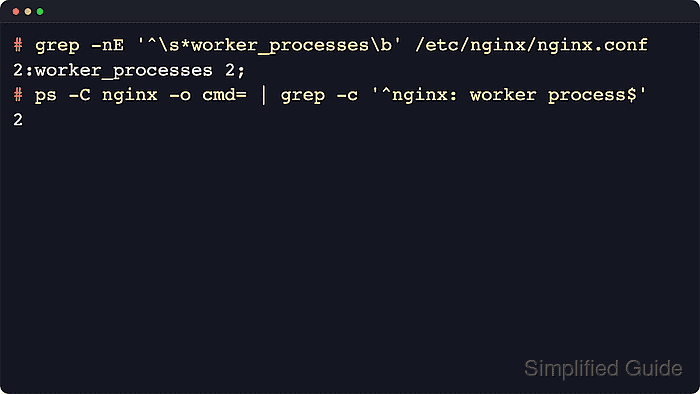
The Nginx master process reads the configuration and manages the worker pool, while each worker handles connections in an event-driven loop. Upstream documentation still lists worker_processes 1; as the built-in default, and worker_processes auto; remains the standard starting point because it tries to detect the available CPU count. Real concurrency still depends on worker_connections and the open-file limit.
Current Linux packages commonly already ship with worker_processes auto; in /etc/nginx/nginx.conf. Keep auto on dedicated hosts unless the service must stay inside a smaller CPU quota, cpuset, or pinning policy, in which case an explicit value is safer. Test every change with nginx -t, reload only after a clean parse, and confirm the stable worker count because old and new workers can briefly overlap during a graceful reload.
Related: How to improve Nginx performance
Related: How to tune worker_connections in Nginx
Steps to tune worker_processes in Nginx:
- Check how many CPU cores are visible to the service.
$ nproc
8
Use an explicit worker count instead of auto when the host exposes more CPUs than Nginx is actually allowed to use through quotas, cpusets, or deliberate core pinning.
- Check the loaded Nginx configuration for the current worker and connection settings.
$ sudo nginx -T
nginx: the configuration file /etc/nginx/nginx.conf syntax is ok
nginx: configuration file /etc/nginx/nginx.conf test is successful
# configuration file /etc/nginx/nginx.conf:
user www-data;
worker_processes auto;
##### snipped #####
events {
    worker_connections 768;
}
##### snipped #####
nginx -T validates the configuration and prints the loaded include tree, so it is safer than checking only one file on disk.
Examples below use the common Linux package layout with /etc/nginx/nginx.conf. If this is not the active file on your build, check the --conf-path value in nginx -V output.
- Edit the main configuration file.
$ sudoedit /etc/nginx/nginx.conf
- Set worker_processes in the main context to the target value.
user www-data;
worker_processes auto;
pid /run/nginx.pid;
Keep auto as the default choice for most dedicated hosts because it tracks the visible CPU count automatically.
Replace it with an explicit value such as worker_processes 2; when the service must stay inside a smaller CPU budget than the host advertises.
- Test the updated Nginx configuration for syntax errors.
$ sudo nginx -t
nginx: the configuration file /etc/nginx/nginx.conf syntax is ok
nginx: configuration file /etc/nginx/nginx.conf test is successful
Related: How to test Nginx configuration
- Reload Nginx to apply the new worker count.
$ sudo systemctl reload nginx
If systemd is not managing the service, use sudo nginx -s reload instead. The upstream control docs note that a reload starts new workers and then asks old workers to shut down gracefully.
Related: How to manage the Nginx service
- Verify that the stable worker pool matches the configured target.
$ ps -C nginx -o pid,cmd
    PID CMD
   2940 nginx: master process nginx
   2945 nginx: worker process
   2946 nginx: worker process
The count should match the explicit number that was configured, or the CPU count that auto detects on the host. If the command is run immediately after a reload, old workers may appear briefly while they finish existing requests.
- Confirm that Nginx still answers requests after the reload.
$ curl -I -sS http://127.0.0.1/
HTTP/1.1 200 OK
Server: nginx/1.28.3 (Ubuntu)
Date: Sat, 06 Jun 2026 12:00:37 GMT
Content-Type: text/html
Content-Length: 615
Last-Modified: Sat, 06 Jun 2026 12:00:34 GMT
Connection: keep-alive
ETag: "6a240be2-267"
Accept-Ranges: bytes
Use the site hostname or HTTPS URL when localhost on port 80 is not the listener that serves the real workload.

Mohd Shakir Zakaria is a cloud architect with deep roots in software development and open-source advocacy. Certified in AWS, Red Hat, VMware, ITIL, and Linux, he specializes in designing and managing robust cloud and on-premises infrastructures.


