Tuning worker_connections changes how many sockets each Nginx worker can keep open at the same time, which directly affects whether bursts of keepalive, WebSocket, or reverse-proxied traffic are absorbed cleanly or backed up into latency spikes and connection failures.
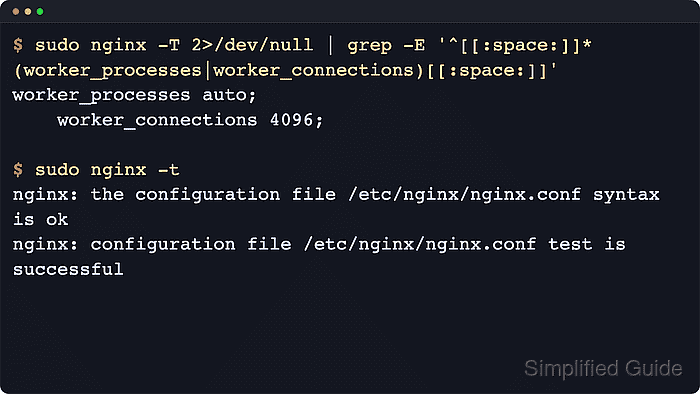
The directive lives inside the events block and applies per worker process, not to the whole server. Upstream Nginx documentation still notes that the count includes upstream proxy sockets as well as client sockets, so the practical ceiling is shaped by worker_processes, keepalive behavior, long-lived connections, and the current open-files limit.
Package defaults vary by distro and build; current Ubuntu packages still ship with worker_connections 768;, while upstream Nginx documents 512 as the core-module default. Before raising the value aggressively, confirm the host has matching file-descriptor headroom and remember that a reload applies the config change, while raising the inherited service limit itself is a separate task on systemd hosts.
Related: How to improve Nginx performance
Related: How to tune worker_processes in Nginx
Steps to tune worker_connections in Nginx:
- Print the loaded Nginx configuration and note the current worker settings.
$ sudo nginx -T
nginx: the configuration file /etc/nginx/nginx.conf syntax is ok
nginx: configuration file /etc/nginx/nginx.conf test is successful
# configuration file /etc/nginx/nginx.conf:
user www-data;
worker_processes auto;
worker_cpu_affinity auto;
##### snipped #####
events {
    worker_connections 768;
    # multi_accept on;
}
##### snipped #####
nginx -T validates the configuration and prints the loaded include tree, so it is safer than checking only one file on disk.
Related: How to test Nginx configuration
- Choose a target value that matches the busiest real workload on the host.
Start from the concurrency you actually need, not from the kernel maximum. Reverse-proxied requests can consume both a client-side socket and an upstream socket, while idle keepalive or long-lived upgrade connections continue to count against worker_connections.
- Open the main Nginx configuration file.
$ sudoedit /etc/nginx/nginx.conf
If this is not the active file on your build, check the --conf-path value in nginx -V output.
- Set worker_connections inside the events block.
events {
    worker_connections 4096;
}
The total connection budget is roughly worker_processes multiplied by worker_connections before upstream usage and open-files limits are taken into account.
- Check the current service open-files ceiling before expecting the higher connection value to take effect.
$ sudo systemctl show -p LimitNOFILE nginx
LimitNOFILE=65535
worker_connections cannot exceed the active open-files limit, and busy proxy workloads need headroom above the raw client count for upstream sockets, logs, and cache files. If nginx is not managed by systemd, check the equivalent process limit from your service manager instead.
- Test the updated Nginx configuration.
$ sudo nginx -t
nginx: the configuration file /etc/nginx/nginx.conf syntax is ok
nginx: configuration file /etc/nginx/nginx.conf test is successful
Related: How to test Nginx configuration
- Reload Nginx to apply the new connection ceiling.
$ sudo systemctl reload nginx
Use sudo nginx -s reload when systemd is not managing the service.
Related: How to manage the Nginx service
- Confirm that the loaded configuration now reports the new worker_connections value.
$ sudo nginx -T nginx: the configuration file /etc/nginx/nginx.conf syntax is ok nginx: configuration file /etc/nginx/nginx.conf test is successful # configuration file /etc/nginx/nginx.conf: user www-data; worker_processes auto; ##### snipped ##### events { worker_connections 4096; } ##### snipped ##### - Watch the local status counters during representative traffic if a stub_status endpoint is already enabled.
$ curl -s http://127.0.0.1/nginx_status
Active connections: 291
server accepts handled requests
 16630948 16630948 31070465
Reading: 6 Writing: 179 Waiting: 106
If handled falls behind accepts, the upstream Nginx status docs say a resource limit such as worker_connections has been reached.

Mohd Shakir Zakaria is a cloud architect with deep roots in software development and open-source advocacy. Certified in AWS, Red Hat, VMware, ITIL, and Linux, he specializes in designing and managing robust cloud and on-premises infrastructures.


