Nextcloud file versions let users recover earlier content from the Files app when a document was edited, overwritten, or saved with the wrong text. The Versions tab in the file details sidebar shows saved copies beside the current file, so a user can restore a known earlier copy without asking an administrator for a full backup restore.
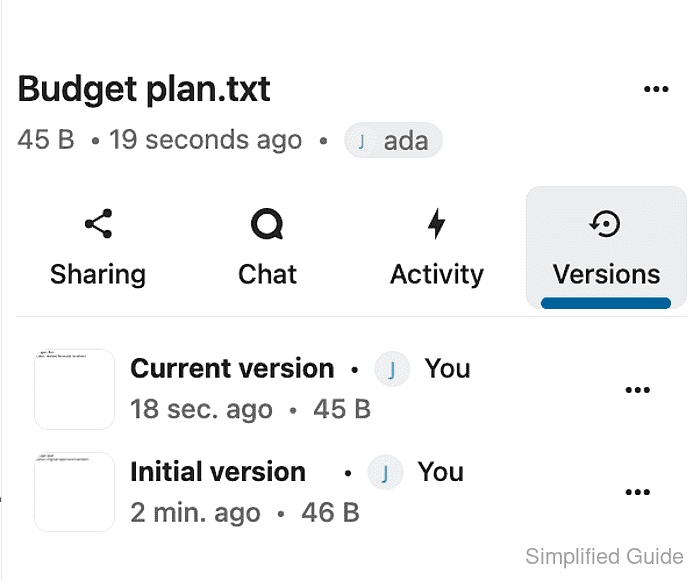
The web interface exposes version history from the file row action menu. The Details panel groups sharing, activity, chat, and version controls for the selected file, while each saved version has its own action menu for restore, download, compare, naming, or deletion when those actions are available.
Nextcloud saves versions periodically rather than after every edit. Current server documentation describes a two-minute minimum between saved versions and automatic expiration for older versions, so a missing version may require a deleted-file restore, help from the file owner, or a server backup instead.
Steps to restore a previous file version in Nextcloud:
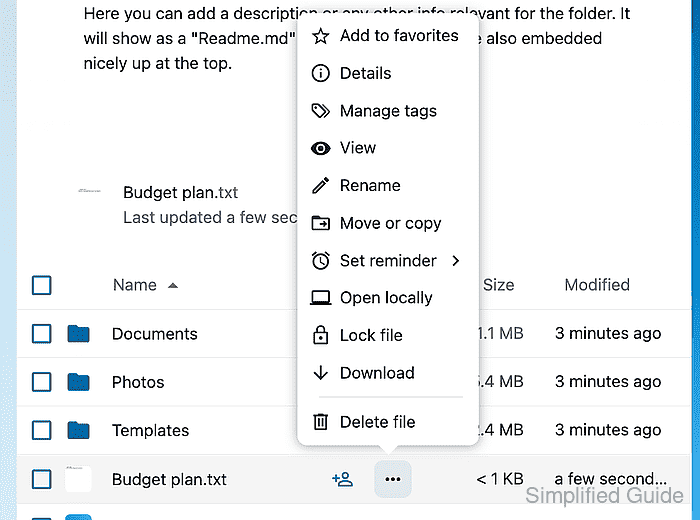
- Sign in to the Nextcloud web interface as the user who owns or can edit the file, then open the Files app.
- Find the file in All files, open its Actions menu, and choose Details.
- Select the Versions tab in the details sidebar.
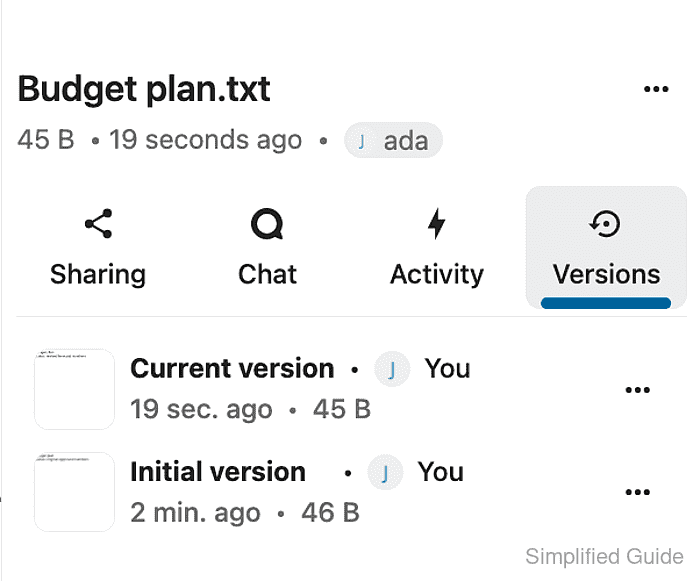
Current version is the active file. Older rows such as Initial version or timestamped versions are restore candidates. If only Current version appears, Nextcloud does not have an older saved copy for that file.
- Open the action menu for the saved version that should replace the current file, then click Restore version.
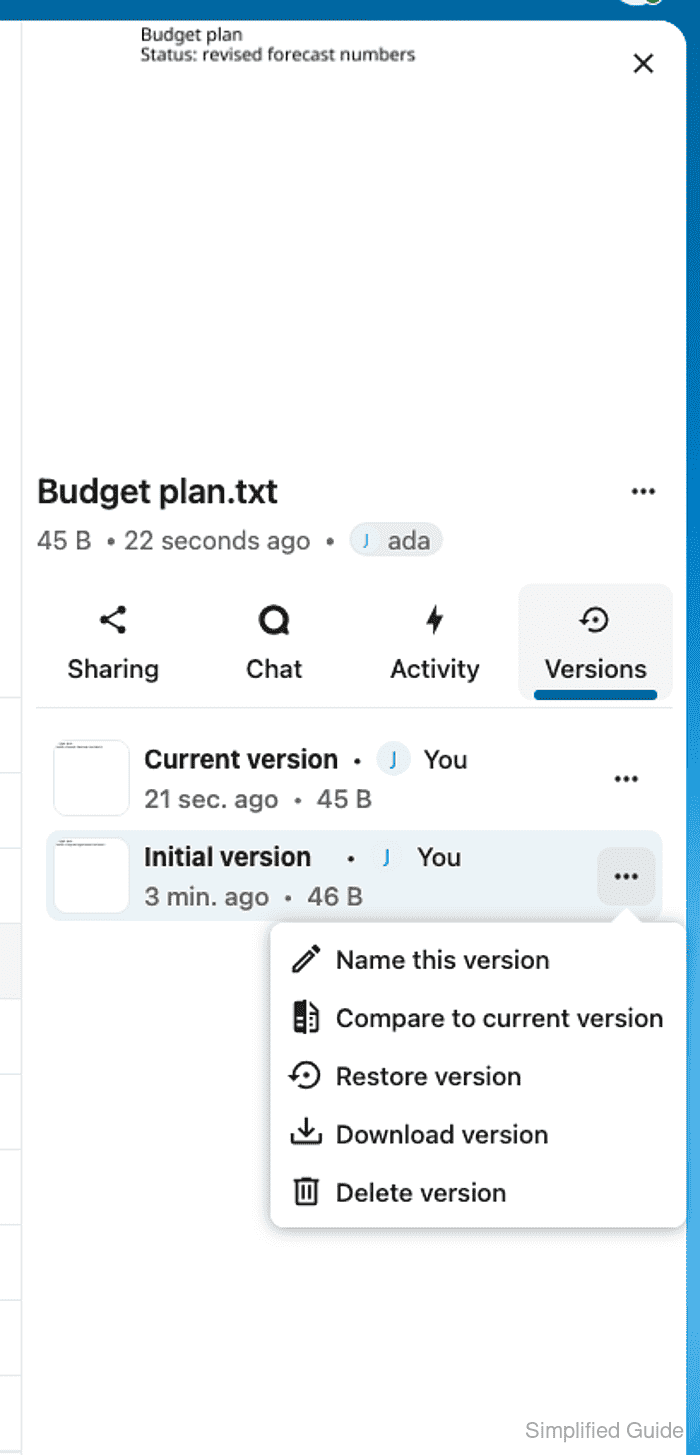
Restore version replaces the current file content with the selected saved version. Use Download version first when the current content should be kept for comparison.
- Open the file and confirm that the restored content matches the selected version.

Mohd Shakir Zakaria is a cloud architect with deep roots in software development and open-source advocacy. Certified in AWS, Red Hat, VMware, ITIL, and Linux, he specializes in designing and managing robust cloud and on-premises infrastructures.


