A new self-hosted Nextcloud server needs the web server, database, cache, background jobs, certificates, and update path to move together. Nextcloud All-in-One packages that stack behind a Docker mastercontainer, which fits a host dedicated to a complete Nextcloud instance instead of a hand-built LEMP layout.
The direct Linux deployment path uses AIO's integrated HTTPS support, so ports 80, 443, 8080, and 8443 must be free on the Docker host before the deployment is completed. A server that already runs Nginx, Apache, Caddy, Traefik, or another public web app needs the reverse-proxy startup path instead of the direct port-publishing command.
Use a real DNS name that resolves to the server before completing the AIO setup interface. The mastercontainer name and nextcloud_aio_mastercontainer volume are part of AIO's update and backup behavior, so keep those names unchanged.
Steps to deploy Nextcloud All-in-One with Docker:
- Confirm that the Docker daemon responds on the server.
$ docker version
Client: Docker Engine - Community
 Version:           29.6.1
##### snipped #####
Server: Docker Engine - Community
 Engine:
  Version:          29.5.3
Add sudo before docker when the server requires root privileges for Docker commands.
- Check that the direct AIO ports are not already listening.
$ sudo ss -ltnp '( sport = :80 or sport = :443 or sport = :8080 or sport = :8443 )'
State Recv-Q Send-Q Local Address:Port Peer Address:Port Process
If any listener appears for ports 80, 443, 8080, or 8443, stop before running the direct command. Free the ports or use the reverse-proxy startup path instead.
Related: How to configure Nextcloud behind a reverse proxy - Start the AIO mastercontainer with the required name, ports, volume, and Docker socket mount.
$ docker run --detach \
  --init \
  --sig-proxy=false \
  --name nextcloud-aio-mastercontainer \
  --restart always \
  --publish 80:80 \
  --publish 8080:8080 \
  --publish 8443:8443 \
  --volume nextcloud_aio_mastercontainer:/mnt/docker-aio-config \
  --volume /var/run/docker.sock:/var/run/docker.sock:ro \
  ghcr.io/nextcloud-releases/all-in-one:latest
1bfabd6a1bdc
The named volume stores the AIO mastercontainer configuration. Do not rename it or replace it with a different volume name.
- Check that the mastercontainer is running.
$ docker ps --filter name=nextcloud-aio-mastercontainer
CONTAINER ID   IMAGE                                          COMMAND       CREATED          STATUS                    PORTS                                                                     NAMES
1bfabd6a1bdc   ghcr.io/nextcloud-releases/all-in-one:latest   "/start.sh"   44 seconds ago   Up 43 seconds (healthy)   0.0.0.0:80->80/tcp, 0.0.0.0:8080->8080/tcp, 0.0.0.0:8443->8443/tcp   nextcloud-aio-mastercontainer
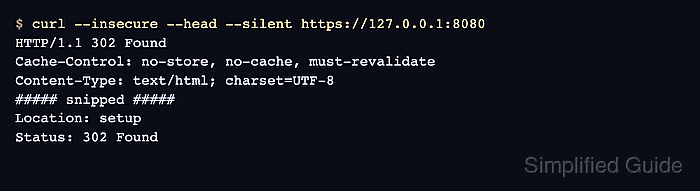
- Request the local setup interface from the server.
$ curl --insecure --head --silent https://127.0.0.1:8080
HTTP/1.1 302 Found
Cache-Control: no-store, no-cache, must-revalidate
Content-Type: text/html; charset=UTF-8
##### snipped #####
Location: setup
Status: 302 Found
The AIO setup interface uses a self-signed certificate on port 8080 until the first-run setup creates the final HTTPS configuration.
- Open the AIO setup interface from a trusted browser session.
https://cloud.example.com:8080
Replace cloud.example.com with the DNS name that points to the server. Use https://SERVER-IP:8080 only for the first local setup check when DNS is not reachable from the workstation yet.
- Enter the Nextcloud domain in the AIO interface and start the selected containers.
AIO uses the initial domain for the instance. Changing it later requires editing the AIO configuration volume manually, so confirm the DNS name before starting the first-run setup.

Mohd Shakir Zakaria is a cloud architect with deep roots in software development and open-source advocacy. Certified in AWS, Red Hat, VMware, ITIL, and Linux, he specializes in designing and managing robust cloud and on-premises infrastructures.


