A service can be reachable at the socket layer before a deeper application check is available. Nagios Core can turn that listener reachability into a scheduled service state with check_tcp, so a refused connection, blocked firewall path, or slow connect time becomes visible in status views and notifications.
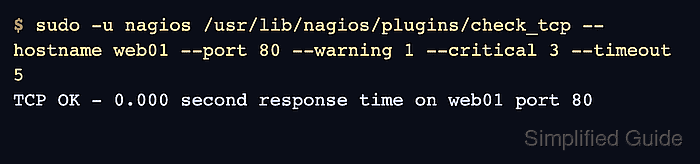
The check_tcp plugin opens a TCP connection from the monitoring server and reports the connection time. It does not send an HTTP request, authenticate to an application, or prove that the protocol behind the listener is returning valid content, so use a protocol-specific plugin when the response body or banner matters.
On Ubuntu and Debian package installs, Nagios plugins usually live under /usr/lib/nagios/plugins and local object snippets can be placed under /etc/nagios4/conf.d. Use an existing host object for the target system, then define a command and service object that keep the port, warning threshold, critical threshold, and timeout visible in the service definition.
Related: How to install Nagios plugins
Related: How to add a host in Nagios Core
Related: How to run a Nagios plugin manually
Steps to monitor a TCP port with Nagios Core:
- Run check_tcp manually from the monitoring server.
$ sudo -u nagios /usr/lib/nagios/plugins/check_tcp \
  --hostname web01 \
  --port 80 \
  --warning 1 \
  --critical 3 \
  --timeout 5
TCP OK - 0.000 second response time on web01 port 80
Replace web01 and 80 with the host object address and listener port to monitor. A refused connection returns the plugin critical state by default; do not stop a production listener only to prove the failure path.
Related: How to run a Nagios plugin manually - Create a command object file for the reusable TCP port check.
$ sudoedit /etc/nagios4/conf.d/tcp.cfg
- Add the command definition.
- /etc/nagios4/conf.d/tcp.cfg
define command {
    command_name check_tcp_port
    command_line $USER1$/check_tcp -H $HOSTADDRESS$ -p $ARG1$ $ARG2$
}
$USER1$ normally points to the Nagios plugin directory. The first service argument is the listener port, and the second argument holds the warning, critical, and timeout options.
- Create a service object file for the existing host.
$ sudoedit /etc/nagios4/conf.d/web01-tcp.cfg
- Add the TCP service definition.
- /etc/nagios4/conf.d/web01-tcp.cfg
define service {
    use generic-service
    host_name web01
    service_description TCP 80
    check_command check_tcp_port!80!-w 1 -c 3 -t 5
}
The host_name value must match an existing host object. Keep service_description unique for that host so status pages and notifications identify the listener clearly.
Related: How to add a service check in Nagios Core - Validate the Nagios Core configuration.
$ sudo nagios4 -v /etc/nagios4/nagios.cfg
Nagios Core 4.4.6
##### snipped #####
Reading configuration data...
   Read main config file okay...
   Read object config files okay...
##### snipped #####
Total Warnings: 0
Total Errors:   0

Things look okay - No serious problems were detected during the pre-flight check
Do not reload Nagios Core while Total Errors is greater than 0. Missing hosts, duplicate service descriptions, and malformed command objects must be fixed first.
- Reload Nagios Core to load the service object.
$ sudo systemctl reload nagios4
Ubuntu and Debian package installs use the nagios4 unit. Source installs may use another service name or a SIGHUP reload.
Related: How to manage the Nagios Core system service - Check the service result after the next active check.
$ curl --silent --show-error --get \
  --data-urlencode 'query=service' \
  --data-urlencode 'hostname=web01' \
  --data-urlencode 'servicedescription=TCP 80' \
  http://monitor.example.net/nagios4/cgi-bin/statusjson.cgi
{
  "format_version": 0,
  "result": {
    "type_text": "Success",
    "message": ""
  },
  "data": {
    "service": {
      "host_name": "web01",
      "description": "TCP 80",
      "plugin_output": "TCP OK - 0.000 second response time on web01 port 80",
      "has_been_checked": true,
      "checks_enabled": true
    }
  }
}
Use the real Nagios Core URL and credentials when CGI authentication is enabled. If the service remains PENDING, force one active service check or wait for the next scheduled interval.
Related: How to reschedule an active check in Nagios Core

Mohd Shakir Zakaria is a cloud architect with deep roots in software development and open-source advocacy. Certified in AWS, Red Hat, VMware, ITIL, and Linux, he specializes in designing and managing robust cloud and on-premises infrastructures.


