SNMP polling lets Nagios Core watch network devices that cannot run a local agent. A router, switch, printer, or appliance can expose an uptime OID over SNMP, and Nagios Core can turn that response into a normal service state.
On Ubuntu and Debian Nagios Core servers, the standard plugin package installs /usr/lib/nagios/plugins/check_snmp. The packaged SNMP command snippets cover several common checks, but a small command object keeps a single device OID explicit and reusable for the service definition.
Start with an SNMP credential that already works from the monitoring server and a host name or address that reaches the device. SNMPv1 and SNMPv2c community strings are visible in object files and process arguments, so use SNMPv3 or resource macros when policy requires stronger handling of polling credentials.
Related: How to install Nagios plugins
Related: How to add a host in Nagios Core
Related: How to define a Nagios Core check command
Steps to monitor an SNMP device with Nagios Core:
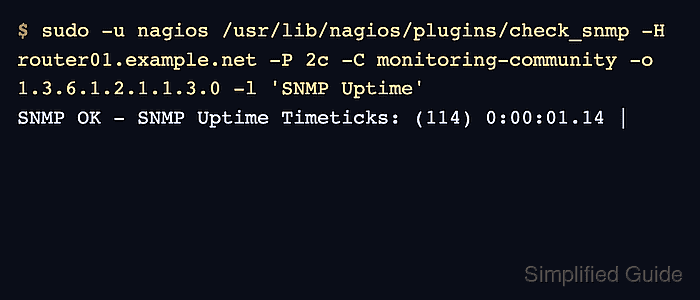
- Run the SNMP uptime check from the monitoring server as the nagios user.
$ sudo -u nagios /usr/lib/nagios/plugins/check_snmp \
  -H router01.example.net -P 2c -C monitoring-community \
  -o 1.3.6.1.2.1.1.3.0 -l 'SNMP Uptime'
SNMP OK - SNMP Uptime Timeticks: (114) 0:00:01.14 |
Replace router01.example.net, monitoring-community, and the OID with values that work from the monitoring server. For SNMPv3 polling, use the plugin's -L, -U, -a, -A, -x, and -X options instead of -C.
Related: How to run a Nagios plugin manually - Open an object file for the SNMP device objects.
$ sudoedit /etc/nagios4/conf.d/router01-snmp.cfg
Use a file loaded by cfg_file or a directory loaded by cfg_dir in /etc/nagios4/nagios.cfg.
Related: How to add a Nagios Core object configuration directory - Add a command object for direct check_snmp polling.
define command {
    command_name    check_snmp_device_oid
    command_line    /usr/lib/nagios/plugins/check_snmp -H '$HOSTADDRESS$' $ARG1$
}
The command object uses the host object's address value for the SNMP target. The service object supplies the SNMP version, credential, OID, and label as ARG1.
- Add the SNMP host and uptime service objects.
define host {
    use                     generic-switch
    host_name               router01.example.net
    alias                   Core router
    address                 192.0.2.1
}

define service {
    use                     generic-service
    host_name               router01.example.net
    service_description     SNMP Uptime
    check_command           check_snmp_device_oid!-P 2c -C monitoring-community -o 1.3.6.1.2.1.1.3.0 -l "SNMP Uptime"
}
If the host already exists, add only the define service block and keep host_name identical to the existing host object. Store SNMPv2c community strings with the same care as other shared monitoring secrets.
- Validate the Nagios Core configuration.
$ sudo nagios4 -v /etc/nagios4/nagios.cfg
Nagios Core 4.4.6
##### snipped #####
Reading configuration data...
   Read main config file okay...
   Read object config files okay...

Running pre-flight check on configuration data...
##### snipped #####
Total Warnings: 0
Total Errors:   0

Things look okay - No serious problems were detected during the pre-flight check
Do not reload Nagios Core while Total Errors is greater than 0. Fix the first reported object, command, template, or path error before applying the service.
- Reload Nagios Core to load the SNMP service.
$ sudo systemctl reload nagios4
Ubuntu and Debian package installs use the nagios4 unit. Source installs may use a different unit name, init script, or direct SIGHUP reload.
Related: How to manage the Nagios Core system service - Check the SNMP Uptime service result after an active check runs.
$ curl --silent --show-error --get \
  'http://monitor.example.net/nagios4/cgi-bin/statusjson.cgi' \
  --data-urlencode 'query=service' \
  --data-urlencode 'hostname=router01.example.net' \
  --data-urlencode 'servicedescription=SNMP Uptime'
{
  "format_version": 0,
  "result": {
    "type_text": "Success",
    "message": ""
  },
  "data": {
    "service": {
      "host_name": "router01.example.net",
      "description": "SNMP Uptime",
      "plugin_output": "SNMP OK - SNMP Uptime Timeticks: (323) 0:00:03.23",
      "has_been_checked": true,
      "checks_enabled": true
    }
  }
}
Use the real Nagios Core URL and credentials when CGI authentication is enabled. If the service remains PENDING, force one service check or wait for the next scheduled interval.
Related: How to reschedule an active check in Nagios Core

Mohd Shakir Zakaria is a cloud architect with deep roots in software development and open-source advocacy. Certified in AWS, Red Hat, VMware, ITIL, and Linux, he specializes in designing and managing robust cloud and on-premises infrastructures.


