An UNKNOWN service state means Nagios Core could not turn a plugin run into a normal OK, WARNING, or CRITICAL result. The monitored service may still be reachable, but the check command failed before it could measure the service in a usable way.
Nagios Core records service state from the plugin exit code, and exit code 3 maps to UNKNOWN. Troubleshooting should start with the exact plugin command line after macros and service arguments have been resolved, because invalid arguments, missing binaries, permission errors, and low-level dependencies all surface there.
On Ubuntu and Debian package installs, standard plugins normally live under /usr/lib/nagios/plugins, and scheduled checks run as the nagios user. Run the affected plugin as that user, fix the option or environment problem that makes it exit 3, then reload and recheck the affected service.
Steps to troubleshoot a Nagios plugin UNKNOWN result:
- Record the affected service output from the service detail page and the check command from the object definition.
host_name              localhost
service_description    PING
current_state          UNKNOWN
plugin_output          check_ping: %s: Warning threshold must be integer or percentage!
check_command          check_ping!100,20!200,40
The output names the plugin layer that failed. In this case, check_ping rejected the warning threshold before it could test packet loss or response time.
- Expand the service command into the plugin command line that Nagios Core runs.
define command {
    command_name    check_ping
    command_line    /usr/lib/nagios/plugins/check_ping -H '$HOSTADDRESS$' -w '$ARG1$' -c '$ARG2$'
}
The service values after check_ping become $ARG1$ and $ARG2$. Replace $HOSTADDRESS$ with the affected host address when running the plugin manually.
Related: How to use Nagios Core macros in a command - Run the expanded plugin command as the nagios user.
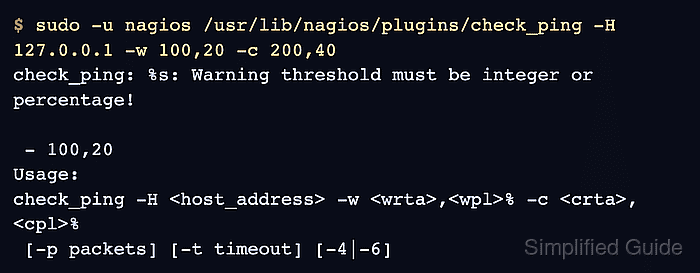
$ sudo -u nagios /usr/lib/nagios/plugins/check_ping -H 127.0.0.1 -w 100,20 -c 200,40
check_ping: %s: Warning threshold must be integer or percentage!

 - 100,20
Usage:
check_ping -H <host_address> -w <wrta>,<wpl>% -c <crta>,<cpl>%
 [-p packets] [-t timeout] [-4|-6]
If the manual run reports a different failure, fix that named layer first, such as a missing plugin path, denied permission, absent helper command, or dependency timeout.
Related: How to run a Nagios plugin manually - Print the plugin exit status immediately after the failing run.
$ echo $?
3
Nagios Core maps plugin exit code 3 to UNKNOWN. Exit codes 0, 1, and 2 map to OK, WARNING, and CRITICAL.
- Edit the service object that supplied the bad plugin arguments.
$ sudoedit /etc/nagios4/conf.d/ping-service.cfg
- Correct the service check arguments.
define service {
    use                    generic-service
    host_name              localhost
    service_description    PING
    check_command          check_ping!100.0,20%!200.0,40%
}
check_ping thresholds use the form round-trip-time,packet-loss. The packet-loss value must include a percent sign.
- Re-run the corrected plugin command as the nagios user.
$ sudo -u nagios /usr/lib/nagios/plugins/check_ping -H 127.0.0.1 -w 100.0,20% -c 200.0,40%
PING OK - Packet loss = 0%, RTA = 0.05 ms|rta=0.054000ms;100.000000;200.000000;0.000000 pl=0%;20;40;0;
- Print the corrected plugin exit status.
$ echo $?
0
The plugin now returns OK instead of UNKNOWN. Keep troubleshooting if the command still exits 3.
- Validate the Nagios Core configuration after editing the object file.
$ sudo nagios4 -v /etc/nagios4/nagios.cfg
Nagios Core 4.4.6
##### snipped #####
Reading configuration data...
   Read main config file okay...
   Read object config files okay...
##### snipped #####
Total Warnings: 0
Total Errors:   0

Things look okay - No serious problems were detected during the pre-flight check
A clean pre-flight check proves the object files parse. It does not replace the manual plugin run, because valid object syntax can still pass invalid plugin arguments.
Related: How to validate the Nagios Core configuration - Reload Nagios Core so the corrected service object is used.
$ sudo systemctl reload nagios4
Ubuntu and Debian package installs use the nagios4 service name. Source installs may use a different init script or a direct SIGHUP reload.
- Recheck the affected service and confirm that it no longer reports UNKNOWN.
PING OK - Packet loss = 0%, RTA = 0.05 ms
Force a service check from the Nagios Core interface when the result must change immediately, or wait for the next scheduled interval.
Related: How to reschedule an active check in Nagios Core

Mohd Shakir Zakaria is a cloud architect with deep roots in software development and open-source advocacy. Certified in AWS, Red Hat, VMware, ITIL, and Linux, he specializes in designing and managing robust cloud and on-premises infrastructures.


