Project-local Python environments keep plotting dependencies away from the system interpreter and from other applications. For Matplotlib, a virtual environment fits scripts and notebooks that need packages from PyPI without changing the rest of the machine.
venv creates an isolated interpreter directory, and python -m pip installs packages into whichever interpreter is active. Running pip through Python avoids accidentally using a different pip command from the shell.
The primary path uses a Unix-style shell with Python 3.11 or newer, which matches current Matplotlib requirements. Windows PowerShell uses .venv\Scripts\Activate.ps1 instead of the Unix activation path, while the same python -m pip commands apply after activation.
Related: Install Matplotlib in a conda environment
Related: Set a headless Matplotlib backend
Steps to install Matplotlib in a Python virtual environment:
- Open a terminal in the project directory that should own the environment.
- Create the virtual environment with Python 3.11 or newer.
$ python3 -m venv .venv
On Windows, use py -m venv .venv from PowerShell or Command Prompt.
- Activate the virtual environment.
$ . .venv/bin/activate
On Windows PowerShell, use .venv\Scripts\Activate.ps1. If local policy blocks activation scripts, run the environment interpreter directly as .venv\Scripts\python.exe.
- Upgrade pip inside the active environment.
$ python -m pip install --upgrade pip
- Install Matplotlib and its required dependencies.
$ python -m pip install --upgrade matplotlib
pip installs Matplotlib dependencies such as NumPy, Pillow, contourpy, and python-dateutil automatically when compatible wheels are available.
- Confirm that the active interpreter imports Matplotlib.
$ python -c "import matplotlib; print(matplotlib.__version__)"
3.11.0
The exact version changes over time. The command should run without an import error and print the version installed in the active virtual environment.
- Save a file-only smoke test as verify_matplotlib.py.
- verify_matplotlib.py
from pathlib import Path

import matplotlib

matplotlib.use("Agg")
import matplotlib.pyplot as plt

output = Path("venv-matplotlib-smoke.png")

fig, ax = plt.subplots(layout="constrained")
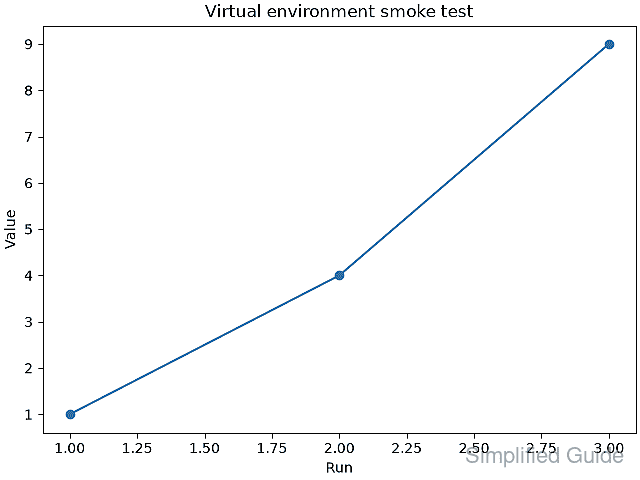
ax.plot([1, 2, 3], [1, 4, 9], marker="o")
ax.set_title("Virtual environment smoke test")
ax.set_xlabel("Run")
ax.set_ylabel("Value")
fig.savefig(output)
plt.close(fig)

print(f"matplotlib {matplotlib.__version__}")
print(f"backend {matplotlib.get_backend()}")
print(f"saved: {output}")
print(f"bytes: {output.stat().st_size}")
The Agg backend writes image files without opening a desktop window, which keeps the smoke test usable in terminals, containers, and remote shells.
- Run the smoke test from the active virtual environment.
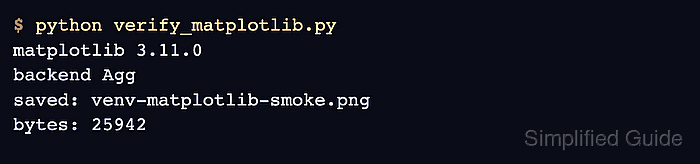
$ python verify_matplotlib.py
matplotlib 3.11.0
backend Agg
saved: venv-matplotlib-smoke.png
bytes: 25942
The byte count varies by Matplotlib version, font rendering, and platform. Confirm the version line, Agg backend, saved filename, and a nonzero byte count.
- Open the saved image and confirm the line chart was written.
- Remove the smoke-test files if they were created only for verification.
$ rm verify_matplotlib.py venv-matplotlib-smoke.png
- Leave the virtual environment shell when finished.
$ deactivate

Mohd Shakir Zakaria is a cloud architect with deep roots in software development and open-source advocacy. Certified in AWS, Red Hat, VMware, ITIL, and Linux, he specializes in designing and managing robust cloud and on-premises infrastructures.


