The llama.cpp server router lets one HTTP listener manage several GGUF model instances without restarting the front-facing server for every model switch. Loading a model through the router API fits cases where the router already knows the model name but the model should not occupy memory until an operator or client needs it.
Router mode is different from the usual single-model llama-server launch. It runs without -m, uses a cache, model directory, or preset file as the model source, and exposes model-management endpoints such as /models, /models/load, and /models/unload while routing inference requests by model name.
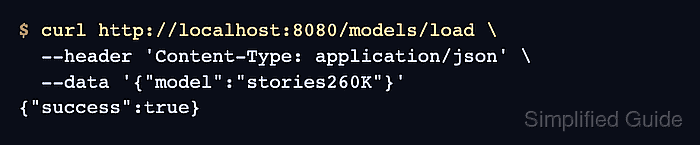
The load call changes runtime state by starting a child model server for the requested model ID. A successful /models/load response means the request was accepted, and the follow-up /models status should move from loading to loaded before clients send prompts to that model.
Related: How to start the llama.cpp server
Related: How to check llama.cpp server health
Related: How to call the llama.cpp chat completions API
Steps to load a model with the llama.cpp server router:
- Start llama-server in router mode with a model source if it is not already running.
$ llama-server --models-dir ./models --no-models-autoload --models-max 1
srv   load_models: Loaded 3 local model presets from ./models
srv  llama_server: starting server in router mode
srv  llama_server: listening on http://127.0.0.1:8080
Omit -m in router mode. Use --models-dir for local GGUF files, or use --models-preset when each model needs its own startup arguments.
Related: How to start the llama.cpp server - Check that the router endpoint is ready.
$ curl http://localhost:8080/health
{"status":"ok"}
A ready router can still have every model unloaded. /health proves the HTTP listener is accepting requests, not that a specific model is already in memory.
Related: How to check llama.cpp server health - Refresh the router model list and choose the model ID to load.
$ curl 'http://localhost:8080/models?reload=1'
{"data":[{"id":"stories260K","status":{"value":"unloaded"}},{"id":"tinygemma3-Q8_0","status":{"value":"unloaded"}}],"object":"list"}
Quote URLs with query strings in zsh. The full response can include args, preset, architecture, and source fields; the id and status.value fields are the ones needed before loading.
- Load the selected model by name.
$ curl http://localhost:8080/models/load \
  --header 'Content-Type: application/json' \
  --data '{"model":"stories260K"}'
{"success":true}
Replace stories260K with the id returned by /models. The name can come from a cached model, a --models-dir file stem, or a --models-preset section.
- Check the model status after the load request.
$ curl 'http://localhost:8080/models?reload=1'
{"data":[{"id":"stories260K","status":{"value":"loaded"},"meta":{"n_ctx":128,"size":1171200}}],"object":"list"}
If status.value is still loading, wait a few seconds and run the same request again. If the status includes failed or an exit_code, inspect the llama-server logs for the model-specific argument or file error.
- Confirm the loaded model is visible to OpenAI-compatible clients.
$ curl http://localhost:8080/v1/models
{"object":"list","data":[{"id":"stories260K","object":"model","owned_by":"llamacpp","status":{"value":"loaded"}}]}
Use this id in the model field for client requests after the status is loaded.
Related: How to call the llama.cpp chat completions API

Mohd Shakir Zakaria is a cloud architect with deep roots in software development and open-source advocacy. Certified in AWS, Red Hat, VMware, ITIL, and Linux, he specializes in designing and managing robust cloud and on-premises infrastructures.


