Network captures close the gap between a suspected traffic path and what a Linux host actually receives. When a connection times out, a firewall rule is disputed, or a service owner needs packet evidence, a short tcpdump capture shows the packets visible on the selected interface instead of relying only on logs or socket state.
Tcpdump reads packets through libpcap, prints decoded summaries to the terminal, and accepts a capture expression after the options. A narrow interface, numeric output, and a packet count keep the capture tied to the test traffic rather than every packet crossing the host.
Saved PCAP files can contain internal addresses, payload bytes, cookies, tokens, and timing details. Capture the smallest peer, port, protocol, and duration that answer the question, store files where only the right operators can read them, and remove temporary captures after the evidence has been checked.
Steps to capture network traffic with tcpdump in Linux:
- List the interfaces tcpdump can capture from.
$ sudo tcpdump -D
1.eth0 [Up, Running, Connected]
2.any (Pseudo-device that captures on all interfaces) [Up, Running]
3.lo [Up, Running, Loopback]
##### snipped #####
17.dbus-session (D-Bus session bus) [none]
Use the interface that carries the traffic being tested. The controlled example below uses lo because both the request and reply stay on loopback.
Related: How to select a capture interface in tcpdump - Check the interface for the target address.
$ ip route get 127.0.0.1
local 127.0.0.1 dev lo src 127.0.0.1 uid 1000
    cache <local>
The dev value is the first capture interface to try for routed traffic. Replace 127.0.0.1 with the address involved in the investigation.
- Start a count-limited capture in one terminal.
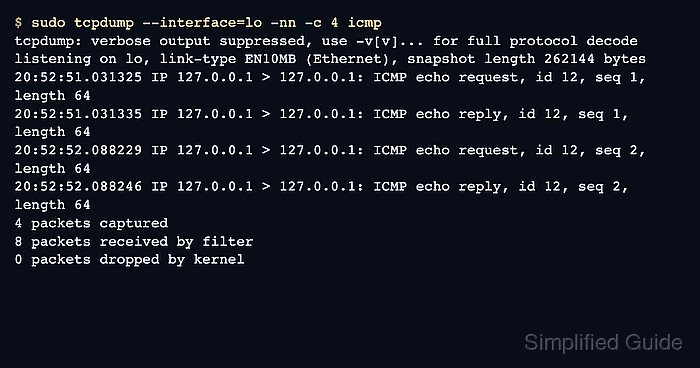
$ sudo tcpdump --interface=lo -nn -c 4 icmp
tcpdump: verbose output suppressed, use -v[v]... for full protocol decode
listening on lo, link-type EN10MB (Ethernet), snapshot length 262144 bytes
-nn keeps addresses and ports numeric, and -c 4 stops after four matching packets.
- Generate matching traffic in a second terminal.
$ ping -c 2 127.0.0.1
PING 127.0.0.1 (127.0.0.1) 56(84) bytes of data.
64 bytes from 127.0.0.1: icmp_seq=1 ttl=64 time=0.650 ms
64 bytes from 127.0.0.1: icmp_seq=2 ttl=64 time=0.071 ms

--- 127.0.0.1 ping statistics ---
2 packets transmitted, 2 received, 0% packet loss, time 1057ms
rtt min/avg/max/mdev = 0.071/0.360/0.650/0.289 ms
- Return to the tcpdump terminal and confirm the matching packets appeared.
20:52:51.031325 IP 127.0.0.1 > 127.0.0.1: ICMP echo request, id 12, seq 1, length 64
20:52:51.031335 IP 127.0.0.1 > 127.0.0.1: ICMP echo reply, id 12, seq 1, length 64
20:52:52.088229 IP 127.0.0.1 > 127.0.0.1: ICMP echo request, id 12, seq 2, length 64
20:52:52.088246 IP 127.0.0.1 > 127.0.0.1: ICMP echo reply, id 12, seq 2, length 64
4 packets captured
8 packets received by filter
0 packets dropped by kernel
Loopback can report more packets received by the filter than packets captured. The 4 packets captured line confirms the -c 4 stop condition.
- Write a bounded capture to a PCAP file.
$ sudo tcpdump --interface=lo -nn -c 4 -w /tmp/icmp-capture.pcap icmp
tcpdump: listening on lo, link-type EN10MB (Ethernet), snapshot length 262144 bytes
4 packets captured
8 packets received by filter
0 packets dropped by kernel
Generate the same test traffic from another terminal while this command waits. Store incident captures somewhere more durable and restricted than /tmp when the file must remain as evidence.
Related: How to save traffic to a PCAP file using tcpdump
Tool: Packet Capture Size Calculator - Confirm the saved capture file type.
$ file /tmp/icmp-capture.pcap
/tmp/icmp-capture.pcap: pcap capture file, microsecond ts (little-endian) - version 2.4 (Ethernet, capture length 262144)
- Read the saved capture with numeric output.
$ tcpdump -nn -r /tmp/icmp-capture.pcap -c 4
reading from file /tmp/icmp-capture.pcap, link-type EN10MB (Ethernet), snapshot length 262144
20:52:53.090314 IP 127.0.0.1 > 127.0.0.1: ICMP echo request, id 13, seq 1, length 64
20:52:53.090333 IP 127.0.0.1 > 127.0.0.1: ICMP echo reply, id 13, seq 1, length 64
20:52:54.135267 IP 127.0.0.1 > 127.0.0.1: ICMP echo request, id 13, seq 2, length 64
20:52:54.135295 IP 127.0.0.1 > 127.0.0.1: ICMP echo reply, id 13, seq 2, length 64
Reading a saved PCAP does not require capture privileges, but the current user still needs file permission.
Related: How to read a saved PCAP file using tcpdump
Related: How to open and analyze PCAP files using Wireshark - Remove the temporary capture file.
$ rm /tmp/icmp-capture.pcap

Mohd Shakir Zakaria is a cloud architect with deep roots in software development and open-source advocacy. Certified in AWS, Red Hat, VMware, ITIL, and Linux, he specializes in designing and managing robust cloud and on-premises infrastructures.


