When a service is failing, the newest log lines usually show whether the next request, restart, login attempt, or background job is reaching the process. The tail command reads the end of a text log file without opening the whole file, then can keep the terminal attached while new lines arrive.
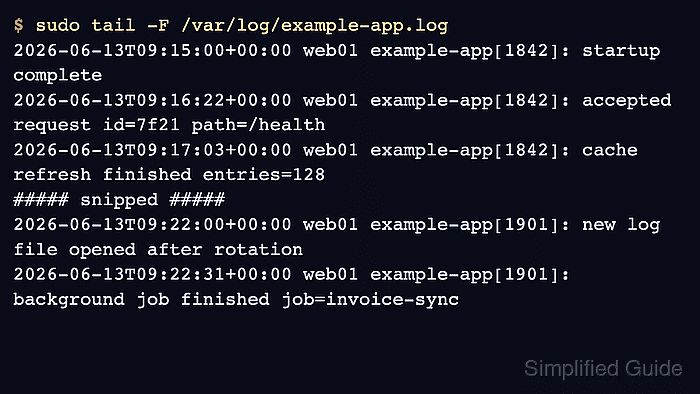
By default, tail prints the last 10 lines. Option -n changes the starting line count, -f follows the open file descriptor, and -F follows the file name with retry behavior so rotated logs continue to appear after a log manager renames and recreates the file.
These commands fit plain-text log files such as application logs under /var/log. Many system-wide events on systemd hosts live in the journal instead of flat files, and protected logs often require sudo. Stop a followed log with Ctrl+C after enough new lines have appeared.
Steps to tail and follow logs in Linux:
- Choose the text log file to inspect.
Replace /var/log/example-app.log with the application or service log path from the system. Common locations differ by distribution and service; /var/log/syslog, /var/log/messages, web server access logs, and application-specific files are examples, not universal paths.
- Show the newest lines from the file.
$ sudo tail -n 5 /var/log/example-app.log
2026-06-13T09:16:22+00:00 web01 example-app[1842]: accepted request id=7f21 path=/health
2026-06-13T09:17:03+00:00 web01 example-app[1842]: cache refresh finished entries=128
2026-06-13T09:18:44+00:00 web01 example-app[1842]: authentication failed user=appuser source=203.0.113.25
2026-06-13T09:19:11+00:00 web01 example-app[1842]: retry scheduled job=invoice-sync delay=30s
2026-06-13T09:20:02+00:00 web01 example-app[1842]: worker pool resized workers=6
Change the number after -n when the starting context needs more or fewer lines.
- Follow the file while new entries are appended.
$ sudo tail -f /var/log/example-app.log
2026-06-13T09:15:00+00:00 web01 example-app[1842]: startup complete
2026-06-13T09:16:22+00:00 web01 example-app[1842]: accepted request id=7f21 path=/health
2026-06-13T09:17:03+00:00 web01 example-app[1842]: cache refresh finished entries=128
2026-06-13T09:18:44+00:00 web01 example-app[1842]: authentication failed user=appuser source=203.0.113.25
2026-06-13T09:19:11+00:00 web01 example-app[1842]: retry scheduled job=invoice-sync delay=30s
2026-06-13T09:20:02+00:00 web01 example-app[1842]: worker pool resized workers=6
2026-06-13T09:21:00+00:00 web01 example-app[1842]: payment webhook accepted id=pay_1024
Press Ctrl+C to stop following and return to the shell prompt.
- Use -F for logs that can rotate while the command is running.
$ sudo tail -F /var/log/example-app.log
2026-06-13T09:15:00+00:00 web01 example-app[1842]: startup complete
2026-06-13T09:16:22+00:00 web01 example-app[1842]: accepted request id=7f21 path=/health
2026-06-13T09:17:03+00:00 web01 example-app[1842]: cache refresh finished entries=128
##### snipped #####
2026-06-13T09:22:00+00:00 web01 example-app[1901]: new log file opened after rotation
2026-06-13T09:22:31+00:00 web01 example-app[1901]: background job finished job=invoice-sync
-F is the same as --follow=name with --retry. Use it for long-running log watches because log rotation replaces the file name behind the command.
- Follow related logs together when one event spans more than one file.
$ sudo tail -F /var/log/example-app.log /var/log/example-worker.log
==> /var/log/example-app.log <==
2026-06-13T09:21:00+00:00 web01 example-app[1842]: payment webhook accepted id=pay_1024

==> /var/log/example-worker.log <==
2026-06-13T09:21:02+00:00 web01 example-worker[2037]: queued invoice-sync for pay_1024
When more than one file is followed, tail prints a header before each file's output so the source log remains visible.
- Confirm the watched command is working when a new event appears with the expected timestamp, service name, or request identifier.
If no new line appears, check that the service writes to that file, the current user can read it, and the log has not moved into the systemd journal.
Related: How to view system logs with journalctl
Related: How to view Linux service logs with journalctl

Mohd Shakir Zakaria is a cloud architect with deep roots in software development and open-source advocacy. Certified in AWS, Red Hat, VMware, ITIL, and Linux, he specializes in designing and managing robust cloud and on-premises infrastructures.


