An obsolete firewall allow rule can leave a retired service reachable after a migration, maintenance window, or temporary test. Removing the exact port rule closes that ingress path while leaving unrelated management and service rules in place.
Many Debian and Ubuntu hosts use ufw as the firewall frontend, while RHEL-family and Fedora hosts commonly use firewalld zones. Leaner or customized installations may manage the same packet filter directly with nftables. Use the method that matches the active firewall manager so the live rule and the persistent rule source are changed together.
Firewall rule removal requires root access and extra care on remote hosts because deleting the wrong management entry can cut off SSH or another recovery path. Closing the firewall port does not stop the listening service; it only removes the network rule that allowed traffic to reach that service.
Related: How to check firewall status in Linux
Related: How to allow a port through the firewall in Linux
Tool: Firewall Rule Review Report
Methods to remove a firewall port allow rule in Linux:
Steps to remove a firewall port allow rule in Linux:
Remove a port with ufw
Use this method on systems where ufw is the active firewall manager, which is common on Ubuntu and other Debian-derived hosts. Listing the rules first avoids deleting the wrong entry, and removing the rule by its original text is the cleanest way to delete the matching IPv4 and IPv6 pair together.
- List the active ufw rules with numbers so the target port and protocol are identified before anything is removed.
$ sudo ufw status numbered
Status: active

     To                         Action      From
     --                         ------      ----
[ 1] 22/tcp                     ALLOW IN    Anywhere
[ 2] 8080/tcp                   ALLOW IN    Anywhere
[ 3] 1194/udp                   ALLOW IN    Anywhere
[ 4] 22/tcp (v6)                ALLOW IN    Anywhere (v6)
[ 5] 8080/tcp (v6)              ALLOW IN    Anywhere (v6)
[ 6] 1194/udp (v6)              ALLOW IN    Anywhere (v6)
Match both the port number and the protocol before deleting anything. 8080/tcp and 8080/udp are different rules, and the v6 lines are the IPv6 counterparts of the same allow policy.
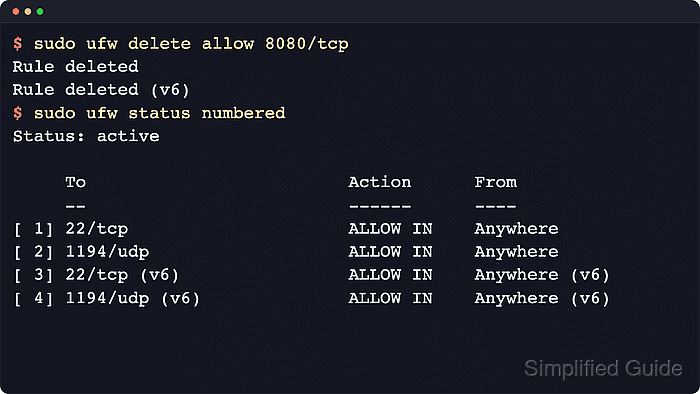
- Delete the allow rule by repeating the original rule text, replacing 8080/tcp with the port and protocol that should be removed.
$ sudo ufw --force delete allow 8080/tcp
Rule deleted
Rule deleted (v6)
Deleting by original rule text removes the matching IPv4 and IPv6 entries together when both exist. Deleting by rule number removes only the numbered line shown in status numbered.
Do not remove the rule that still protects the current remote management path, such as 22/tcp for SSH, until an alternate access path has been tested.
- List the rules again to confirm that the target port is no longer allowed.
$ sudo ufw status numbered
Status: active

     To                         Action      From
     --                         ------      ----
[ 1] 22/tcp                     ALLOW IN    Anywhere
[ 2] 1194/udp                   ALLOW IN    Anywhere
[ 3] 22/tcp (v6)                ALLOW IN    Anywhere (v6)
[ 4] 1194/udp (v6)              ALLOW IN    Anywhere (v6)
No separate reload is required. ufw applies a rule deletion as soon as the command completes.
Remove a port with firewalld
Use this method on hosts where firewalld manages zones. The important detail is the zone attached to the interface that receives the traffic, because the explicit port rule must be removed from that zone instead of from an assumed default.
- Identify the active zone for the interface that receives the connection.
$ sudo firewall-cmd --get-active-zones
public
  interfaces: enp0s5
Replace public in the next commands with the active zone shown on the host if it is different.
- Review the explicit ports in that zone before removing anything.
$ sudo firewall-cmd --zone=public --list-ports
8080/tcp 1194/udp
If the exposure appears under services: in sudo firewall-cmd --zone=public --list-all instead of under ports:, remove the service rule instead of the port rule.
- Remove the runtime port rule so the port stops being allowed immediately.
$ sudo firewall-cmd --zone=public --remove-port=8080/tcp
success
Do not remove the management rule that still protects the live recovery path, such as ssh service access or an explicit 22/tcp rule, until an alternate access path has been tested.
- Remove the same port from the permanent zone configuration so it does not return after a reload or reboot.
$ sudo firewall-cmd --permanent --zone=public --remove-port=8080/tcp
success
firewalld keeps runtime and permanent configuration separately. A permanent removal is not applied to the live ruleset until the daemon is reloaded.
- Reload firewalld so the permanent rules replace the current runtime rules.
$ sudo firewall-cmd --reload
success
- Verify that the zone no longer lists the removed port.
$ sudo firewall-cmd --zone=public --list-ports
1194/udp
Remove a port with direct nftables rules
Use this method only on hosts where nftables is the primary firewall and no higher-level tool such as ufw or firewalld owns the ruleset. Direct edits belong in the persistent rules file so the deleted port does not return on reboot or the next ruleset reload.
- Inspect the current ruleset so the exact table and input chain are clear before anything is removed.
$ sudo nft list ruleset
table inet filter {
	chain input {
		type filter hook input priority filter; policy drop;
		iif "lo" accept
		ct state established,related accept
		tcp dport 22 accept
		tcp dport 8080 accept
		udp dport 1194 accept
	}
}
If the chain names or comments show that ufw or firewalld owns the ruleset, stop here and remove the port with that frontend instead of editing the nftables backend directly.
- Open the persistent nftables rules file.
$ sudo vi /etc/nftables.conf
- Delete the matching port line from the input chain, keep the rest of the policy intact, and save the file.
flush ruleset
table inet filter {
    chain input {
        type filter hook input priority filter; policy drop;
        iif lo accept
        ct state established,related accept
        tcp dport 22 accept
        udp dport 1194 accept
    }
}
Keep the loopback, established/related, and remote-management rules in place. Removing the wrong line from the persistent file can lock the host out of the network after the next reload.
- Check the updated nftables file for syntax errors.
$ sudo nft --check --file /etc/nftables.conf
No output indicates that nft parsed the file successfully.
- Apply the updated ruleset from the persistent file.
$ sudo nft -f /etc/nftables.conf
If the file already begins with flush ruleset, leave that line in place so reloading replaces the old rules cleanly instead of attempting to layer duplicate tables or chains.
- Confirm that the target port no longer appears in the active ruleset.
$ sudo nft list ruleset
table inet filter {
	chain input {
		type filter hook input priority filter; policy drop;
		iif "lo" accept
		ct state established,related accept
		tcp dport 22 accept
		udp dport 1194 accept
	}
}

Mohd Shakir Zakaria is a cloud architect with deep roots in software development and open-source advocacy. Certified in AWS, Red Hat, VMware, ITIL, and Linux, he specializes in designing and managing robust cloud and on-premises infrastructures.


