An unreachable service is easy to misread when the process is listening but the host firewall is still dropping inbound packets. Checking firewall status in Linux shows which packet-filter manager is active and whether its runtime rules allow the traffic that should reach the machine.
Linux packet filtering runs in the kernel netfilter subsystem, while administrators usually inspect it through ufw, firewalld, direct nftables rules, or older iptables compatibility commands. Start with the active manager when one exists, then use backend views only when the manager output needs confirmation.
Most status checks are read-only, but root privileges are often required to see live rules and counters. Minimal containers or appliances may not run systemd, so a failed systemctl check does not always mean the firewall is absent. If more than one frontend appears active, identify the intended rule owner before changing any firewall policy.
Steps to check firewall status in Linux:
- Identify the active firewall manager on systemd hosts.
$ systemctl list-units --type=service --state=active 'ufw*' 'firewalld*' 'nftables*' --no-pager
  UNIT        LOAD   ACTIVE SUB    DESCRIPTION
  ufw.service loaded active exited Uncomplicated firewall

LOAD   = Reflects whether the unit definition was properly loaded.
ACTIVE = The high-level unit activation state.
SUB    = The low-level unit activation state.
1 loaded units listed.
If the command prints no firewall unit, run the tool-specific checks below for the firewall package used on the host.
Related: How to manage a Linux service with systemctl - Check ufw status when ufw is the active frontend.
$ sudo ufw status verbose
Status: active
Logging: on (low)
Default: deny (incoming), allow (outgoing), deny (routed)
New profiles: skip

To                         Action      From
--                         ------      ----
22/tcp                     ALLOW IN    Anywhere
80/tcp                     ALLOW IN    Anywhere
22/tcp (v6)                ALLOW IN    Anywhere (v6)
80/tcp (v6)                ALLOW IN    Anywhere (v6)
Status: inactive means ufw is installed but not enforcing its rule set. The Default row shows what happens to traffic that does not match an explicit rule.
- Check whether firewalld is running when that frontend manages the host.
$ sudo firewall-cmd --state
running
not running means firewalld is installed or callable but not currently enforcing zone policy through its daemon.
- List the active firewalld zones.
$ sudo firewall-cmd --get-active-zones
public
  interfaces: ens3
Use the zone attached to the receiving interface for the detailed check. A host can have more than one active zone when different interfaces or source ranges use different policy.
- Inspect the active firewalld zone.
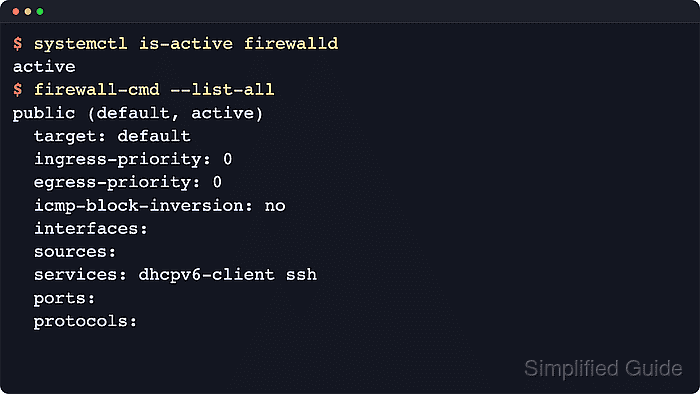
$ sudo firewall-cmd --zone=public --list-all
public (active)
  target: default
  ingress-priority: 0
  egress-priority: 0
  icmp-block-inversion: no
  interfaces: ens3
  sources:
  services: ssh http
  ports:
  protocols:
  forward: yes
  masquerade: no
  forward-ports:
  source-ports:
  icmp-blocks:
  rich rules:
The services and ports rows show what the runtime zone allows. Add --permanent only when comparing saved configuration with the running firewall.
- Inspect the nftables ruleset when the host uses nftables directly or when a frontend needs backend confirmation.
$ sudo nft list ruleset
# Warning: table ip filter is managed by iptables-nft, do not touch!
table ip filter {
	chain INPUT {
		type filter hook input priority filter; policy drop;
		counter packets 0 bytes 0 jump ufw-before-input
		counter packets 0 bytes 0 jump ufw-user-input
	}

	chain ufw-user-input {
		tcp dport 22 counter packets 0 bytes 0 accept
		tcp dport 80 counter packets 0 bytes 0 accept
	}
}
##### snipped #####
Frontend names in chain or table names, such as ufw or firewalld, mean another tool is programming the nftables backend.
- Inspect the iptables filter table when the host still uses legacy iptables tooling or the compatibility layer.
$ sudo iptables -L -n -v
Chain INPUT (policy DROP 0 packets, 0 bytes)
 pkts bytes target     prot opt in     out     source               destination
    0     0 ufw-before-logging-input  0    --  *      *       0.0.0.0/0            0.0.0.0/0
    0     0 ufw-before-input  0    --  *      *       0.0.0.0/0            0.0.0.0/0
##### snipped #####

Chain ufw-user-input (1 references)
 pkts bytes target     prot opt in     out     source               destination
    0     0 ACCEPT     tcp  --  *      *       0.0.0.0/0            0.0.0.0/0            tcp dpt:22
    0     0 ACCEPT     tcp  --  *      *       0.0.0.0/0            0.0.0.0/0            tcp dpt:80
Read the chain policy first, then the explicit ACCEPT, DROP, and REJECT targets. On newer systems, iptables output may still come from the nftables compatibility backend.
- Compare the firewall view with the service listening state.
$ ss -tuln 'sport = :80'
Netid State  Recv-Q Send-Q Local Address:Port Peer Address:Port
tcp   LISTEN 0      5            0.0.0.0:80        0.0.0.0:*
A listening socket proves the service is bound locally. It does not prove the host firewall or an upstream network firewall allows remote clients.
- Probe the expected listener from the host.
$ nc -vz 127.0.0.1 80
Connection to 127.0.0.1 80 port [tcp/http] succeeded!
A loopback probe confirms only local reachability. Run the same probe from another host or network namespace when the success state depends on inbound traffic crossing the firewall path.

Mohd Shakir Zakaria is a cloud architect with deep roots in software development and open-source advocacy. Certified in AWS, Red Hat, VMware, ITIL, and Linux, he specializes in designing and managing robust cloud and on-premises infrastructures.


