A retrieval application needs its document vectors to survive the Python process that created them. On Ubuntu 26.04, a pgvector vector store lets LangChain keep document text, embeddings, and metadata in PostgreSQL and search that stored data after a restart.
PGVectorStore uses an existing PostgreSQL table with a vector column sized for the embedding model. Table initialization belongs to the first ingestion, while later clients reconnect to that table without recreating it or adding the documents again.
The starting point is an Ubuntu 26.04 machine with sudo access that runs both the database and the Python code. Local Hugging Face embeddings need no API key, but their first use downloads a public model; ingestion and search must use the same model and vector dimensions.
Steps to build a pgvector vector store in LangChain:
- Refresh the Ubuntu package index.
$ sudo apt update
- Install PostgreSQL and its pgvector server package.
$ sudo apt install postgresql postgresql-18-pgvector
Ubuntu 26.04 packages PostgreSQL 18, and the pgvector package name carries that major version. The postgresql package also installs the psql client.
Related: Install pgvector on other PostgreSQL servers - Create a login role named vector_app with a password prompt.
$ sudo -u postgres createuser --pwprompt vector_app
Enter password for new role:
Enter it again:
The packaged postgres administrator has no password and logs in through peer authentication, which is why this runs through sudo. The new role has no superuser rights and handles the document operations.
Related: How to create roles in PostgreSQL - Create a database named vector_demo owned by vector_app.
$ sudo -u postgres createdb --owner=vector_app vector_demo
Ownership lets vector_app create the document table in the public schema.
- Enable the vector extension in vector_demo.
$ sudo -u postgres psql -d vector_demo \
  -c 'CREATE EXTENSION vector;'
CREATE EXTENSION
An extension belongs to one database, so another database needs its own CREATE EXTENSION.
Related: How to manage extensions in PostgreSQL - Install CPU-only PyTorch in an activated Python project environment.
$ python -m pip install torch \
  --index-url https://download.pytorch.org/whl/cpu
Tested with Python 3.14. The CPU index keeps GPU runtime packages out of the environment.
Related: How to create a virtual environment for LangChain - Install the PostgreSQL integration and local embedding packages.
Both integrations require langchain-core 1.x, so installing them moves an environment still on 0.x to 1.x.
Related: How to migrate a Python application to LangChain v1$ python -m pip install langchain-postgres \ langchain-huggingface sentence-transformers
Tested with langchain-postgres 0.0.19.
- Create a file named pgvector_store.py in the project directory with the database connection using your text editor.
- pgvector_store.py
from getpass import getpass

from langchain_huggingface import HuggingFaceEmbeddings
from langchain_postgres import PGEngine, PGVectorStore
from sqlalchemy import URL

url = URL.create(
    "postgresql+psycopg",
    username="vector_app",
    password=getpass("Database password: "),
    host="localhost",
    database="vector_demo",
)
engine = PGEngine.from_connection_string(url=url)
These values come from the role and database created above; a server elsewhere needs its own username, host, and database. URL.create accepts password characters that would otherwise need URL encoding.
- Add the embedding model below engine.
embeddings = HuggingFaceEmbeddings(
    model_name="sentence-transformers/all-MiniLM-L6-v2"
)
This model produces 384-dimensional vectors. The first run downloads it, and later runs reuse the local cache.
Related: How to use Sentence Transformers embeddings in LangChain - Add the table name and a function that opens the table at the end of the file.
TABLE_NAME = "guide_documents"


def open_store():
    return PGVectorStore.create_sync(
        engine=engine,
        table_name=TABLE_NAME,
        embedding_service=embeddings,
    )
Ingestion and search both import this file, so they use the same model and table.
- Save pgvector_store.py.
- Create a file named ingest_documents.py that initializes the table using your text editor.
- ingest_documents.py
from langchain_core.documents import Document

from pgvector_store import TABLE_NAME, engine, open_store

engine.init_vectorstore_table(
    table_name=TABLE_NAME, vector_size=384
)
store = open_store()
init_vectorstore_table creates the ID, content, embedding, and JSON metadata columns. The vector size matches the model.
- Add three documents and the insert at the end of ingest_documents.py.
documents = [
    Document(
        page_content="pgvector saves vectors.",
        metadata={"topic": "storage"},
    ),
    Document(
        page_content="Retrievers find documents.",
        metadata={"topic": "retrieval"},
    ),
    Document(
        page_content="Templates format prompts.",
        metadata={"topic": "prompts"},
    ),
]
inserted = store.add_documents(documents)
print(f"Inserted {len(inserted)} documents")
- Save ingest_documents.py.
- Run the ingestion script, which prompts for the vector_app password.
$ python ingest_documents.py
Database password:
##### snipped #####
Inserted 3 documents
The snipped lines are the model download and load progress, plus a Hugging Face warning about unauthenticated requests. The warning is harmless because this public model needs no token. A second run stops with a DuplicateTable error at table initialization and leaves the rows unchanged.
- Inspect the stored rows with psql.
$ psql -h localhost -U vector_app -d vector_demo -c \
  "SELECT count(*), vector_dims(embedding) \
  FROM guide_documents GROUP BY 2;"
Password for user vector_app:
 count | vector_dims
-------+-------------
     3 |         384
(1 row)
A single row with a count of 3 and 384 dimensions means every document has a stored vector.
- Create a file named search_documents.py that searches the stored table using your text editor.
- search_documents.py
from pgvector_store import open_store

store = open_store()
result = store.similarity_search(
    "Where can I keep vectors permanently?", k=1
)[0]
print(result.page_content)
print(result.metadata)
- Save search_documents.py.
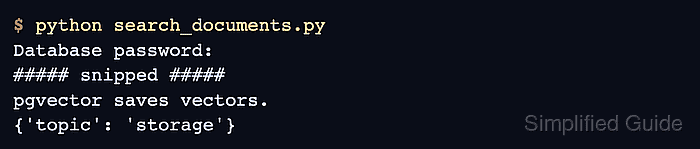
- Run the search script in a new process to confirm that the stored document comes back.
$ python search_documents.py
Database password:
##### snipped #####
pgvector saves vectors.
{'topic': 'storage'}
search_documents.py holds no document text and never calls add_documents, so this result comes from the rows stored in PostgreSQL.