Saved cell output in Jupyter Notebook can leave old printed values, large plots, or sensitive results inside an .ipynb file long after the code has changed. Clearing the output from a selected cell is useful before sharing a notebook, committing it to Git, or keeping only the results that still belong in the file.
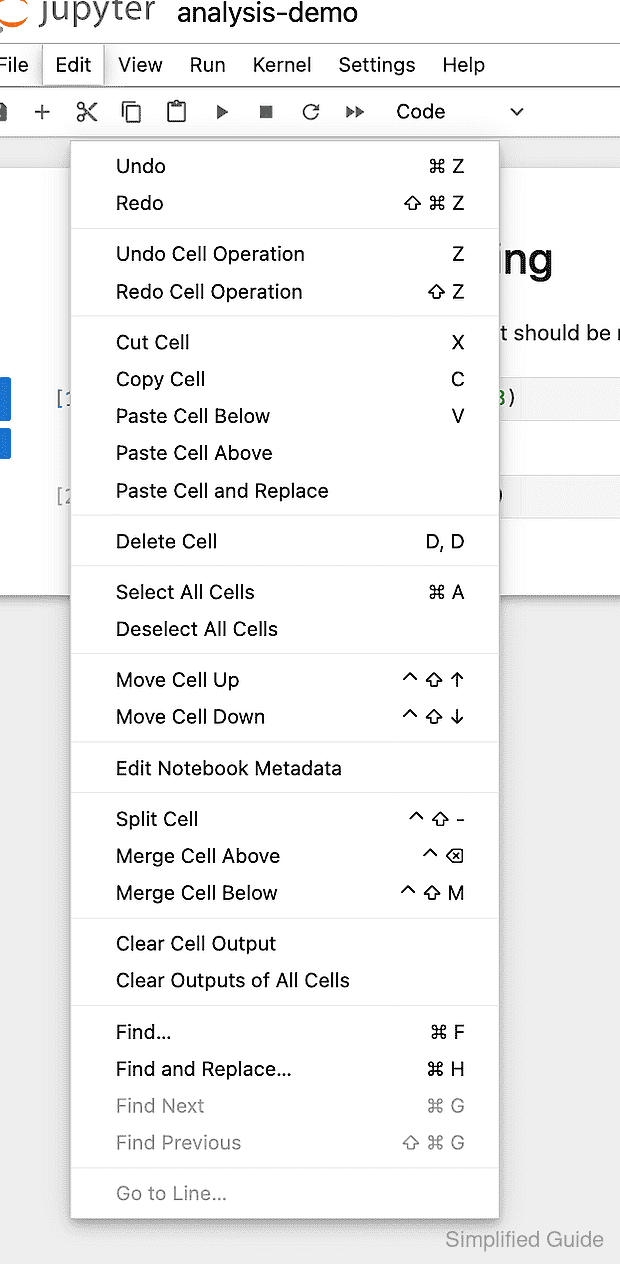
Notebook 7 keeps the clear-output command in the Edit menu for the active notebook. Clear Cell Output removes output only from the selected code cell, while Clear Outputs of All Cells removes every code-cell output in the notebook.
The clear action leaves code and markdown content in place, but the change still needs to be saved before the file is closed. Reloading the notebook after saving confirms that the cleared output was written back to the .ipynb file instead of only disappearing from the current browser view.
Steps to clear selected cell output in Jupyter Notebook:
- Open the notebook that contains the output to remove.
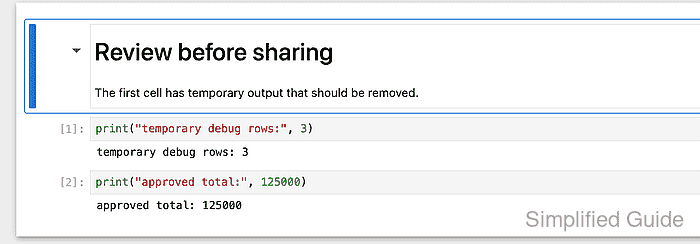
- Select the code cell whose output should be removed.

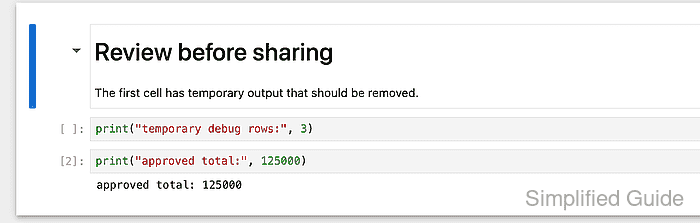
The selected cell has a blue left border. Click the cell body rather than selecting only text inside the editor.
- Open Edit and choose Clear Cell Output.
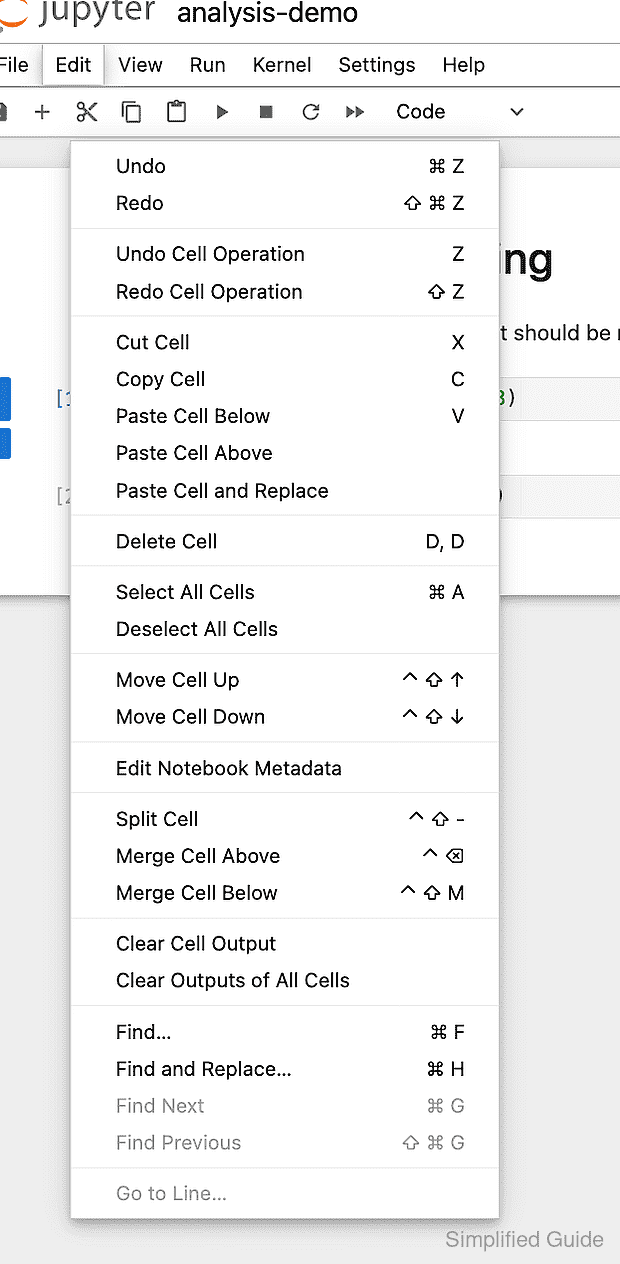
Use Clear Outputs of All Cells only when every code-cell output in the open notebook should be removed.
- Confirm the selected cell no longer shows output.
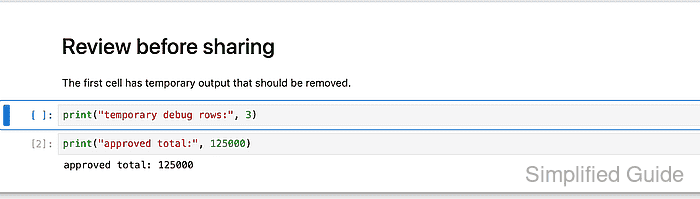
The cell source stays in place. Notebook resets the selected cell execution count to an empty prompt when the cleared state is saved.
- Open File and choose Save Notebook.
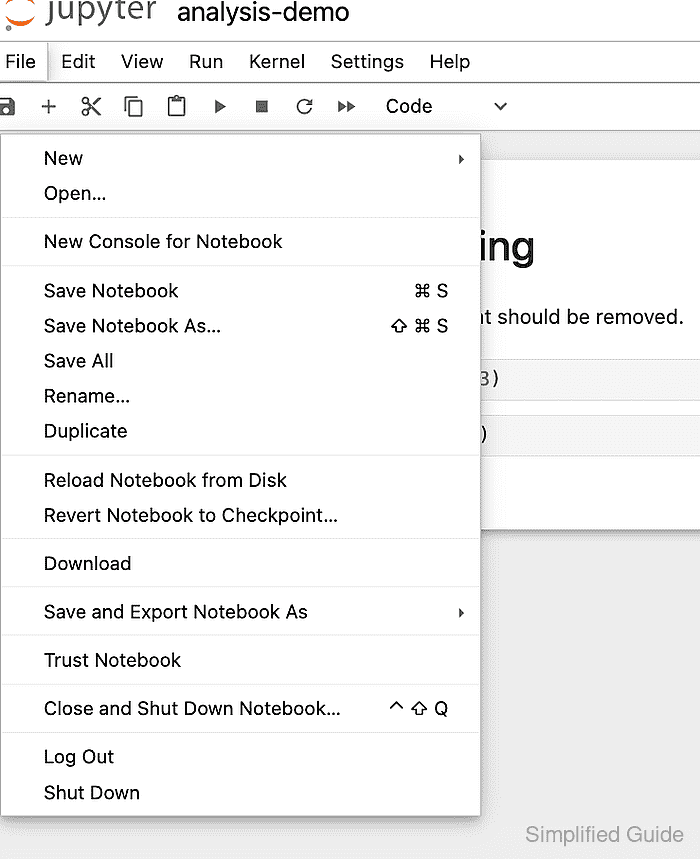
- Reload the notebook and confirm the cleared output does not return.

Mohd Shakir Zakaria is a cloud architect with deep roots in software development and open-source advocacy. Certified in AWS, Red Hat, VMware, ITIL, and Linux, he specializes in designing and managing robust cloud and on-premises infrastructures.


