Jupyter Notebook checkpoints provide a local recovery point when a saved notebook contains an unwanted edit, stale output, or accidental overwrite. Restoring a checkpoint replaces the open .ipynb file with the checkpointed version, so the action belongs only in cases where that checkpoint is the version you still trust.
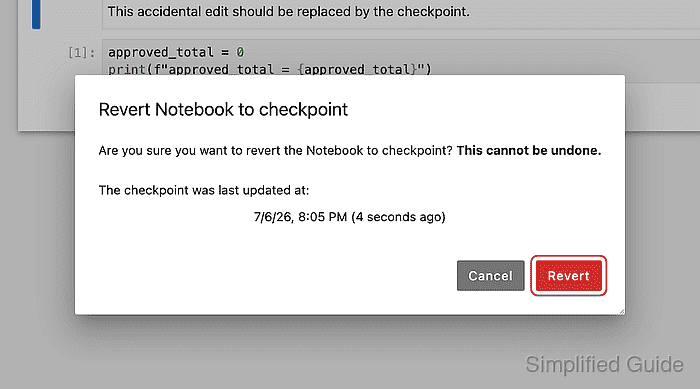
In Notebook 7, checkpoint restore is available from the notebook editor menu under File → Revert Notebook to Checkpoint…. The confirmation dialog shows the checkpoint time and warns that the restore cannot be undone; the default file-backed checkpoint store normally exposes the current checkpoint for the file rather than a long list of named revisions.
Check the open notebook before restoring so the wrong file is not replaced. Save a separate copy first if you need both versions, because the current file content is replaced by the checkpoint and later saves can move the checkpoint forward.
Steps to restore a Jupyter Notebook checkpoint:
- Open the affected notebook and confirm the current content is the version to replace.
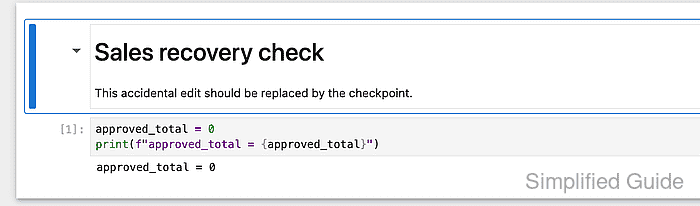
Last Checkpoint in the title bar shows that Notebook has a checkpoint available for the open file.
- Open File from the notebook menu bar.
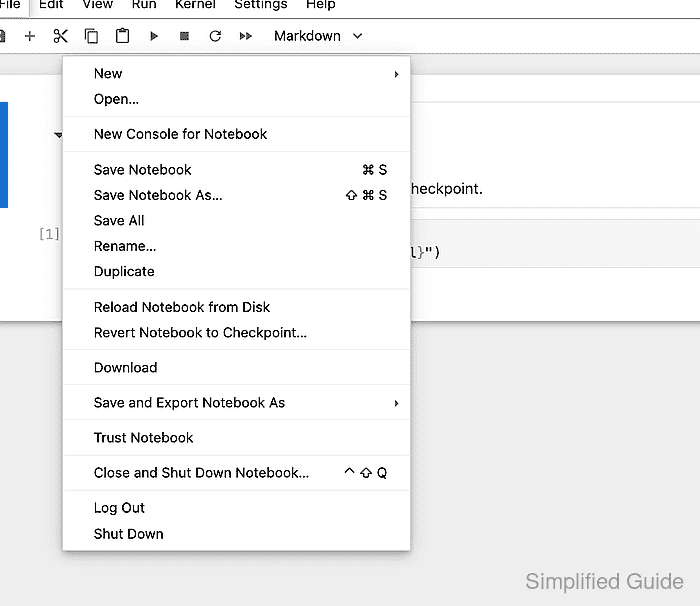
- Select Revert Notebook to Checkpoint… and review the checkpoint time in the dialog.
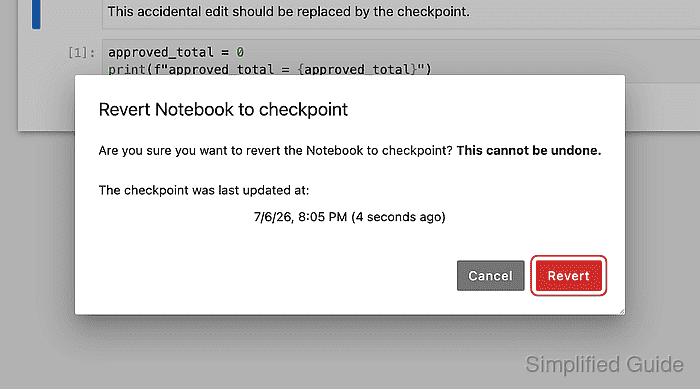
The dialog warns that the restore cannot be undone. Stop here if the checkpoint time is not the recovery point you expected.
- Click Revert and wait for the notebook to reload from the checkpoint.
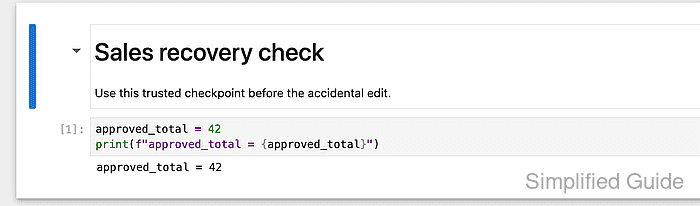
The restored notebook should show the checkpointed markdown, code, and output before you continue editing.

Mohd Shakir Zakaria is a cloud architect with deep roots in software development and open-source advocacy. Certified in AWS, Red Hat, VMware, ITIL, and Linux, he specializes in designing and managing robust cloud and on-premises infrastructures.


