Notebook slide decks need more than a linear export when cell order should become presentation flow. A Jupyter Notebook stores slideshow roles in cell metadata, and nbconvert turns that saved structure into a Reveal.js HTML deck for presenting analysis, lectures, or demos outside the live notebook editor.
nbconvert reads each cell's slideshow.slide_type value and maps it to a slide, vertical sub-slide, fragment, skipped cell, or presenter note. Save the notebook after assigning those roles and after producing the outputs that should appear, because conversion exports the notebook state on disk.
The generated .slides.html file uses Reveal.js in the browser. The basic export loads Reveal.js from a public CDN, which is enough for ordinary playback when the browser can reach the CDN. Speaker notes require local Reveal.js assets, and timers require a local HTTPS server, so plan a local --reveal-prefix or --post serve path for presenter features or offline delivery.
Steps to convert a Jupyter Notebook to slides with nbconvert:
- Save the notebook after assigning slideshow roles to the cells that control the deck.
Use Slide for a new horizontal slide, Sub-Slide for a vertical slide, Fragment for content that appears incrementally, Skip for material left out of the deck, and Notes for presenter notes.
- Convert the notebook to a Reveal.js slide deck.
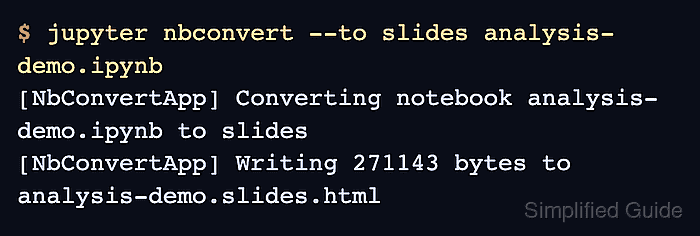
$ jupyter nbconvert --to slides analysis-demo.ipynb
[NbConvertApp] Converting notebook analysis-demo.ipynb to slides
[NbConvertApp] Writing 271143 bytes to analysis-demo.slides.html
Replace analysis-demo.ipynb with the notebook file to export. nbconvert writes .slides.html beside the source notebook.
- Check that the slide deck file was written.
$ ls -lh analysis-demo.slides.html
-rw-r--r-- 1 user user 265K Jul  6 12:37 analysis-demo.slides.html
- Inspect the exported HTML for the expected slide content and skipped material.
$ python - <<'PY'
from pathlib import Path

html = Path("analysis-demo.slides.html").read_text(encoding="utf-8")
checks = {
    "Reveal.js deck": "reveal" in html and "slides" in html,
    "title slide": "Quarterly briefing" in html,
    "saved output": "total revenue: $125,000" in html,
    "fragment cell": "Market notes" in html and "fragment" in html,
    "speaker notes": "Speaker reminder" in html and "notes" in html,
    "skipped cell omitted": "Internal backup note" not in html,
}

for label, passed in checks.items():
    print(f"{label}: {passed}")
PY
Reveal.js deck: True
title slide: True
saved output: True
fragment cell: True
speaker notes: True
skipped cell omitted: True
Adjust the checked text to match the real notebook title, saved output, fragment cell, notes, and skipped content.
- Open analysis-demo.slides.html in a browser and move through the deck with the arrow keys.
Speaker notes need local Reveal.js assets, and timers need a local HTTPS server. Use a local copy with --reveal-prefix, or start a temporary server with --post serve when those presenter features matter.

Mohd Shakir Zakaria is a cloud architect with deep roots in software development and open-source advocacy. Certified in AWS, Red Hat, VMware, ITIL, and Linux, he specializes in designing and managing robust cloud and on-premises infrastructures.


